
Safety and legal information
Read this entire section before installing or turning on the unit. Improper use can damage the dispenser, void the warranty or put your safety at risk.
Power supply
- Rated voltage: 220 V~ / 50–60 Hz. Check that your electrical supply matches the voltage on the unit's label.
- The unit requires a grounded outlet in good condition. Grounding is mandatory for your safety.
- Plug it into a circuit with enough capacity and avoid sharing the outlet with other high-power appliances (refrigerators, ovens).
Multi-plug adapters, splitters or uncertified extension cords. If you need an extension cord, use a certified one.
Cord and connection
- If the cord or plug is damaged, do not use the unit: it must be replaced by the manufacturer or authorized personnel.
- To unplug, pull the plug, never the cord. Do not handle the plug with wet hands.
Handling the unit
Do not open the unit or handle its interior while it is plugged in. Any internal work must be done by an authorized service technician. Any unauthorized repair or modification voids the warranty.
Inert gas (argon or nitrogen)
Keep the cylinder away from heat sources and in a stable position. Do not puncture it, strike it or expose it to fire. Replace the cylinder with the unit turned off, following the manufacturer's instructions. How to open and close each type of cylinder is explained in section 4.
The rules for gas cylinders (type, valve, color and refilling) vary from country to country and with the conditions of each installation. Always use cylinders approved in the country where the unit is installed, and never use a cylinder brought from another country. In some countries the small internal cylinder is not included from the factory; there may be particular cases, which you can review with Vitte staff.
Intended use
- Designed to serve wine and other still alcoholic beverages (not sparkling). Sparkling wines do not damage the unit, but their gas can cause dripping or splashing when pouring, so they are not recommended.
- Indoor use only, at room temperatures up to 30 °C, away from direct sunlight and moisture. Not suitable for storing food.
- In businesses, follow the regulations on the sale of alcoholic beverages: in Argentina and most countries in the region, sales to minors under 18 are prohibited. We promote responsible drinking.
Connectivity
- The tablet needs internet (Wi‑Fi) to sync with the management panel and, on the Pro, to identify customers, take payments and receive orders from phones.
- If the internet goes down, see "If the internet goes down" in section 9.
Data protection Pro only
- If you register customers (name, phone, email, balance), you are responsible for processing that personal data in accordance with the laws of your country.
- Use that information only to operate the service and do not share it without consent.
Data backup
- Essential: the customer list with their balances (Pro). It is your customers' money and, if lost, it cannot be recovered. Download it in Excel every day from the management panel (section 13).
- Recommended: the consumption and cash register reports, if you want to keep your own history of sales and cash counts.
- You do not need to back up wines or users: Vitte manages them, and wines are a shared catalog.
Any loss of information that may occur after a server problem does not create any liability for Vitte Wine Technology SRL: each customer can and should keep their own backup of their information.
Introduction
What the Vitte Agile and the Vitte Pro are, how they differ and how they grow with your business.
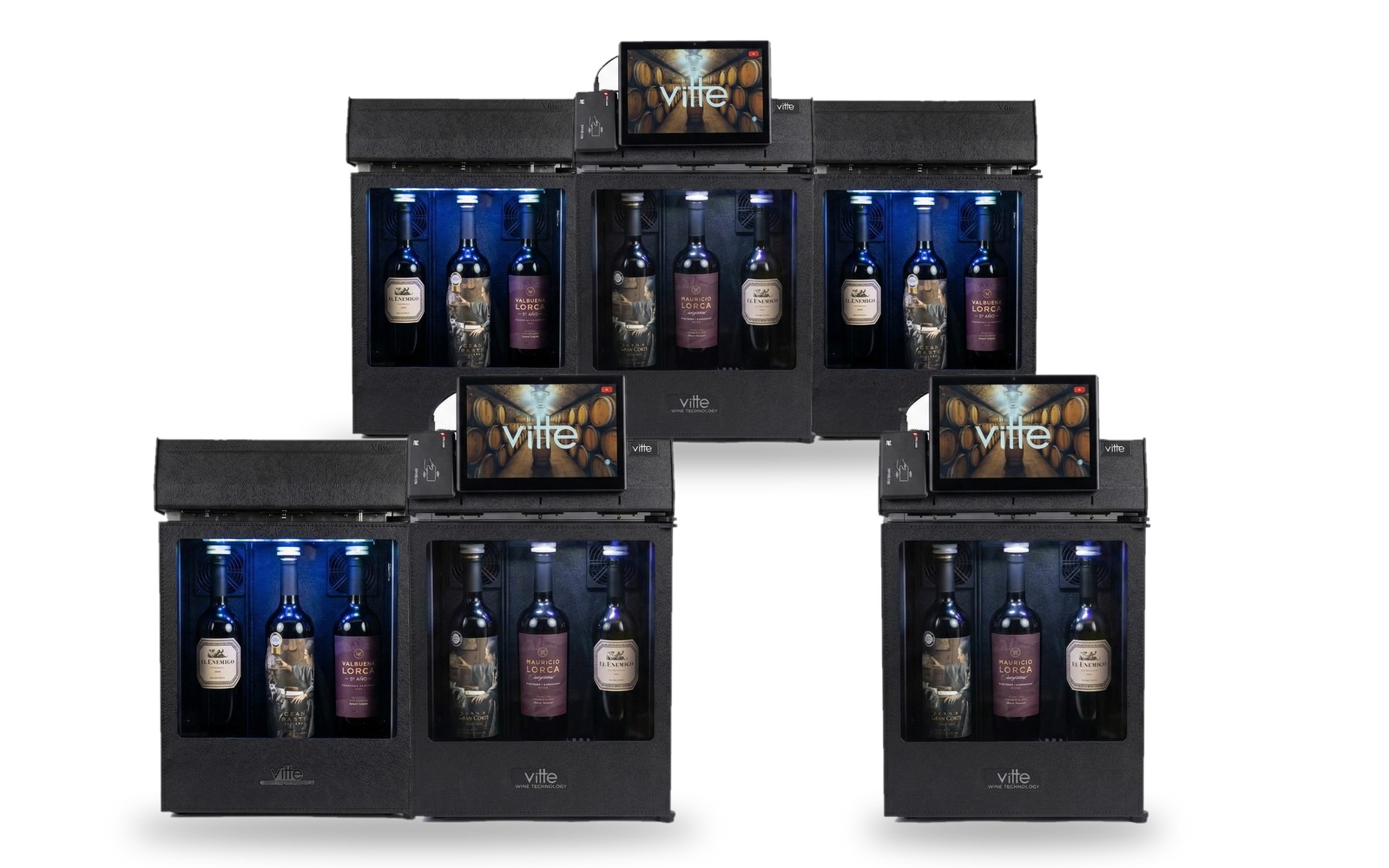
Vitte dispensers preserve opened wine for more than 20 days using inert gas, pour by the glass in configurable sizes and cool at 1 or 2 temperatures. They are operated 100% from a connected touch screen: they have no physical buttons.
Agile and Pro
| Model | What it does |
|---|---|
| Agile | Shows the wines with their image, pour sizes, tasting notes and the information you entered, and pours without charging. It has access to the management panel to add wines and set pour sizes and prices. |
| Pro | Everything the Agile does, plus built-in payments (internal balance or digital wallet) and customer management: identification, balances, top-ups, orders from phones and consumption and cash register reports. |
The physical unit is the same in both models.
A unit that grows with your business
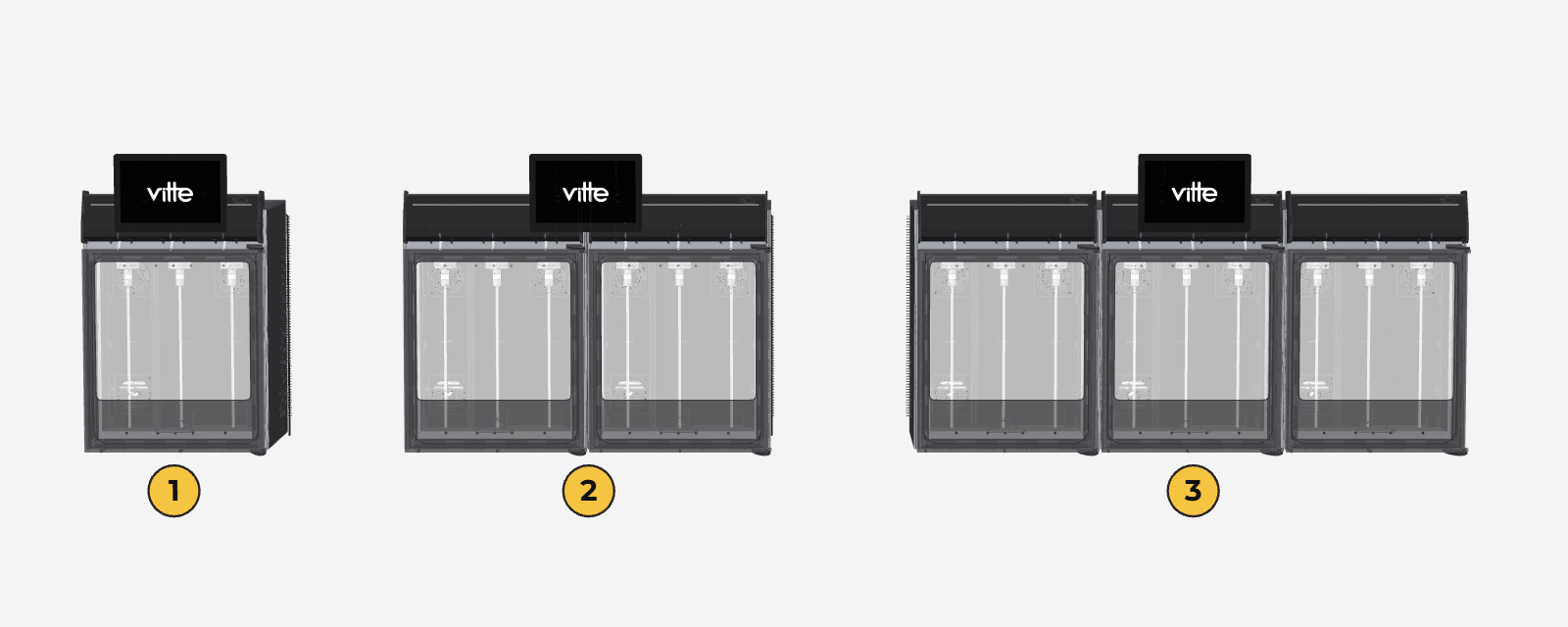
The Agile always holds 3 bottles. The Pro starts with one 3-bottle module and expands by adding modules of 3, up to 6 or 9 bottles, as your business grows: these are the Pro Max 6 and the Pro Max 9, a Pro with 2 or 3 modules and a single tablet. Unlike fixed-capacity units, you don't need to replace the machine to expand your selection.
- During a service call, only one 3-bottle module stops: the rest of the unit keeps working.
- It is easier to move 3-bottle modules than a 9-bottle machine.
What you can do
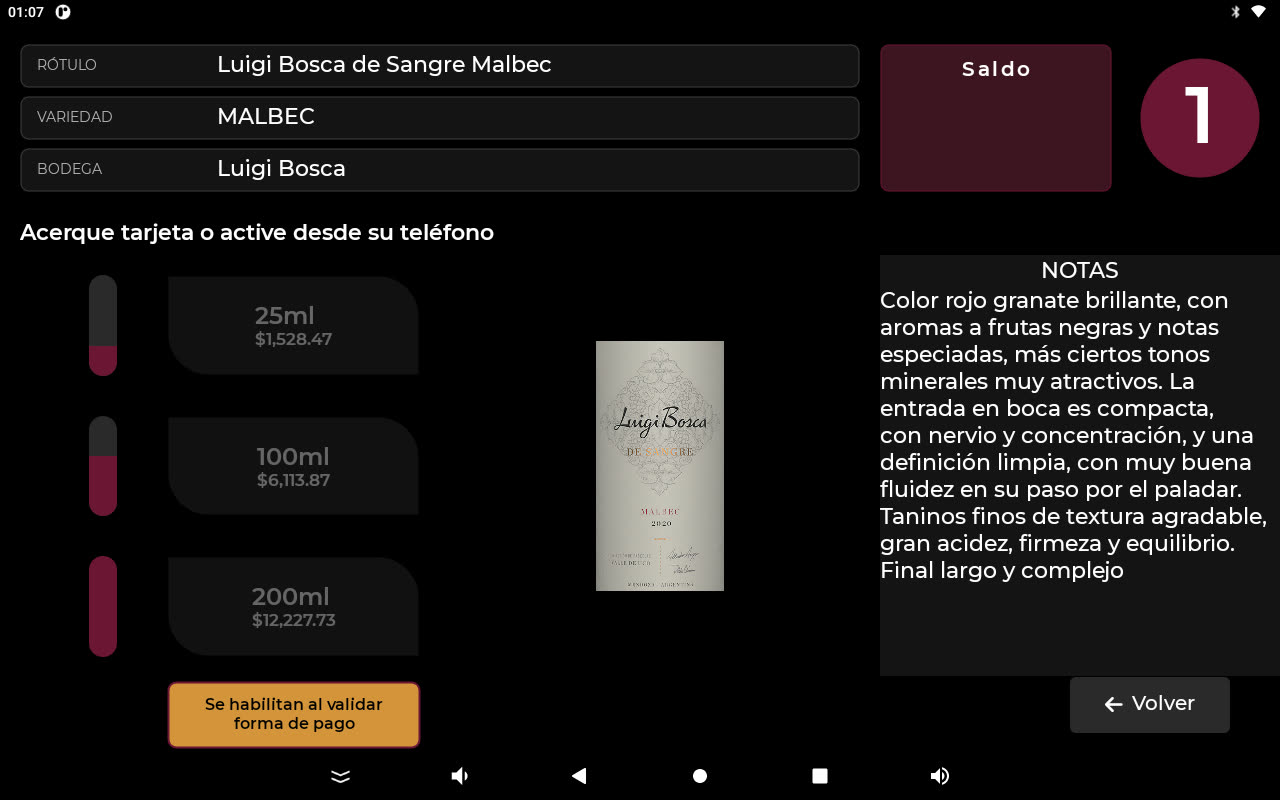
- Touch screen with an image of each wine, its pour sizes, prices and tasting notes.See example
- AI-assisted wine entry from the web panel: add a wine by taking a photo of its label.See section 6
- Web management panel: wines, machines, pour sizes and prices; on the Pro, also customers and reports you can download in Excel.See section 13
- On-screen indicators: connection status and temperatures.See diagram
- Multi-language and multi-country (Spanish, Portuguese and English), with cloud sync.See where to change it
- Pro · Customer identification by QR code or card, with their own account and balance.See section 10
- Pro · Built-in payments: internal balance topped up at the register, or digital wallet (Mercado Pago / PIX).See section 10
- Pro · Ordering from a phone: the customer chooses the wine and pour size on their phone and confirms at the unit.See example
Designed for
- Businesses: with the Pro, identify customers, charge by the glass, track consumption and keep reports from the panel.
- Home: a premium experience with a screen, a visual catalog and control of the unit.
Unit components
What each part of the unit and of the home screen is.
Touch tablet
- It is mounted on the front of the unit. The unit has no physical buttons: everything is operated from the screen.
- From it you pour, identify the customer (Pro) and open the configuration.
- It connects to the internet over Wi‑Fi to sync with the cloud and the management panel.
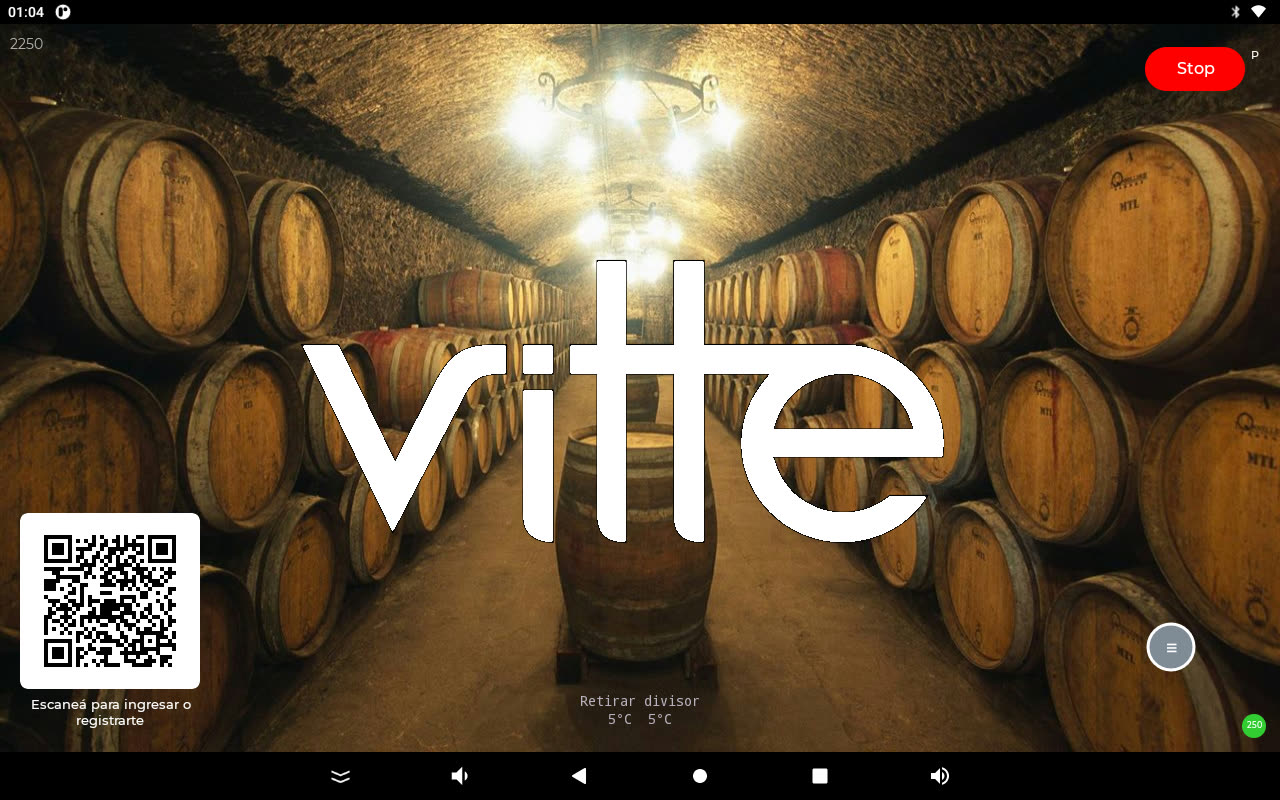
The home screen, part by part
 1
2
3
4
5
6
7
8
1
2
3
4
5
6
7
8
- 1
- Customer QR code (Pro). The customer scans it with their phone camera to sign in to their account or register. It refreshes automatically every 45 seconds. It can be hidden from the panel (section 6).
- 2
- Logo. Tap it to see the loaded wines and pour. The venue's logo is managed by Vitte: once uploaded, it appears instead of the Vitte logo. Depending on the country or region, there may be a fee.
- 3
- Menu button. Opens four options, all password-protected: Cleaning (section 15), Configuration, Calibration and Temperature (section 14).
- 4
- Stop. Immediately stops any pour in progress, at all positions. Use it in case of any spill or error.
- 5
- Connection status. The number is the server response time in milliseconds. Green: good connection. Orange: some delays. Red: unstable connection, check the Wi‑Fi. Tap it to see the details (section 12).
- 6
- Set temperatures for each zone and the divider notice: "Place divider" when the two zones have different temperatures, "Remove divider" when they are the same. With several modules, there is one line per module.
- 7
- App version number. Support may ask you for it. If the unit controls volume, the liquid level indicator also appears here (section 12).
- 8
- Unit type: "P" if the unit is owned, "Rental" if it is rented. This is information for support: they may ask for it during a support call.
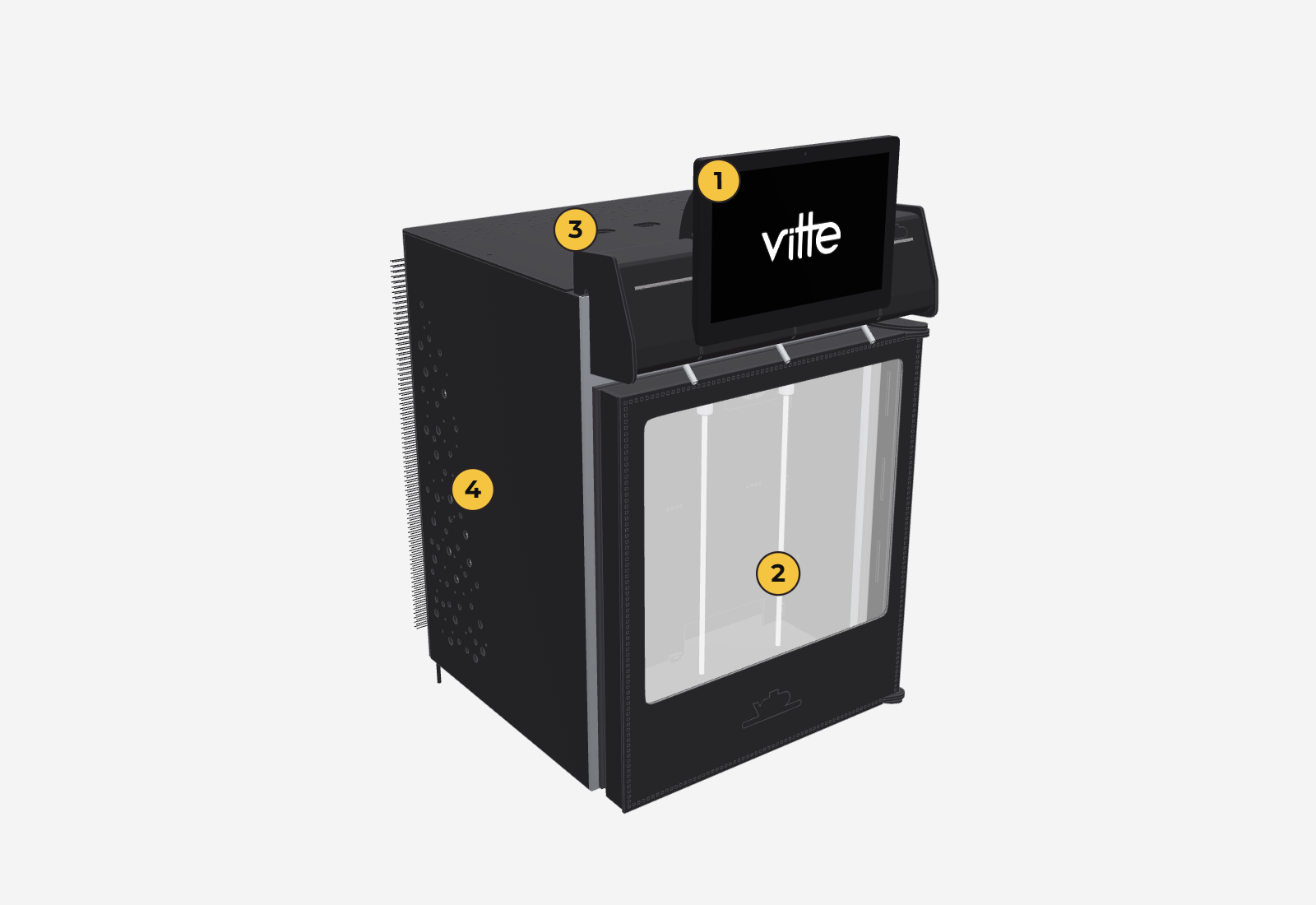
Rest of the unit
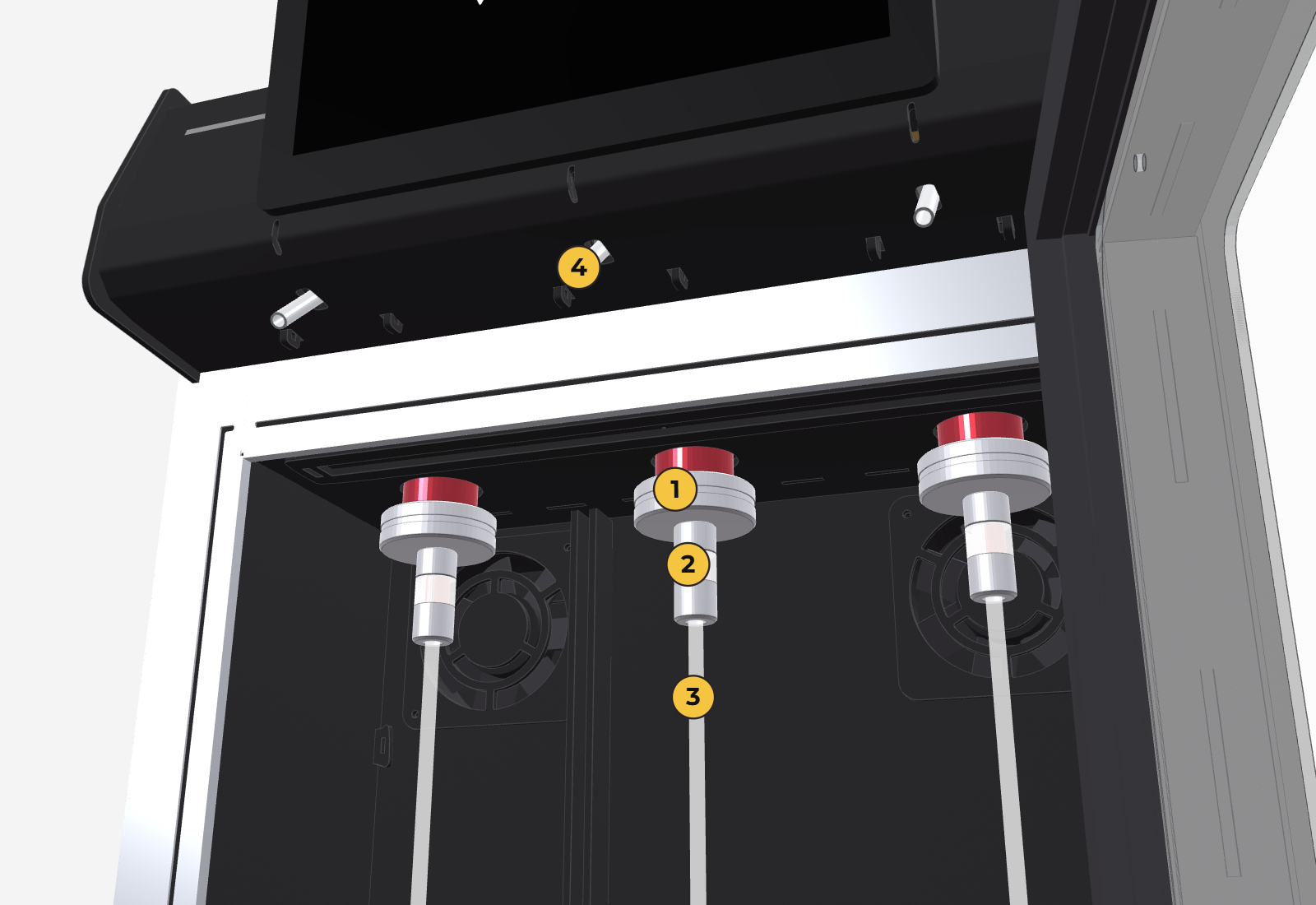
- Dispensing system: three spouts and three positions per module. Each bottle hangs from its hanger with a suction hose, silicone bushing and knurled nut (section 7).
- Cooling and lighting: cooling zone with 1 or 2 temperatures (5 to 19 °C) and interior LED lighting.
- Inert gas: argon or nitrogen, with an external cylinder (½ m³ ≈175 bottles or 1 m³ ≈350, depending on local availability) or, where available, a small internal cylinder (≈30–35 bottles). The cylinder depends on the region and the terms of sale (section 4).
- Other: magnetic top cover and 220 V power cord with ground.
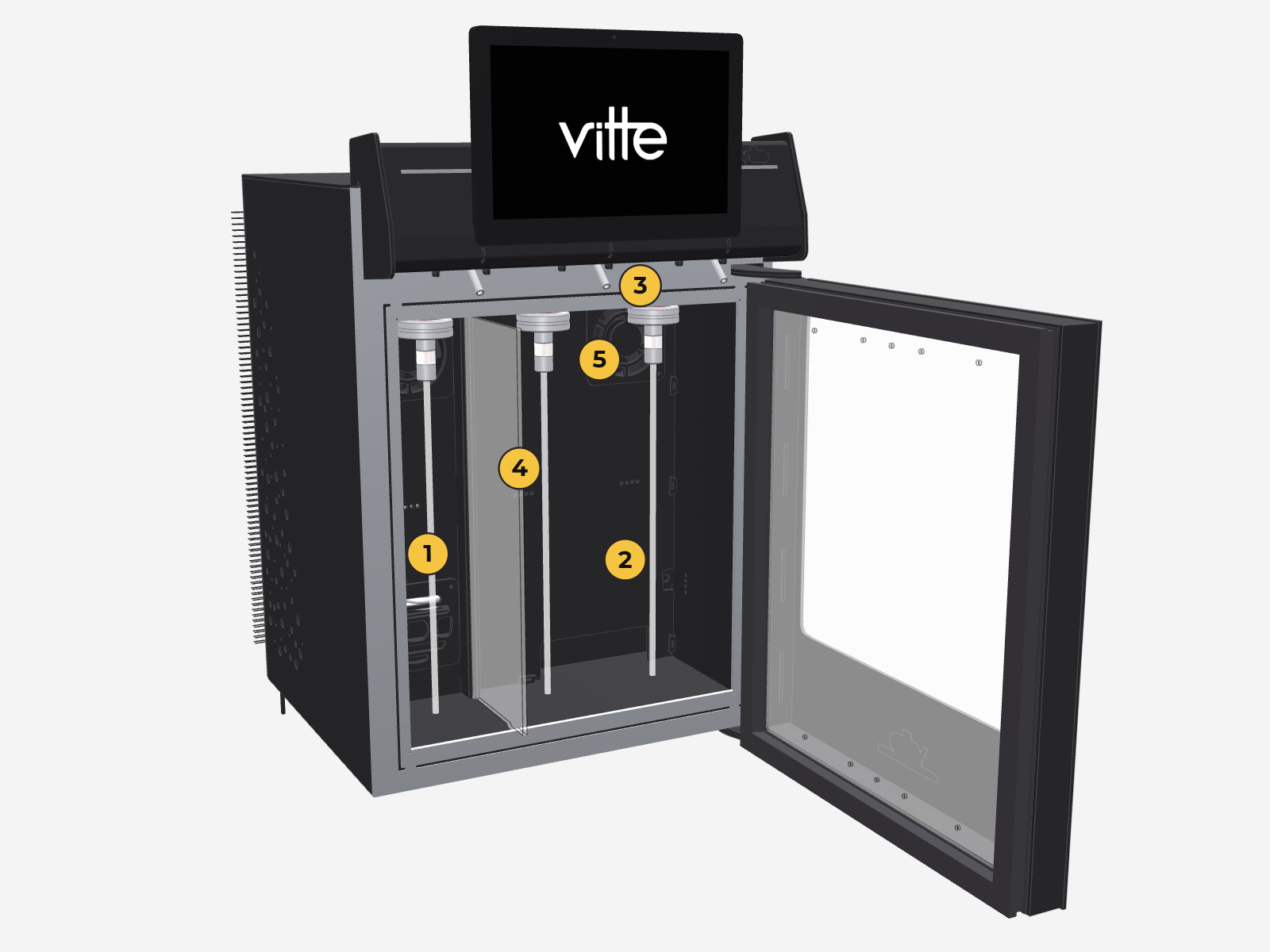
Modules and temperature zones
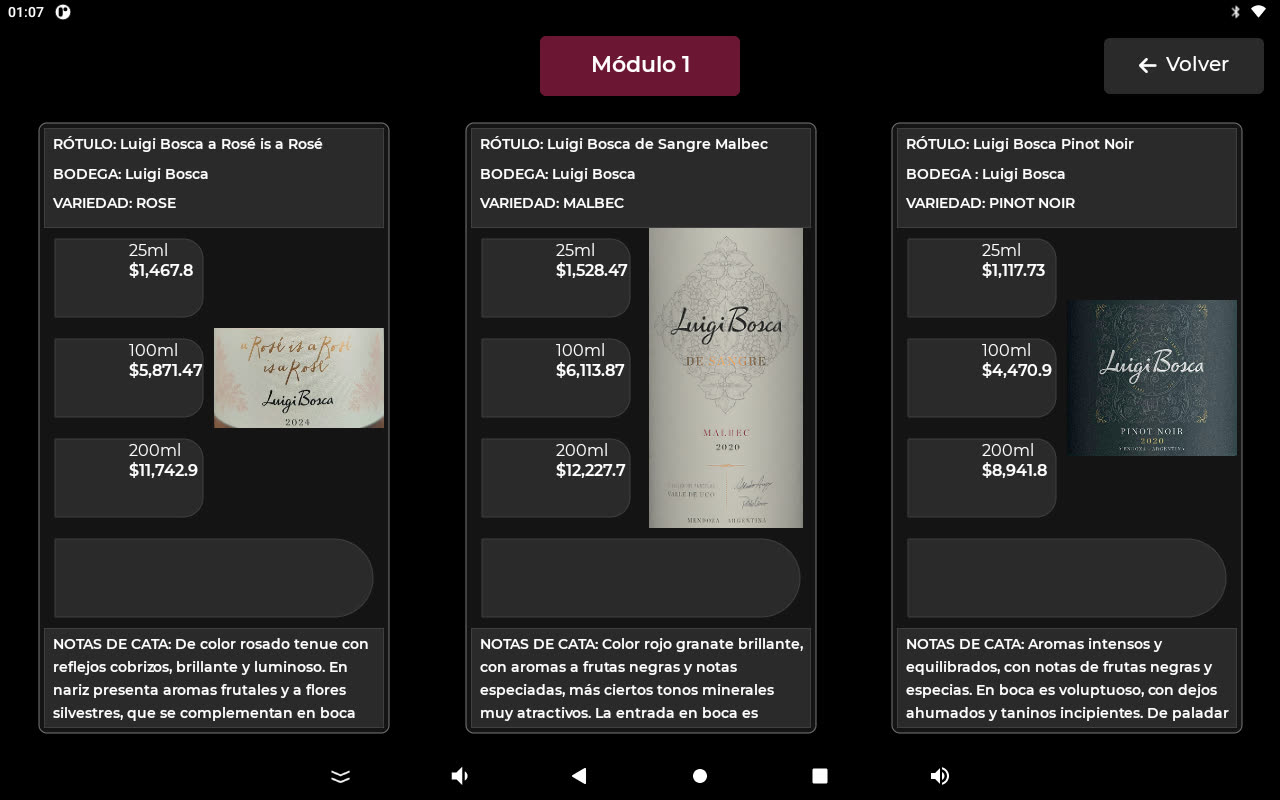
Everything described so far applies to one 3-bottle module. By adding modules, a single tablet can handle up to 6 or 9 bottles; the wine screen shows the buttons "Module 1", "Module 2" and "Module 3".
If your venue is very busy, each module can have its own screen, at an additional cost, to serve more customers at once.
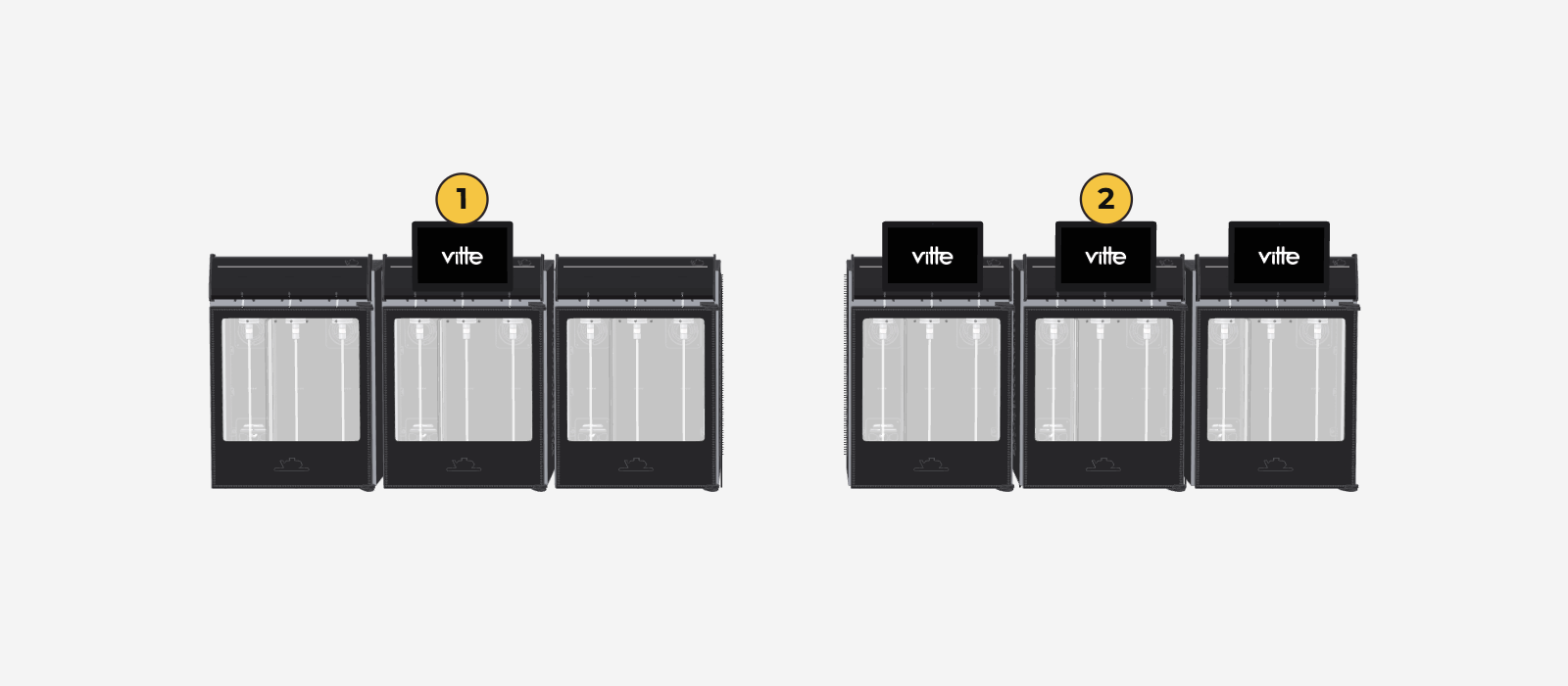
- Each module is configured separately for 1 or 2 temperatures.
- With 2 temperatures, the left position (position 1) is always the coldest; positions 2 and 3 form the other zone.
- Any combination is possible: see them all in Cooling combinations (section 14).
Technical specifications
| Feature | Agile and Pro | Pro Max 6 | Pro Max 9 |
|---|---|---|---|
| Bottles | 3 (1 module) | 6 (2 modules) | 9 (3 modules) |
| Width | 403 mm | 807 mm | 1210 mm |
| Height (with tablet) | 664 mm | ||
| Depth | 450 mm | ||
| Color | Black with stainless steel details | ||
| Temperature zones | 2 per module | ||
| Temperature range | 5 °C to 19 °C | ||
| Screen | 10.1" touch tablet | ||
| Portioning | 3 user-configurable pour sizes | ||
| Bottle pressurization | Bottle Lock system (Vitte patent) | ||
| Preservation | Nitrogen or argon | ||
| Cooling | 1/6 HP compressor, R134A refrigerant, maximum low-side pressure 3 PSI | ||
| Thermal insulation | Double chamber with UV protection | ||
| Lighting | LED | ||
| Power supply | 220 V, 50/60 Hz | ||
| Power consumption | 230 W | 460 W (230 W per module) | 690 W (230 W per module) |
| Weight | 28 kg (32 kg with packaging) | 56 kg (2 modules of 28 kg) | 84 kg (3 modules of 28 kg) |
| Packaging | Export-grade MDF crate, 480 × 760 × 550 mm (width × height × depth). Each 3-bottle module is packed separately. | ||
| Origin | Made in Argentina or Brazil, depending on the destination. Tariff code (NCM) 8476.21.00.000R. | ||
Installation and setup
From the moment you receive the unit until it is on and connected to the internet.
When you receive the unit, schedule the installation video call with technical support (free of charge). During that call, the unit is configured to suit your needs and you are shown how it works. The steps in this section are done during that video call, unless you already know the unit and how it works and can do it on your own.
Physical installation
- When you receive the unit: check the box for dents or damage before unpacking (take photos for insurance; you have 48 h to file a claim). Remove the top cover and check that there is no damage.
- Electrical: 220 V (or 110 V on units made to order: check the rating plate), grounded outlet.
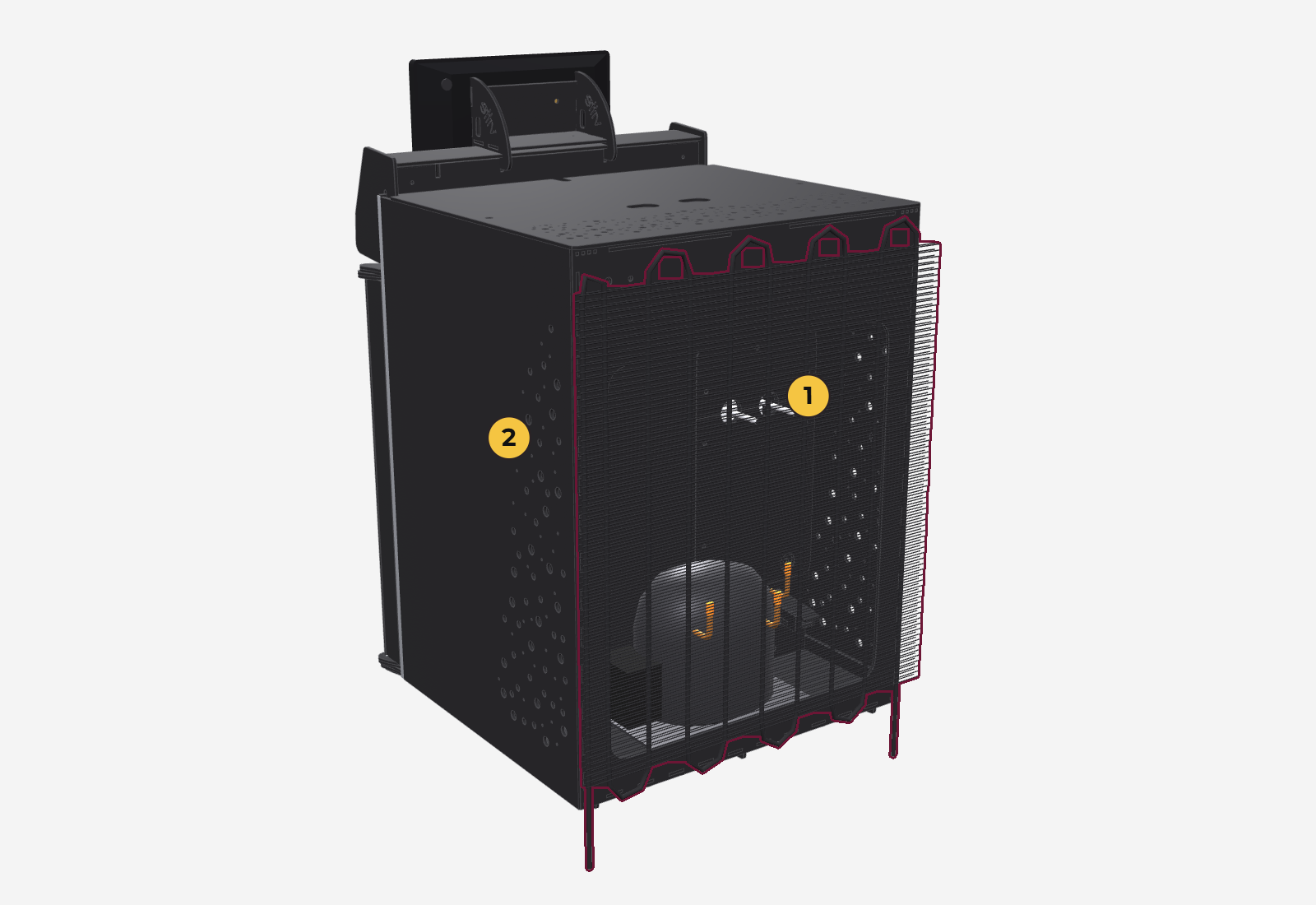
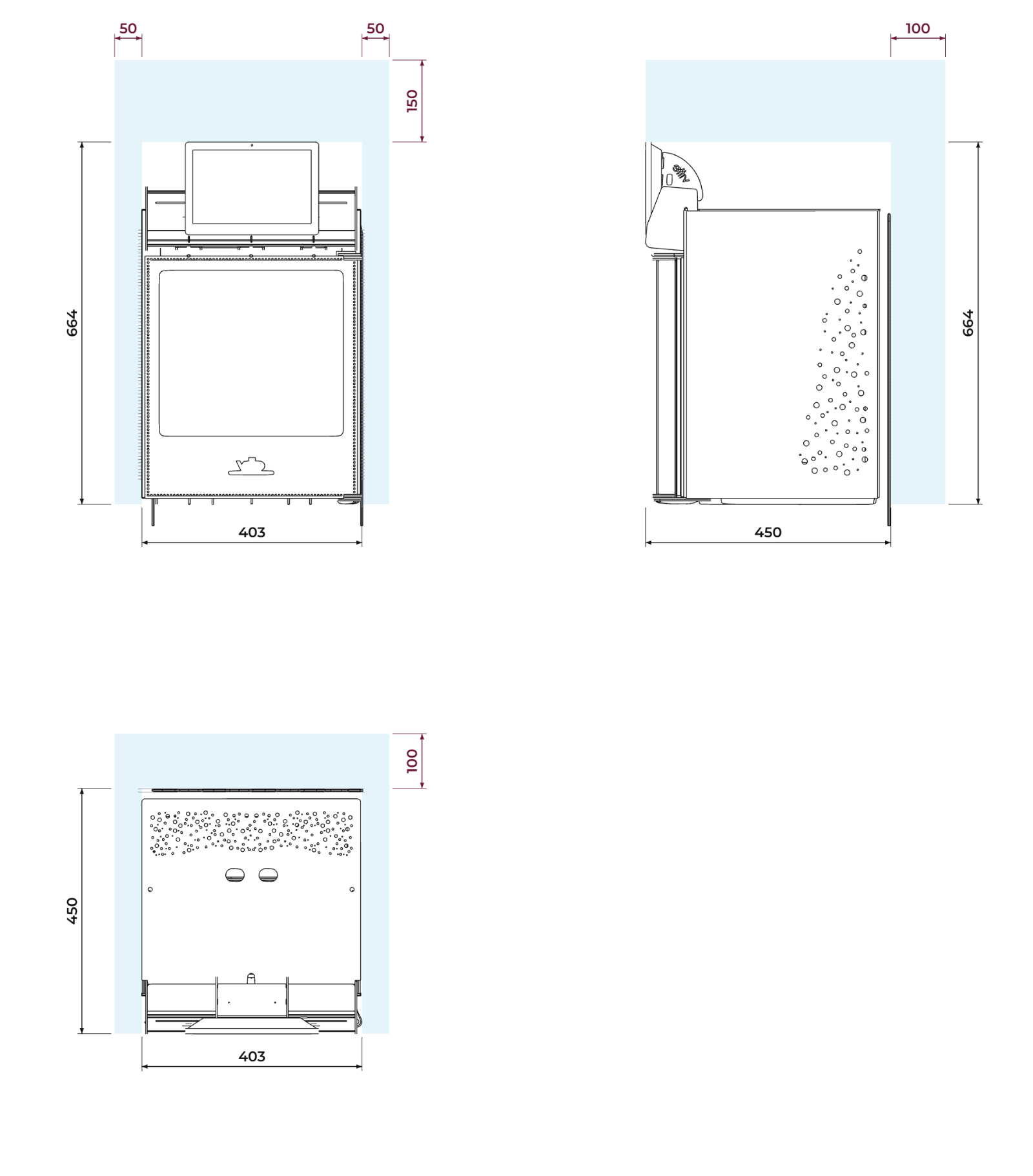
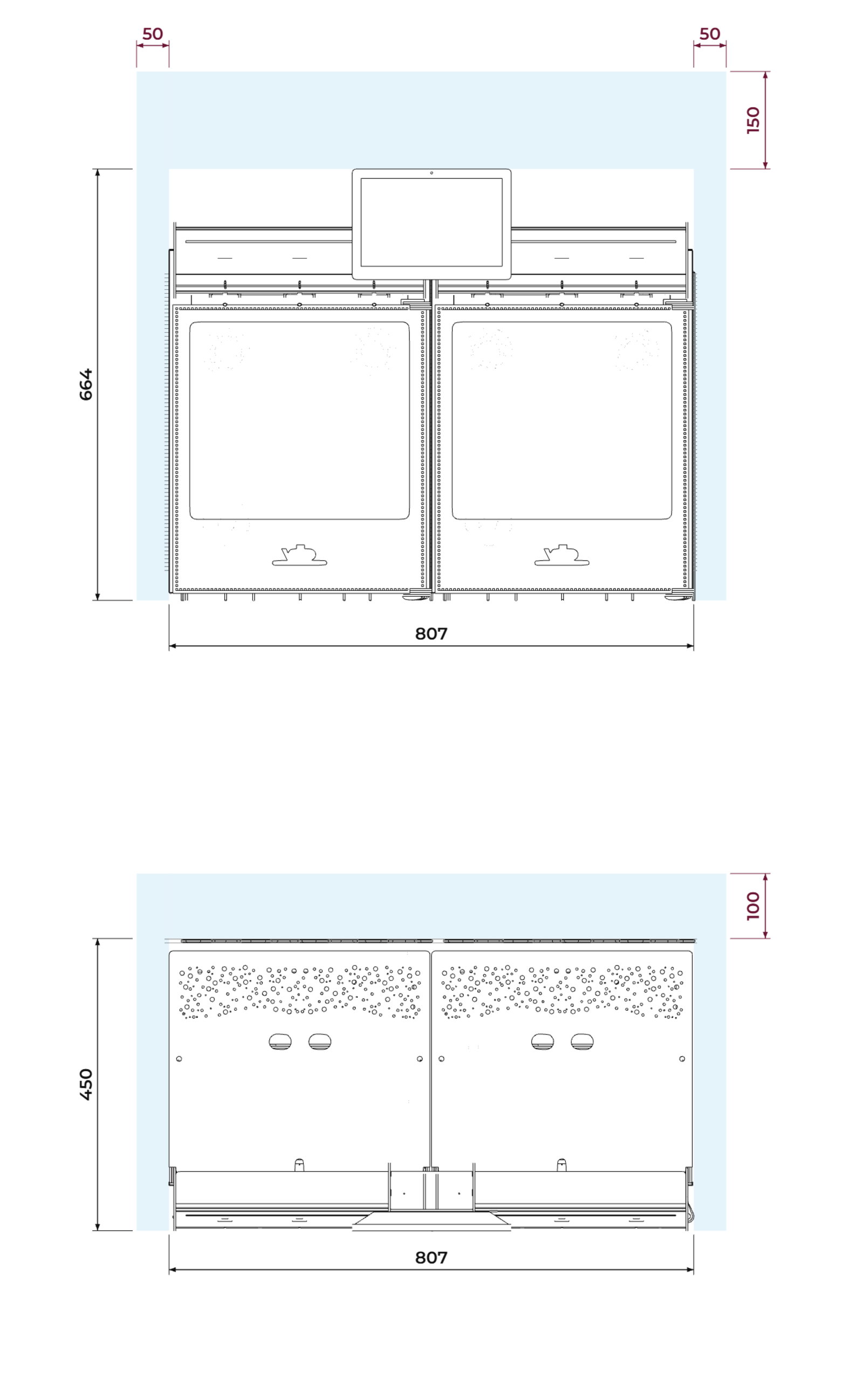
- Location: a firm, level, ventilated surface, away from sunlight and direct heat. Leave at least 10 cm behind, 5 cm on each side and 15 cm above clear for ventilation, including inside a cabinet.
- Rest time before plugging in: 4 h if it was always transported upright; 24 h if in any doubt.
- Gas: check that the cylinder is connected and open (see The gas, below).
The lower door hinge must rest on the firm surface. Never leave the unit with the door overhanging the edge of the counter or cabinet: the hinge can bend and the door can come off.
The unit is a refrigerator: there may be condensation or water leaks, for example during defrost. If you place it on wooden furniture or any material that moisture can damage, take precautions (for example, a tray or a waterproof mat underneath) so the surface it rests on is not damaged.
Space required
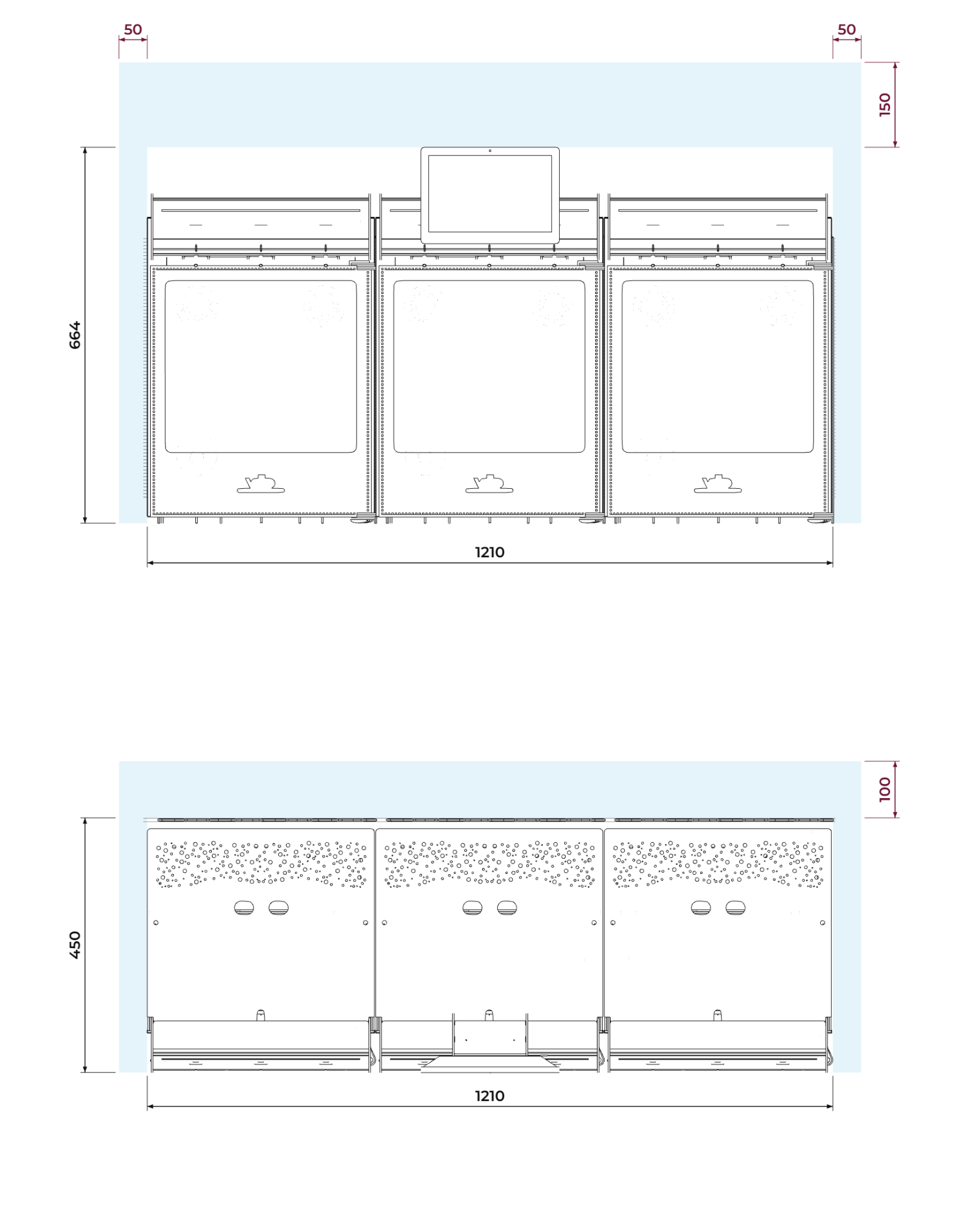
Unit dimensions plus the minimum clearance for ventilation (10 cm behind, 5 cm on each side and 15 cm above):
| Model | Unit (W × H × D) | Minimum space (W × H × D) |
|---|---|---|
| Agile and Pro (3 bottles) | 403 × 664 × 450 mm | 503 × 814 × 550 mm |
| Pro Max 6 (6 bottles) | 807 × 664 × 450 mm | 907 × 814 × 550 mm |
| Pro Max 9 (9 bottles) | 1210 × 664 × 450 mm | 1310 × 814 × 550 mm |
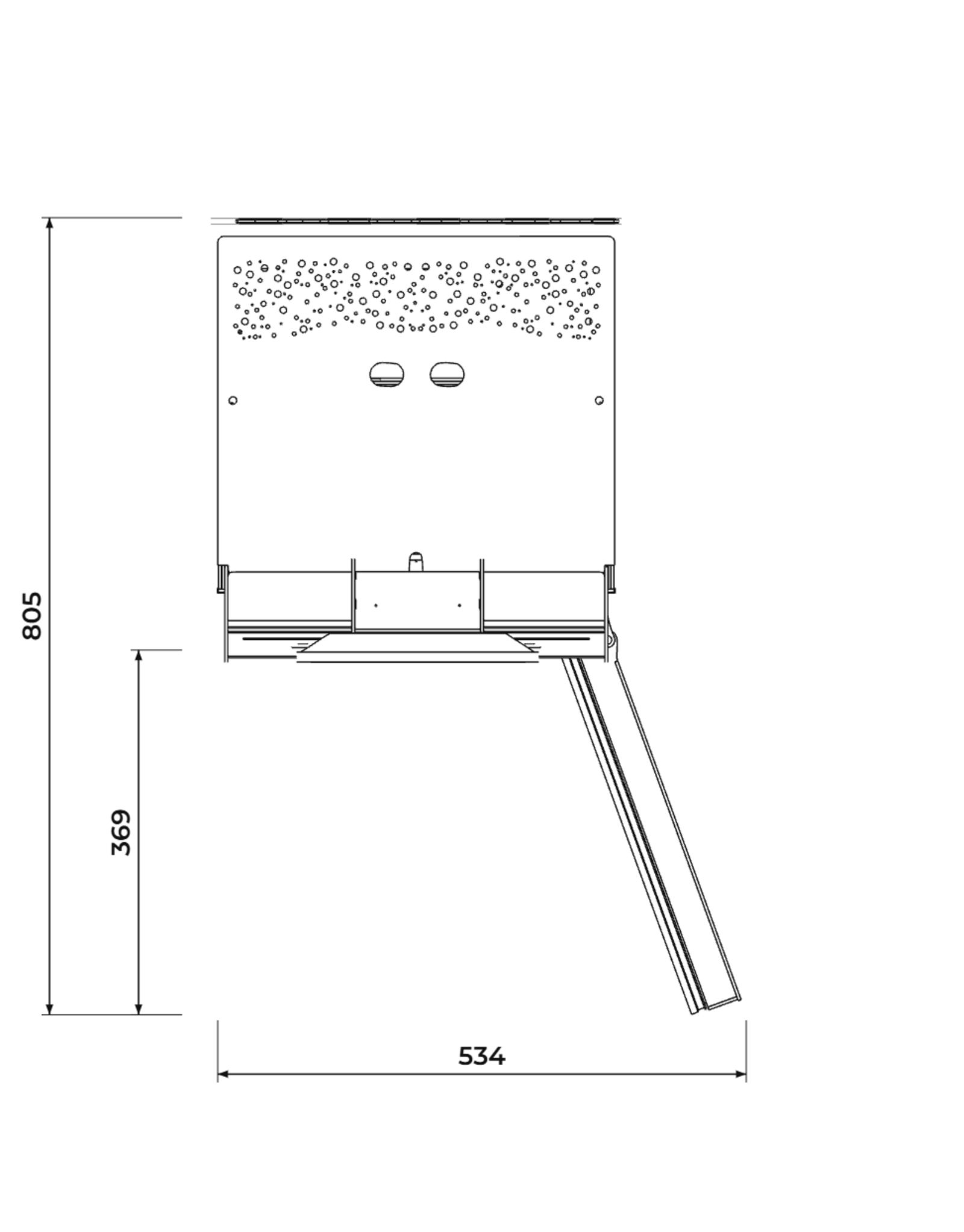
To open the door all the way, also leave about 37 cm clear in front: the open door extends 369 mm in front of the unit.
The gas
The gas has two functions: it preserves the wine, because it takes the place of the air inside the bottle and keeps it from oxidizing, and it pushes the wine out of the bottle when pouring.
The wine is preserved with argon or nitrogen. The cylinder depends on the region and the terms of sale:
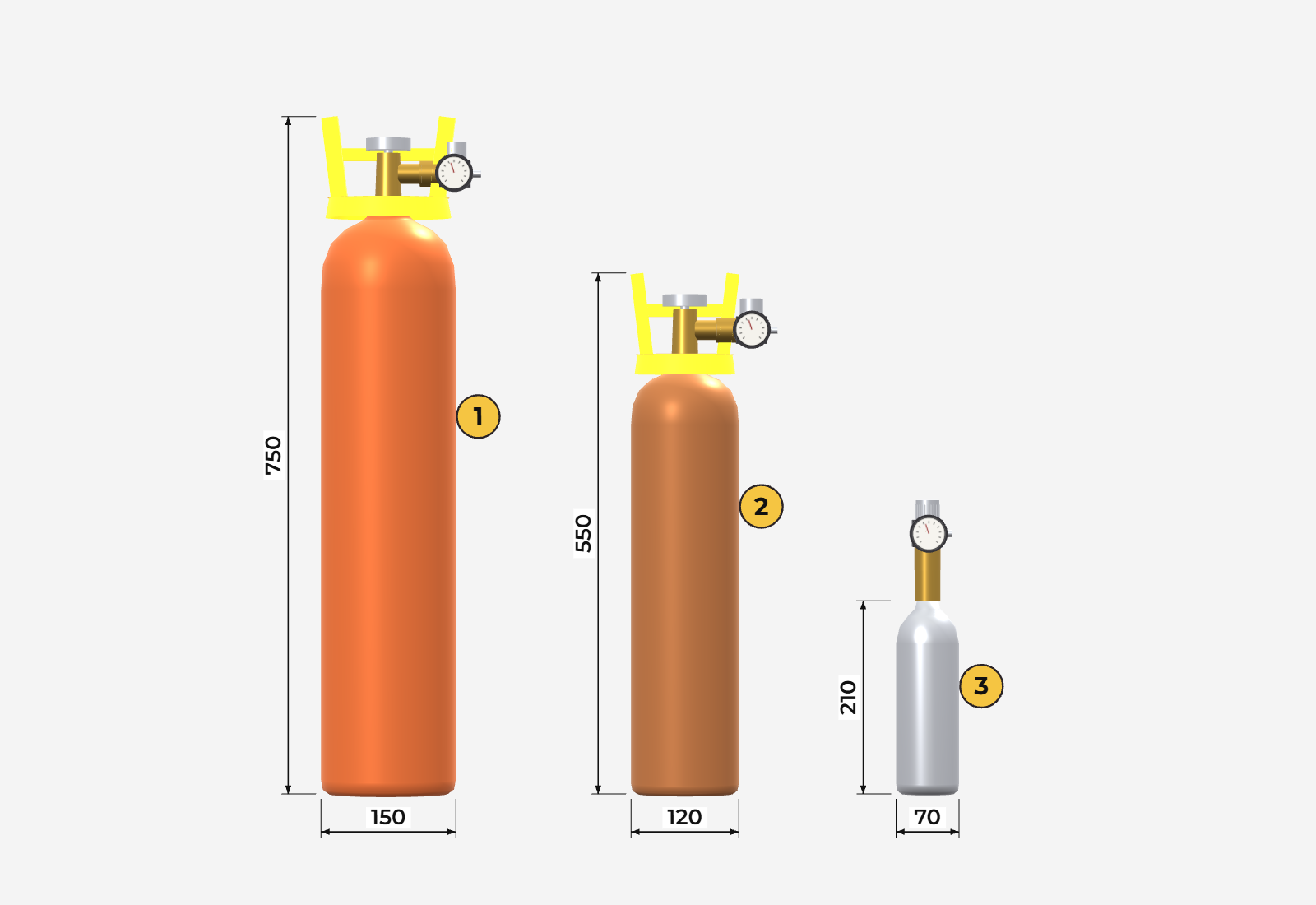
- External cylinder, the usual option. Its size depends on local availability: commonly ½ m³ (about 175 bottles) or 1 m³ (about 350); larger cylinders also work. Its color follows each country's rules (for example, orange in Argentina and brown in Brazil).
- Small internal cylinder (800 cm³, about 30 to 35 bottles): available, but not included from the factory in every region.
Outside the country where the unit is made, the cylinder is usually bought locally from an industrial or welding gas supplier, because each country has its own standards for cylinders and valves; depending on the terms of sale, Vitte may supply it. The pressure regulator and the hose are also supplied according to the region and the terms of sale.
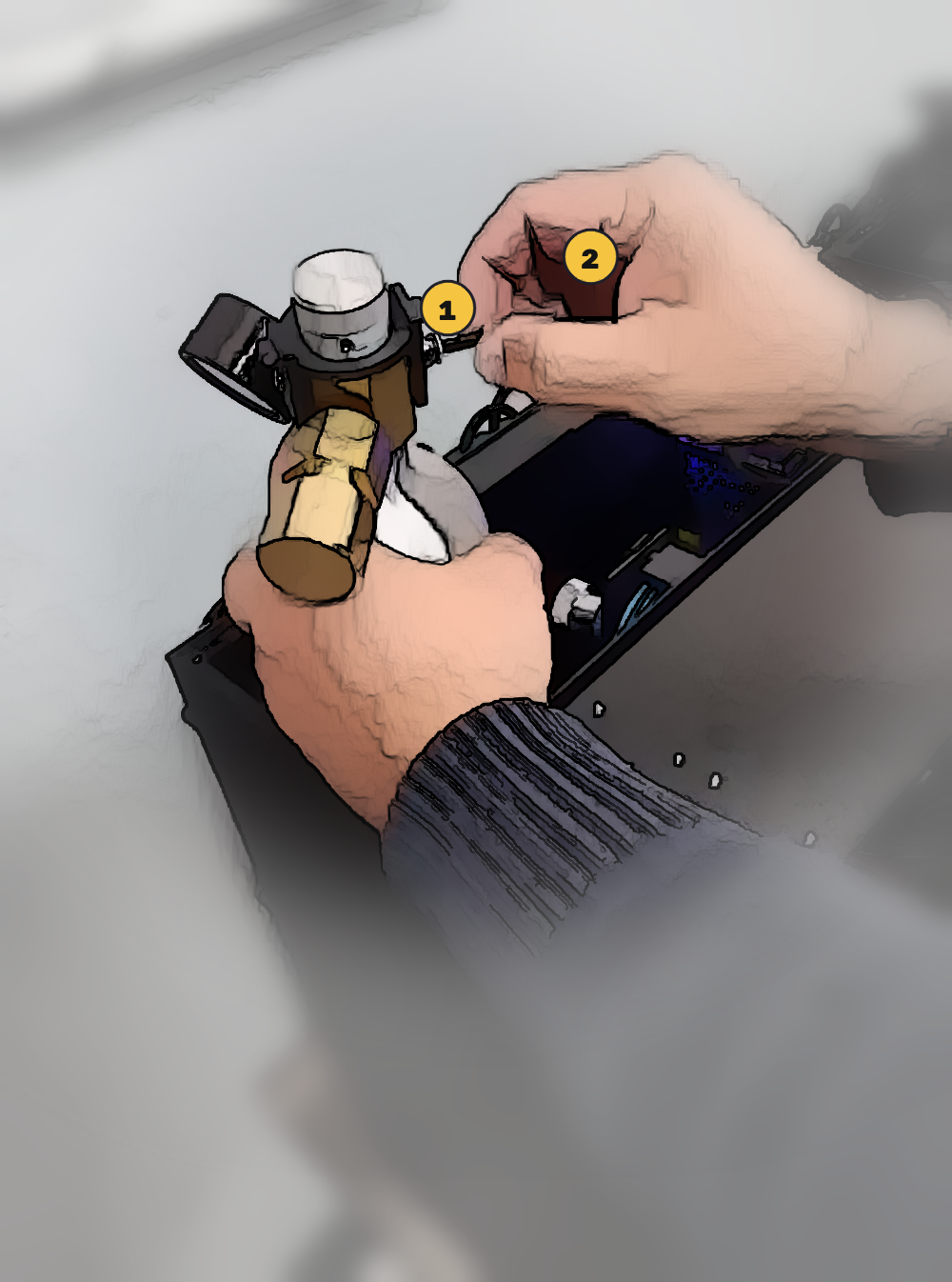
Opening the gas: small cylinder (internal, 800 cm³), if your unit has one
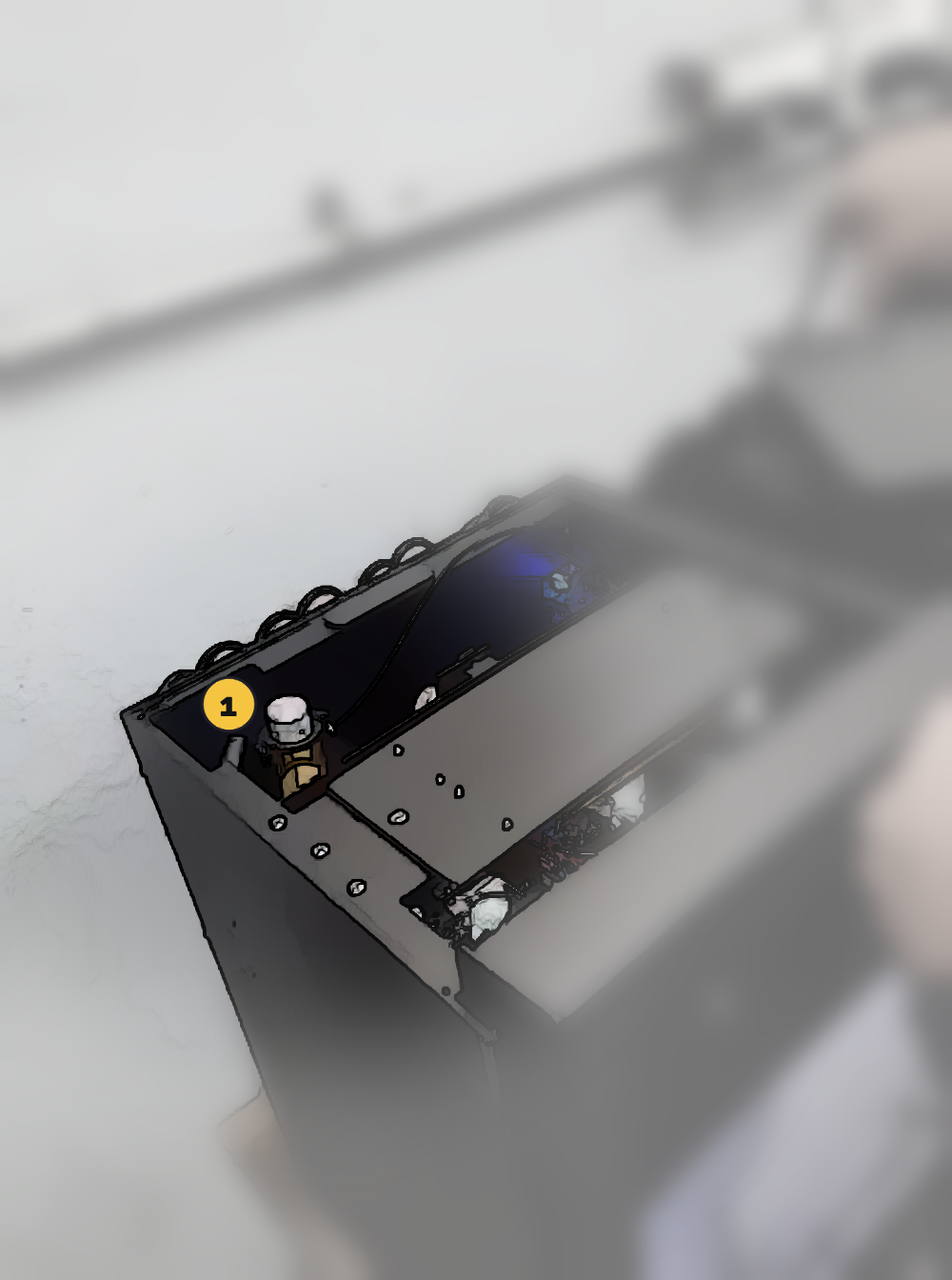
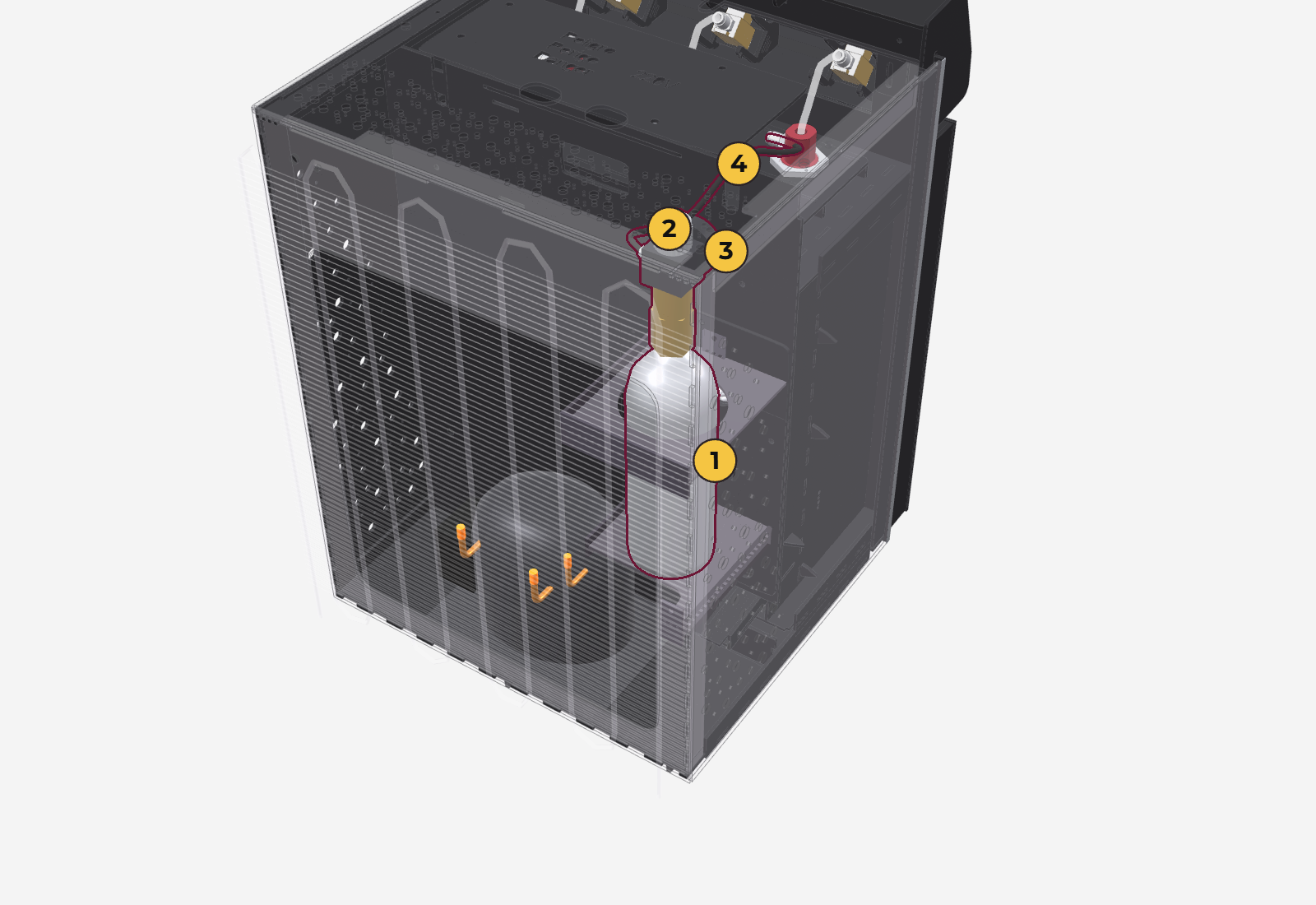
- On top of the cylinder there is an aluminum cap that works as a valve: counterclockwise opens, clockwise closes.
- It comes closed from the factory.
- To open: turn it between a quarter and half a turn, never more.
- To close: turn it clockwise until it stops.
- The pressure gauge (dial) always shows the cylinder pressure, whether it is open or closed. If it shows nothing, the cylinder is empty.
The cap has plastic stops that limit how far it turns. Never force it or unscrew it past the stop under any circumstances: if the stop breaks and the cap comes completely unscrewed, the pressure can shoot it off and cause serious injury.
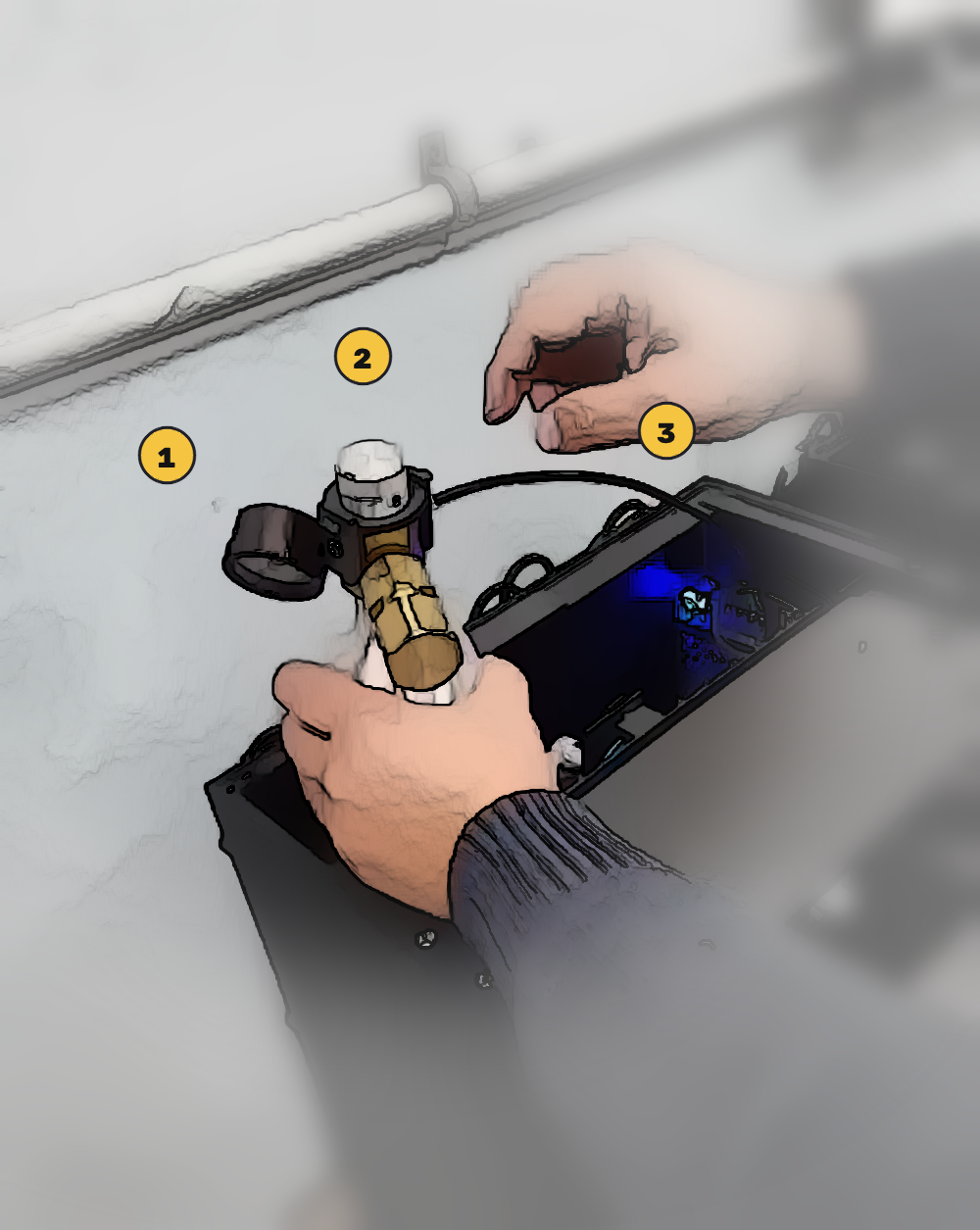
Replacing the small cylinder (internal)
When the pressure gauge reads zero or very low, replace the cylinder with a full one (for refills, see section 16).
- Turn off the unit and unplug it.
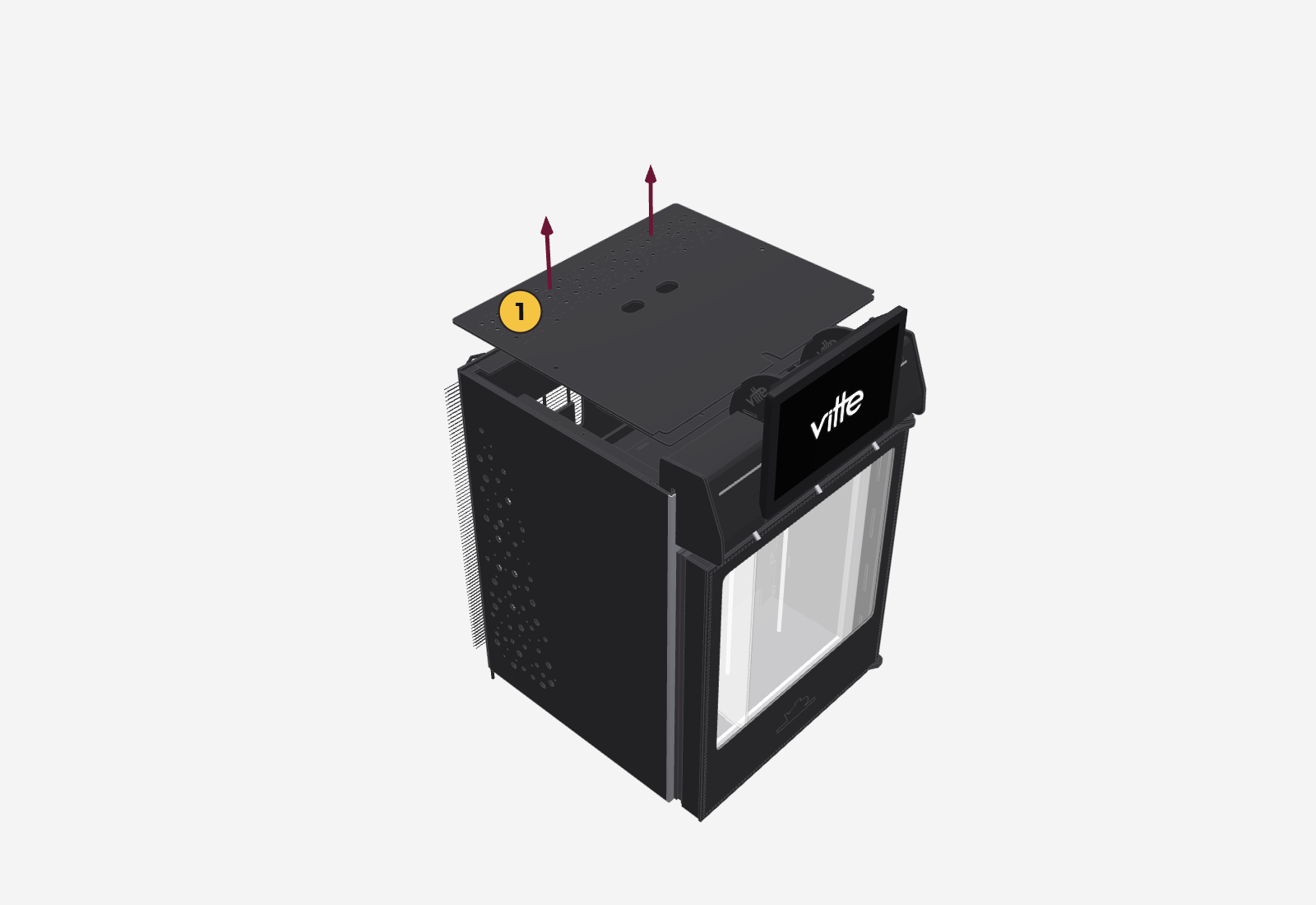
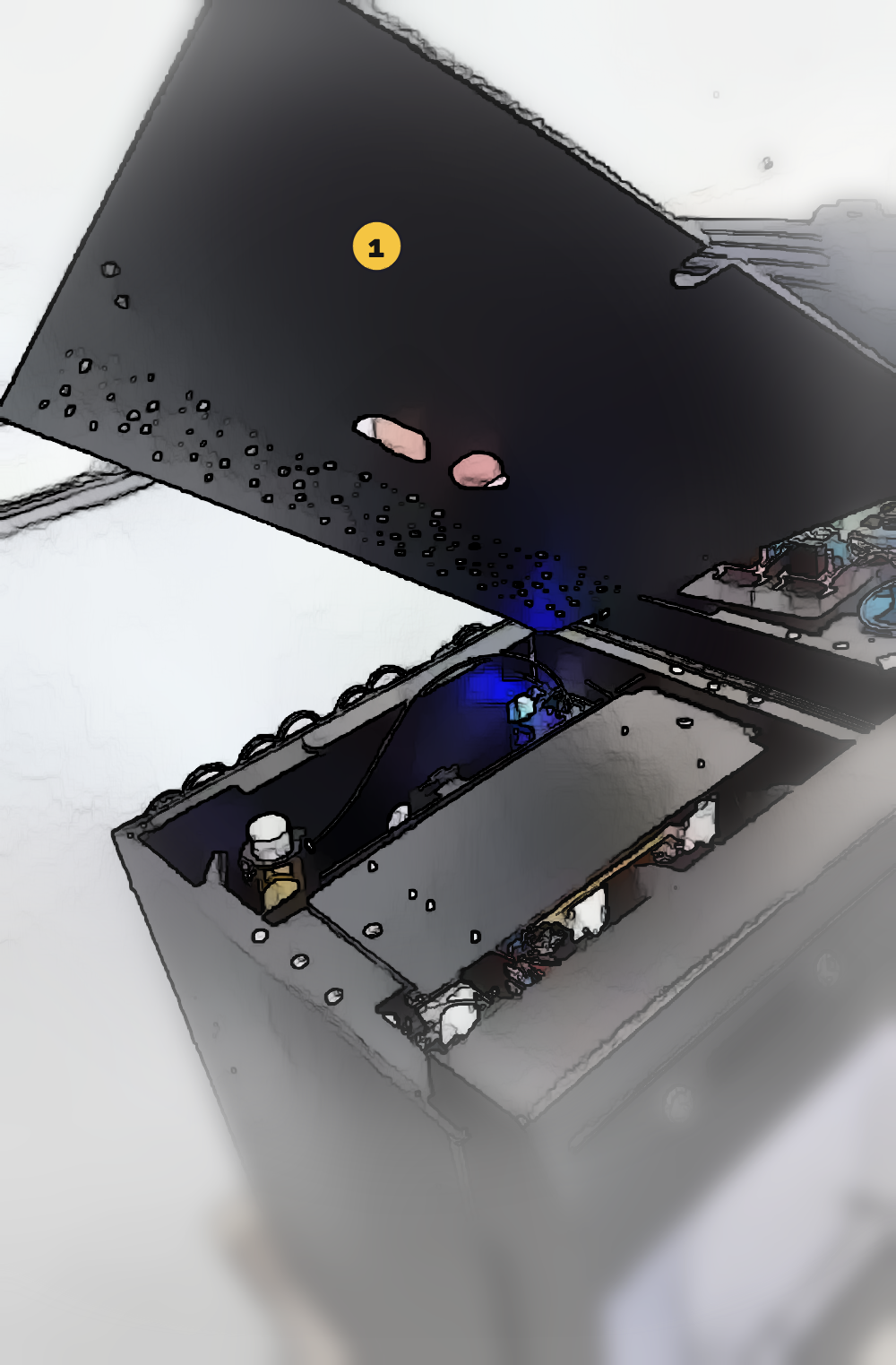
- Remove the top cover: it is held by magnets and lifts straight up.
- The cylinder is in the back left corner. Close the cap by turning it clockwise until it stops.
- Lift the cylinder out, holding it by the body.
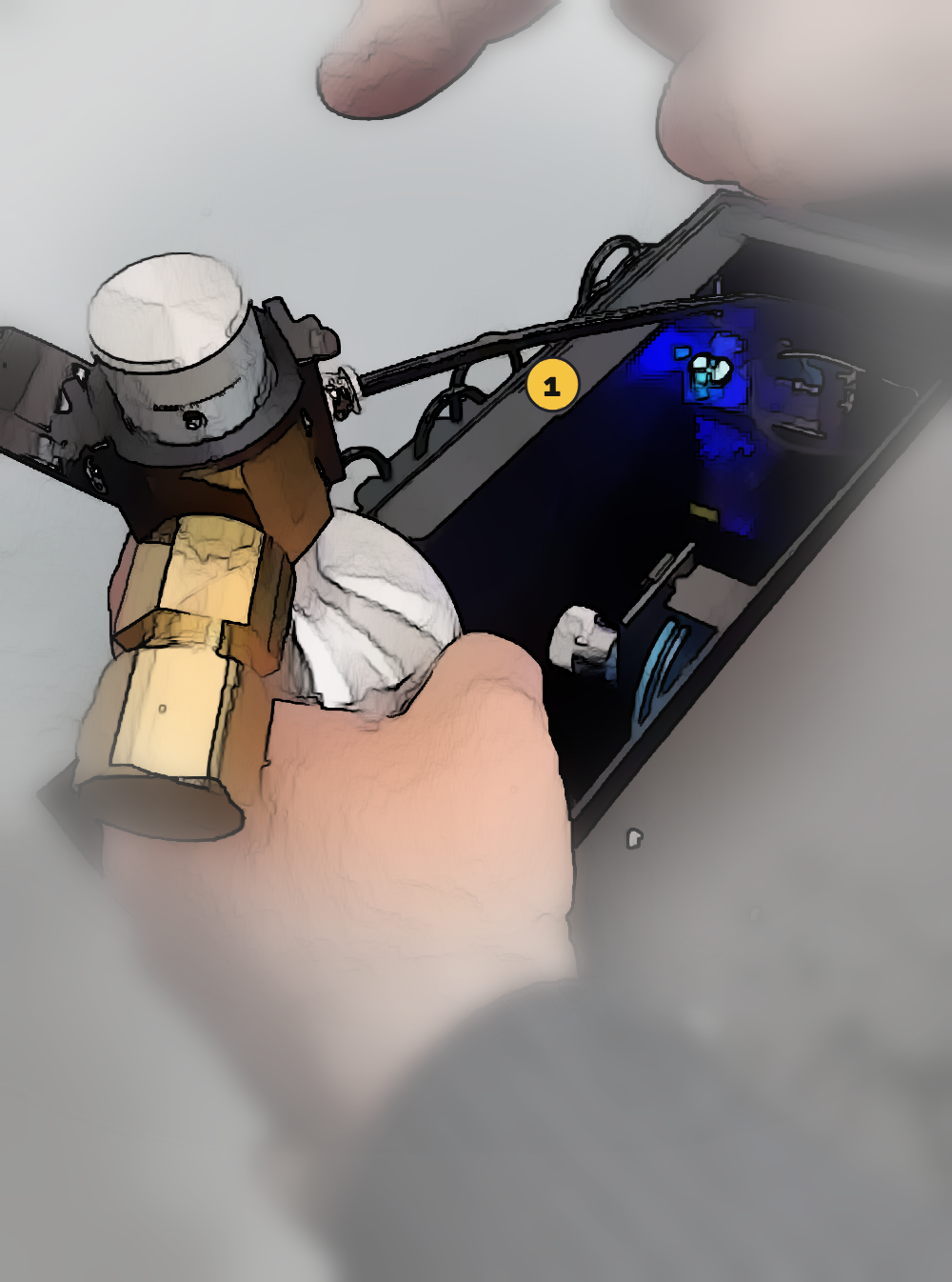
- Disconnect the hose: press the connector ring against the regulator and, while holding it, pull the hose out.
- On the new cylinder, connect the hose by pushing it all the way into the connector. Pull gently to check that it is locked in.
- Put the cylinder back in place and open the cap between a quarter and half a turn (see above). Check that the pressure gauge shows pressure.
- Put the top cover back on and turn on the unit.
Opening the gas: external cylinder
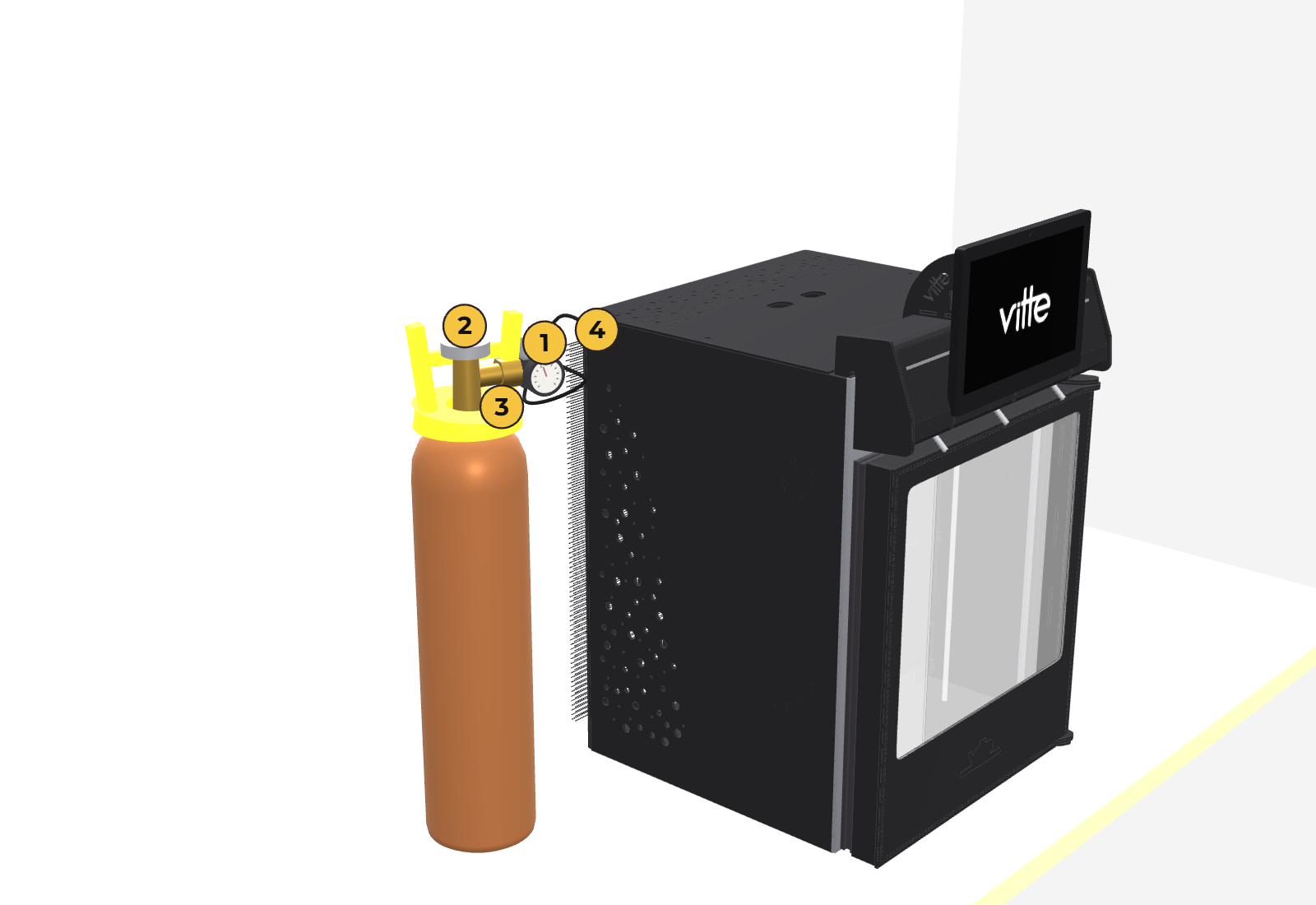
- The valve is on top of the cylinder and is easy to spot.
- To open: turn it counterclockwise. It can be opened all the way, but one turn is enough.
- To close: turn it clockwise until it stops.
- To read the pressure on the pressure gauge, the valve must be open: with the valve closed, it may read zero even if the cylinder is not empty.
Where to place the external cylinder
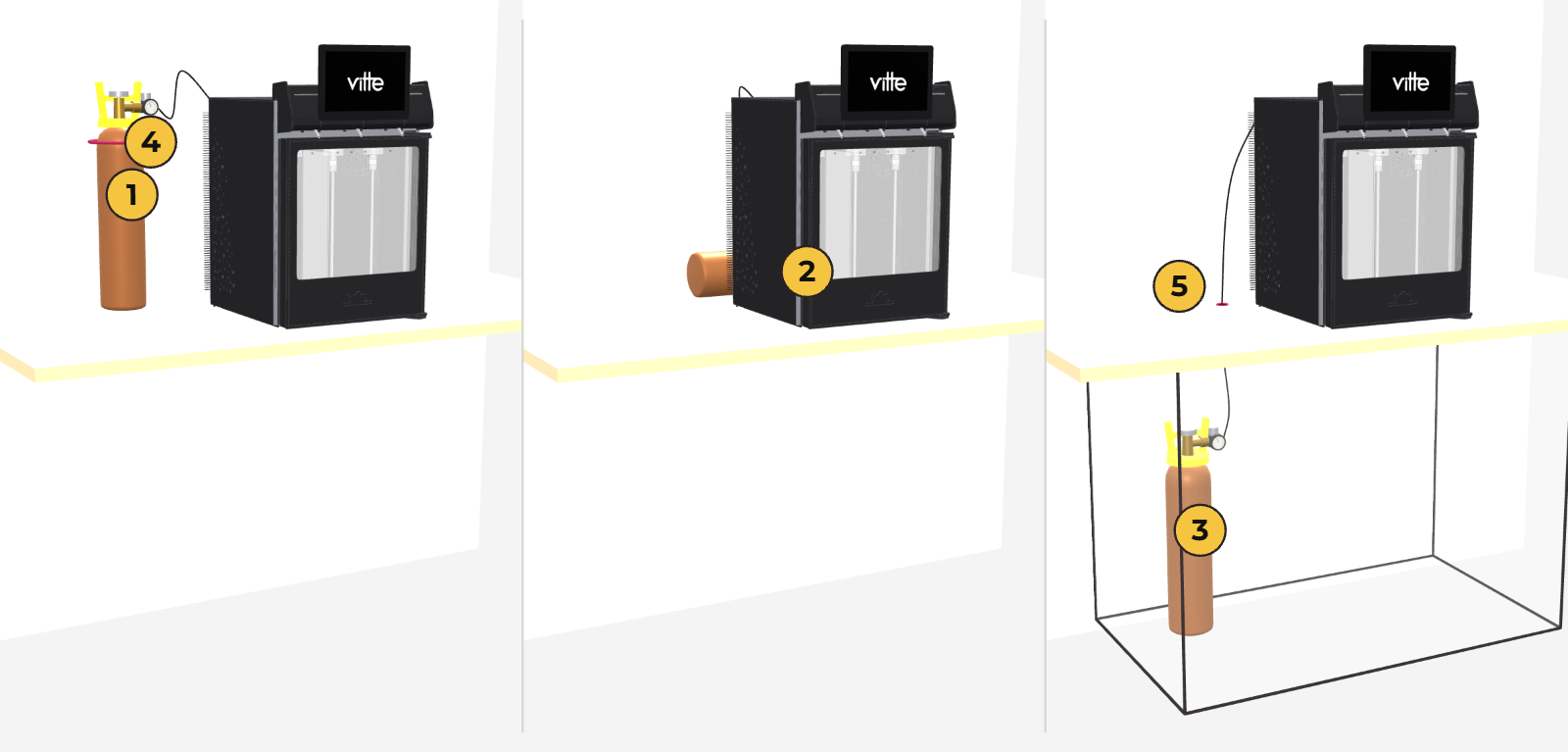
The external cylinder always goes outside the unit. On the Pro Max 6 and Pro Max 9 it is the standard option (small internal cylinders are optional, depending on the region), and a single external cylinder supplies the 3 modules of a Pro Max 9 without any problem.
- It doesn't need to be next to the machine. It connects with a thin 4 mm PVC hose that fits through a small hole or any gap.
- The hose can be up to 3 m long, so the cylinder can be kept out of sight: inside the cabinet the machine sits on, or behind it.
- It can stand upright or lie down.
On units with 2 or 3 modules (Pro Max 6 and Pro Max 9) a single cylinder is enough: a main hose comes out of the regulator with a T fitting at each module, and the last T is capped. The Pro Max 9 uses three T fittings; the Pro Max 6 is the same, with two.
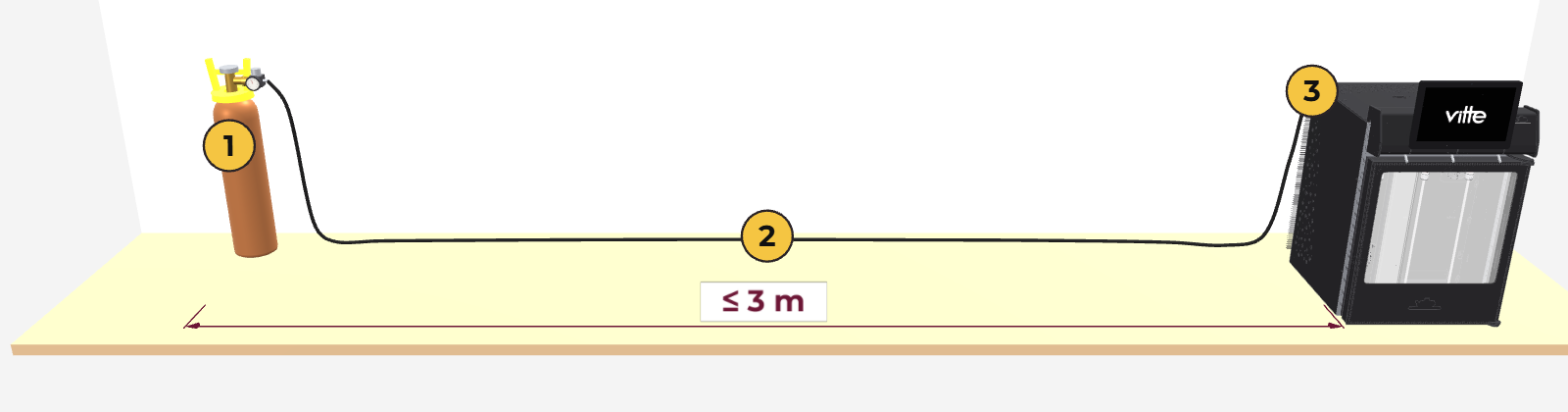
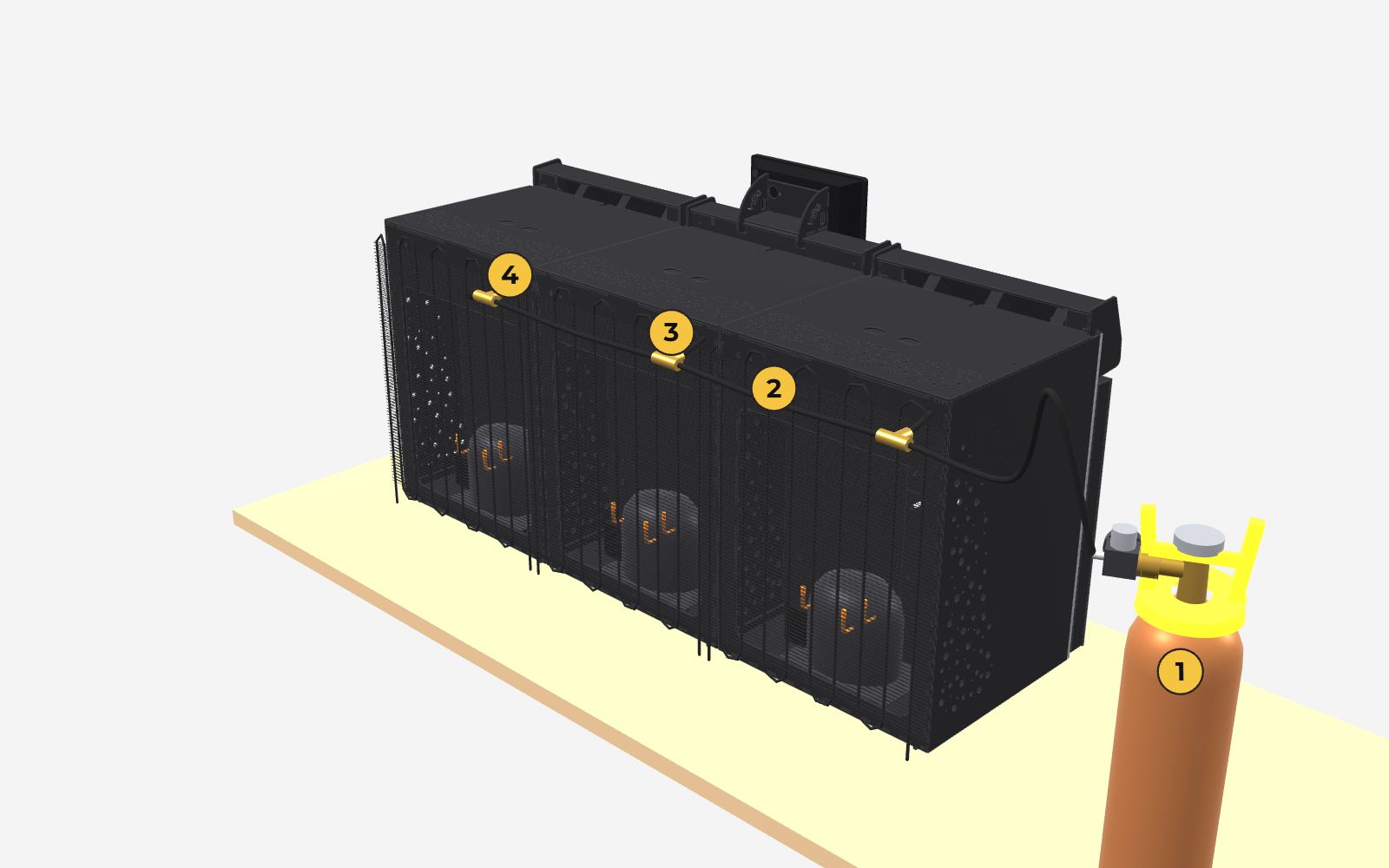
Wherever it is, and especially if it is upright, the cylinder must be secured so that it is almost impossible for it to fall. If it falls, the pressure regulator breaks: all the gas is lost and the regulator becomes unusable.
First startup
- When you turn on the unit, the tablet starts up on its own.
- The Vitte screen does not appear right away. First you will see "Loading environment… Please wait". Wait for the system to finish starting and for the home screen with the Vitte logo to appear.
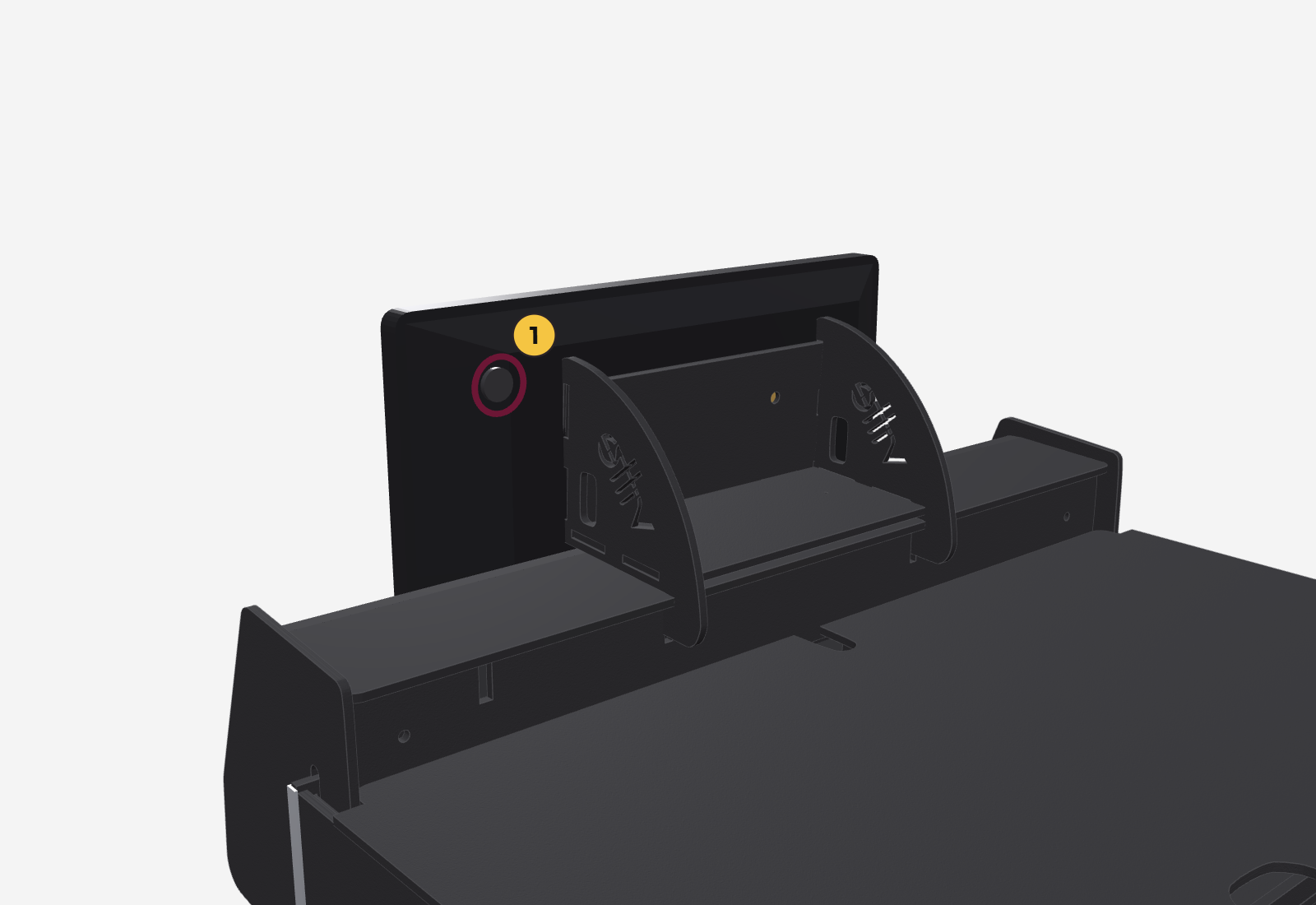
- If the screen does not turn on, press and hold the top right button on the back of the tablet until the Android symbol appears, then release it.
- Wait for the unit to reach temperature before loading the bottles. If you are going to pour right away, load them already chilled (section 7).
Internet connection (Wi‑Fi)
The tablet comes with Android set to the language of the country of sale: Spanish in Argentina, Portuguese in Brazil and English for other markets. The English texts, which are the ones shown in the video, are given in parentheses.
- Swipe down from the top edge of the screen. The quick settings panel opens.
- Press and hold the Wi‑Fi icon (the first one in the row) until the list of networks opens.
- If the Use Wi‑Fi (Use Wi‑Fi) switch is off, turn it on.
- Tap your network, enter the password and tap Connect (Connect).
- Check that Connected (Connected) appears under your network's name. Go back to the app with the ◀ button at the bottom.
Use a network with good coverage where the unit is located, ideally a dedicated one. The connection circle on the home screen shows whether the network is responding well (section 12).
Once connected to the internet, continue with linking the unit (section 5).
Linking
For the tablet to work with your account, it must be linked to your venue and your machine. We usually do this at the factory or during the setup video call.
What linking is
- It associates the tablet with your company, your venue and your machine in the Vitte system.
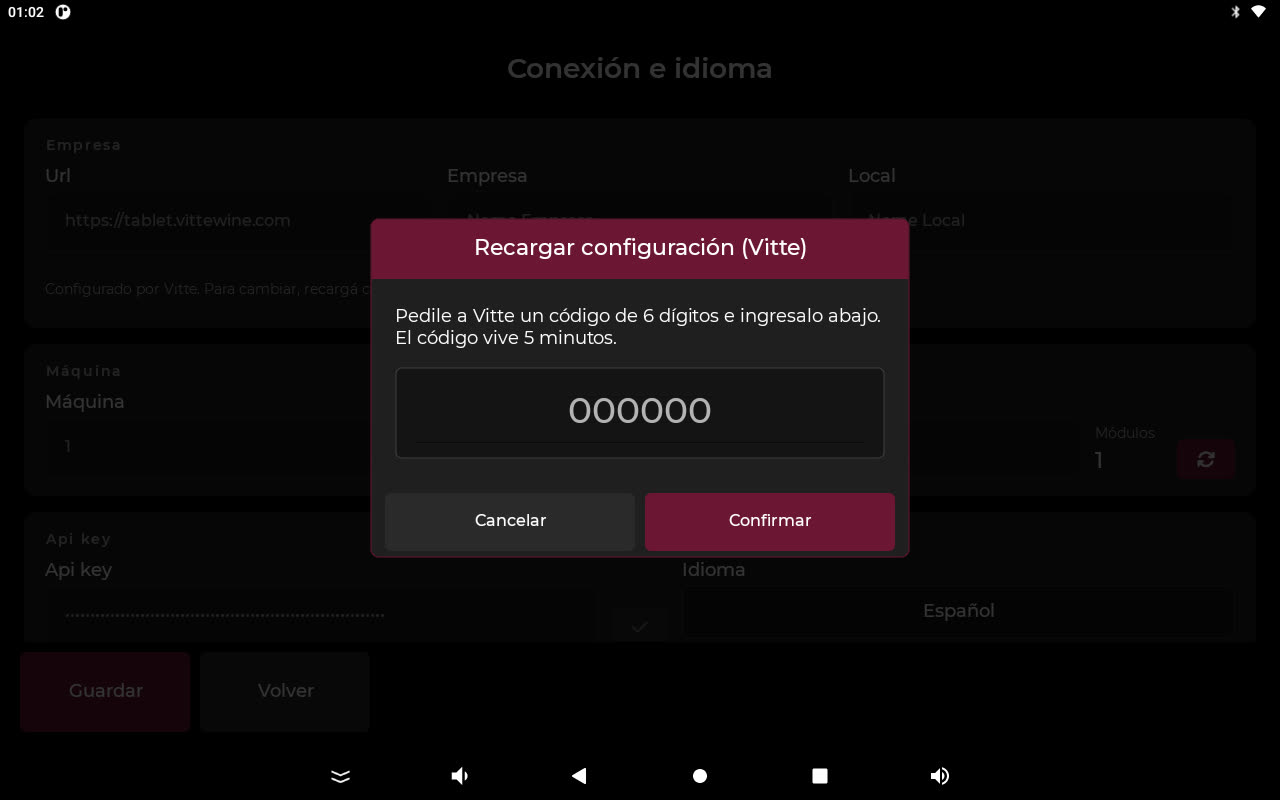
- It is done only once, with a 6-digit provisioning code that Vitte gives you.
- The code is valid for 5 minutes and can be used only once: ask for it when you are already in front of the machine.
Example. You are on a video call with Vitte in front of the machine. They read you the code 312926; you type it on the tablet and, within a few seconds, the name of your company and venue appears.
Step by step
- On the main screen, tap the menu button (the circle at the bottom right). Four icons appear.
- Tap the gear (Configuration). The «Enter» window appears.
- Type the configuration password (factory default: 1234) and tap Accept.
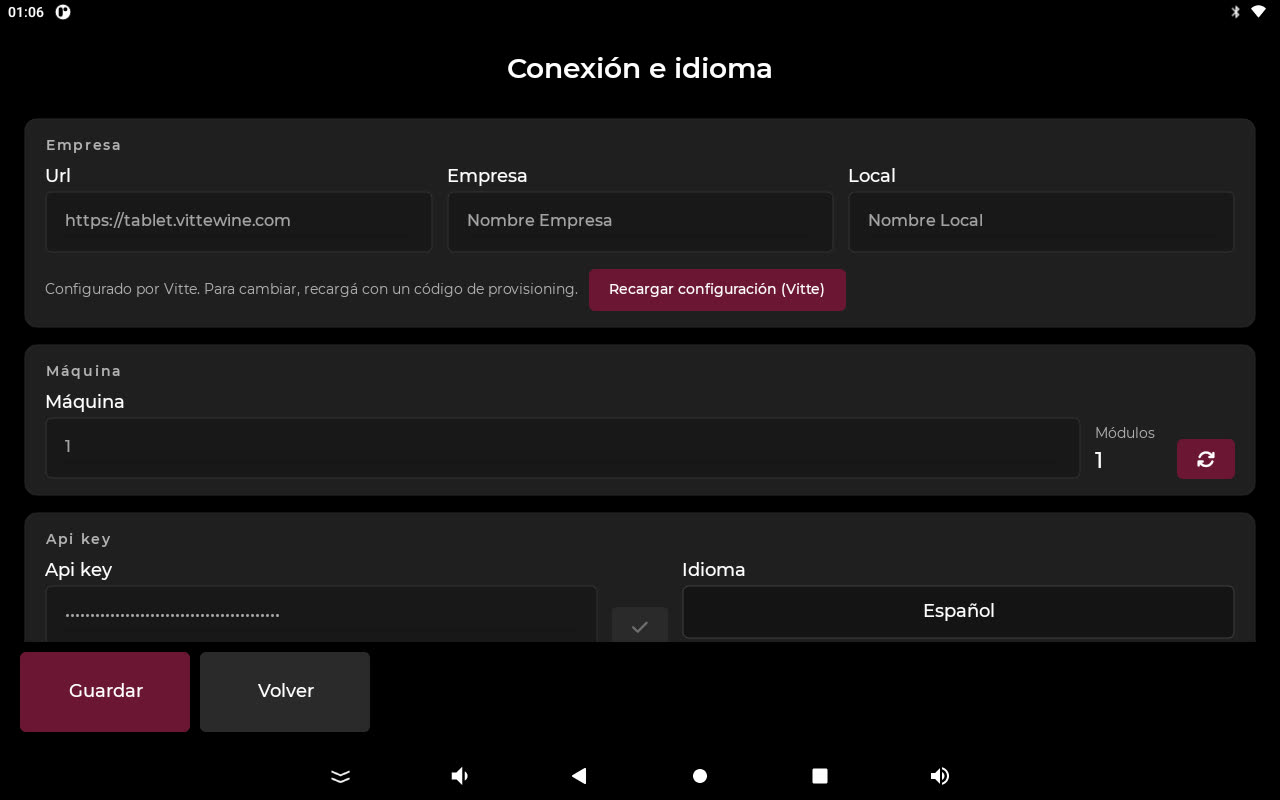
- Tap Connection and language.
- Tap Reload configuration (Vitte) and type the 6-digit code. If the keyboard covers the buttons, tap the green check mark on the keyboard to close it.
- Tap Confirm. A green bar appears at the top: «Configuration loaded: Company…, Venue…, Machine…», and the Company and Branch fields are filled in.
- Tap Save and then Accept on the «Configuration saved» notice. If you don't tap Save, the linking is not stored.
- Tap Back twice. The machine returns to the main screen, ready to operate. In the management panel, the machine shows as online.
All machines leave the factory with the password 1234. For your security, we recommend changing it in Configuration → Security (section 14). Keep the new password in a safe place.
If the machine gets unlinked
If the tablet doesn't show the main screen or shows as offline in the panel, follow the steps in the FAQ «The machine got unlinked or shows as offline» (section 16).
The server is set to tablet.vittewine.com. Don't change it unless support tells you to.
With the unit linked, the next step is to add the wines and assign them to each position (section 6).
Wines and prices
How to add wines, place them in each position, and set the pour sizes and what is charged for each. Everything is done in the web management panel (section 13) and the tablet picks it up automatically.
Adding a wine
- In the panel, go to Wines → List of Wines and tap New.
- In «Autofill with AI from the label», upload a photo of the front label and, if you want the tasting notes, another of the back label. You can take it with the Camera or choose a File, and crop it.
- Tap Read labels with AI. The system fills in name, winery, variety, origin and notes.
- Review the details, correct anything needed and fill in the bottle price, the volume and the image (500 kB max). Tap Save.
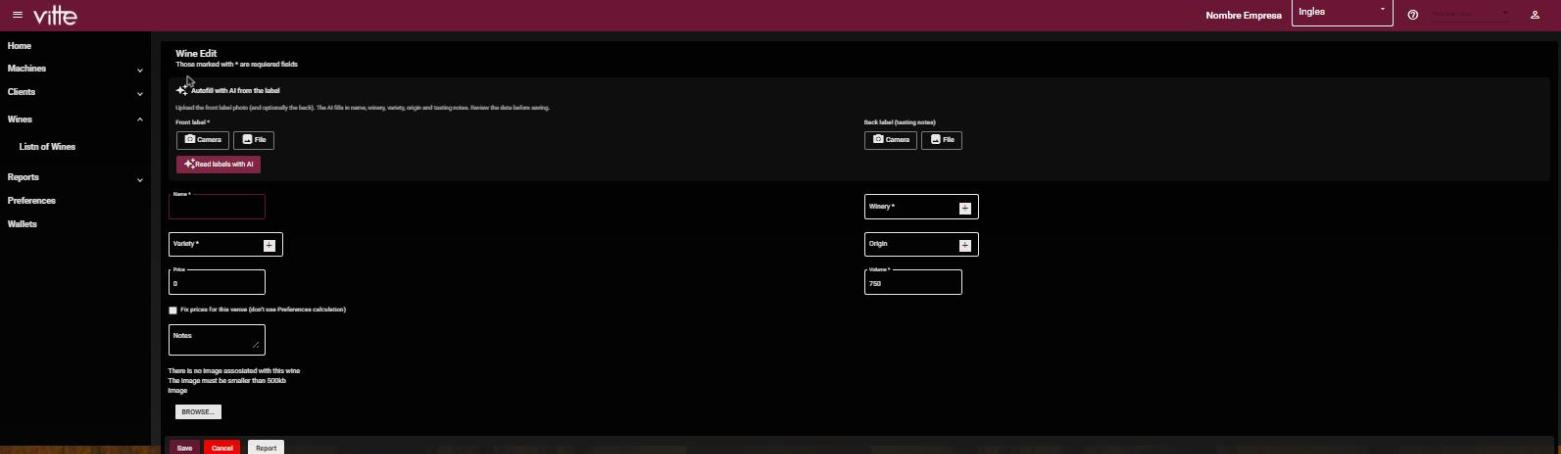
The wine catalog is shared by the whole Vitte community. If the wine you're adding looks like one that already exists, the system offers to use the existing one so it isn't duplicated. If you see wrong information on a catalog wine, use the Report button on the wine's page to let Vitte know.
Each company gets about 20 free AI readings to try the system. Beyond that limit, the service may have a cost. When charging starts, the system itself will show the payment method and the cost per reading.
Placing a wine in a position
- In the panel, go to Machines → List of Machines and choose machine, module and position.
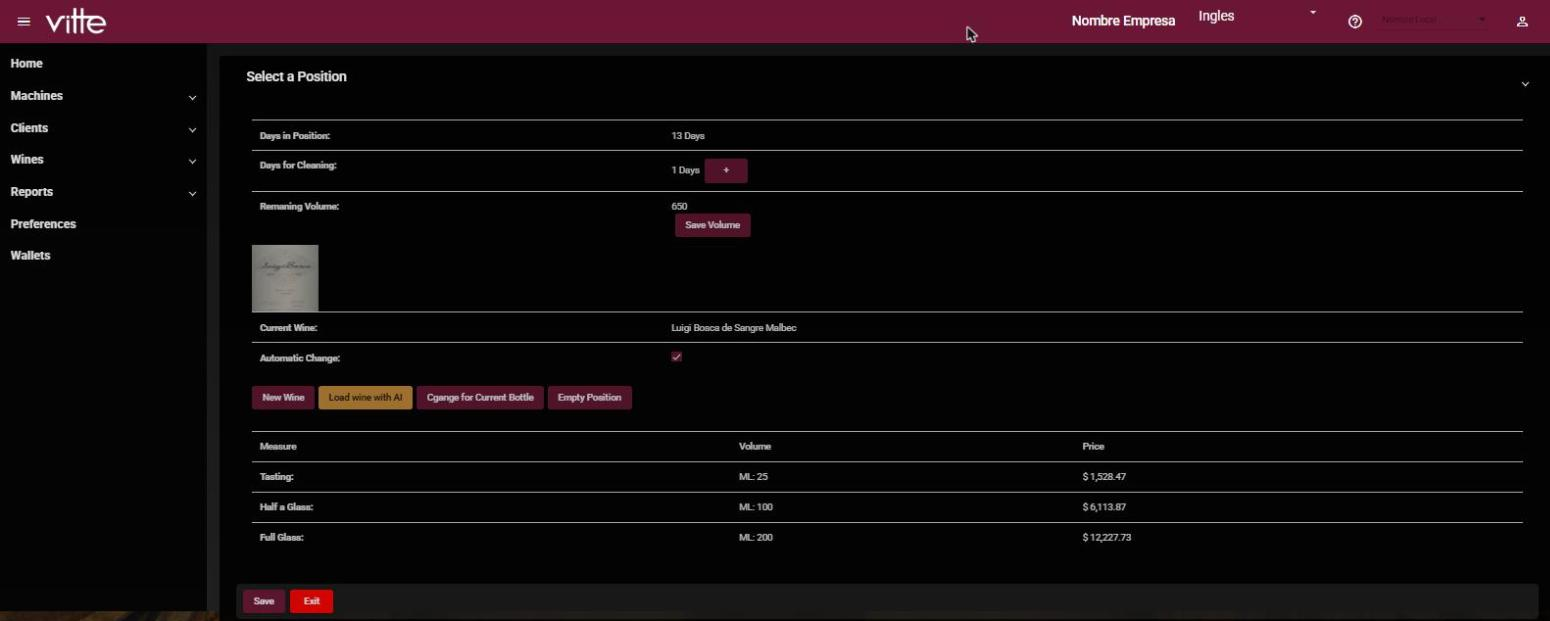
- Tap New Wine to choose a wine from the catalog, or Load wine with AI to add a new one and place it directly in that position.
- Review the three pour sizes (Tasting, Half glass, Glass) with their volume and price, and tap Save.
On that same screen, each position shows:
| Item or button | What it is |
|---|---|
| Current Wine | The wine in that position, with its image. |
| Days in Position | Days since the bottle was loaded. |
| Days for Cleaning | Days left until the next cleaning of that position (section 15). The + button postpones it 2 days. |
| Remaining Volume and Save Volume | The ml left in the bottle; you can correct them by hand. Only matters with volume tracking (section 7). |
| Change for Current Bottle | Marks that you loaded a new bottle of the same wine: resets the volume to full and restarts the days in position. |
| Empty Position | Removes the wine from the position. |
Pour sizes and prices (Preferences)
In the panel, Preferences sets, for the whole venue, how many ml each pour size has and how much is charged. The prices of each pour size are calculated automatically from each wine's bottle price.
| Field | What it is |
|---|---|
| ml (Tasting, Half glass, Glass) | How much wine each pour size serves. Recommended and factory default: 35, 75 and 150 ml. The Tasting can't be less than 25 ml. |
| Profit margin (%) | How much is added on top of the proportional cost of the wine in each pour size. Factory default: 150% for the Tasting, 100% for the Half glass and 50% for the Glass. |
| Rounding | How the price is rounded: No rounding; Rounding (to the nearest value); Forced up; or Forced down. |
| Rounding level | What it rounds to: ones, tens, hundreds or thousands. |
How the price of each pour size is calculated
Pour size price = bottle price × pour size ml ÷ bottle ml × (1 + margin), and then rounding is applied.
Example. A $9,990, 750 ml bottle, with the factory values and rounding «up» to the hundred:
- Tasting (35 ml, 150%): 9,990 × 35 ÷ 750 = 466.20 → × 2.5 = 1,165.50 → $1,200
- Half glass (75 ml, 100%): 999 → × 2 = 1,998 → $2,000
- Glass (150 ml, 50%): 1,998 → × 1.5 = 2,997 → $3,000
To change prices for the whole venue, change the margins or the rounding and tap Save: all positions are recalculated.
Fixed price for a wine
If you want to charge a different price for a wine at your venue, on the wine's page check «Fix prices for this venue (don't use Preferences calculation)» and type the price of each pour size. Pour sizes you leave empty or at 0 are still calculated with the margins.
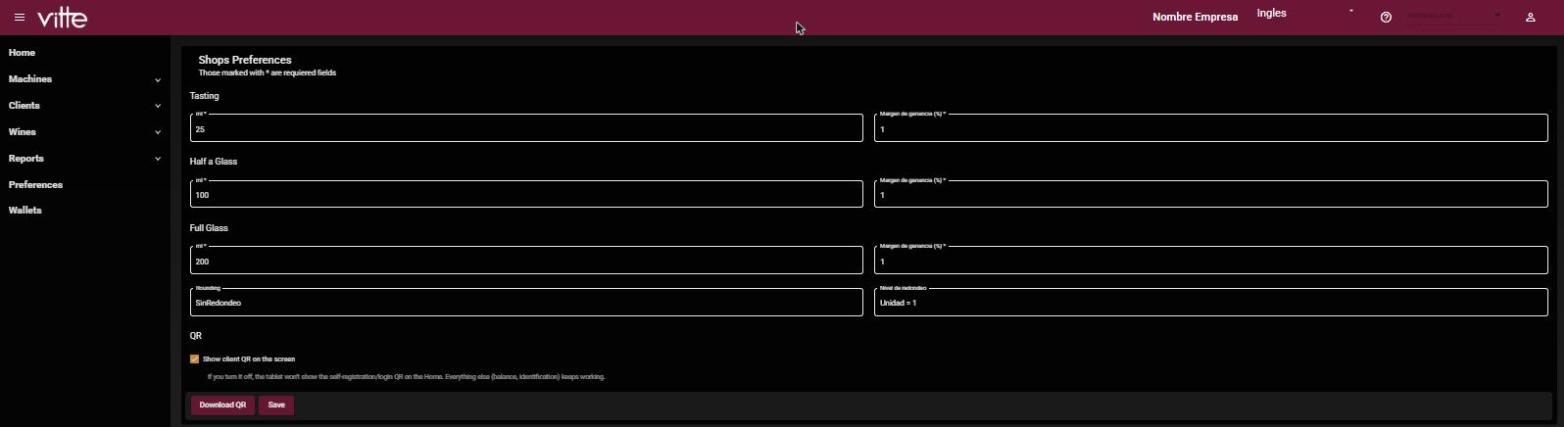
Preferences also has a Pro option: show or hide the customer QR on the tablet screen (section 10).
Loading bottles
How to hang each bottle in the machine, how to purge, and what to do when you change a bottle.
Loading a bottle
The unit keeps the wine at serving temperature, but it is not a fast chiller: a bottle at room temperature takes about 2 hours to reach its temperature. Reds, served warmer, are ready sooner; with whites it is more critical. If you are going to pour right away, load the bottle already chilled to its serving temperature.
- Uncork the bottle.
- Check whether the bottle is very full (almost to the top). If so, pour out a little wine: when you insert the hose, the liquid rises and may overflow.
- Insert the suction hose into the bottle.
- Place the bottle on the hanger and push it all the way up, until it stops against the knurled nut (the textured wheel you turn with your fingers).
- Tighten the nut. As you turn it, the hanger's silicone bushing expands inside the bottle neck, where the cork was. The more you tighten, the more it expands and the firmer it holds.
- With the bottle secure, turn it so the label faces forward and check that it hangs firmly and doesn't come loose.
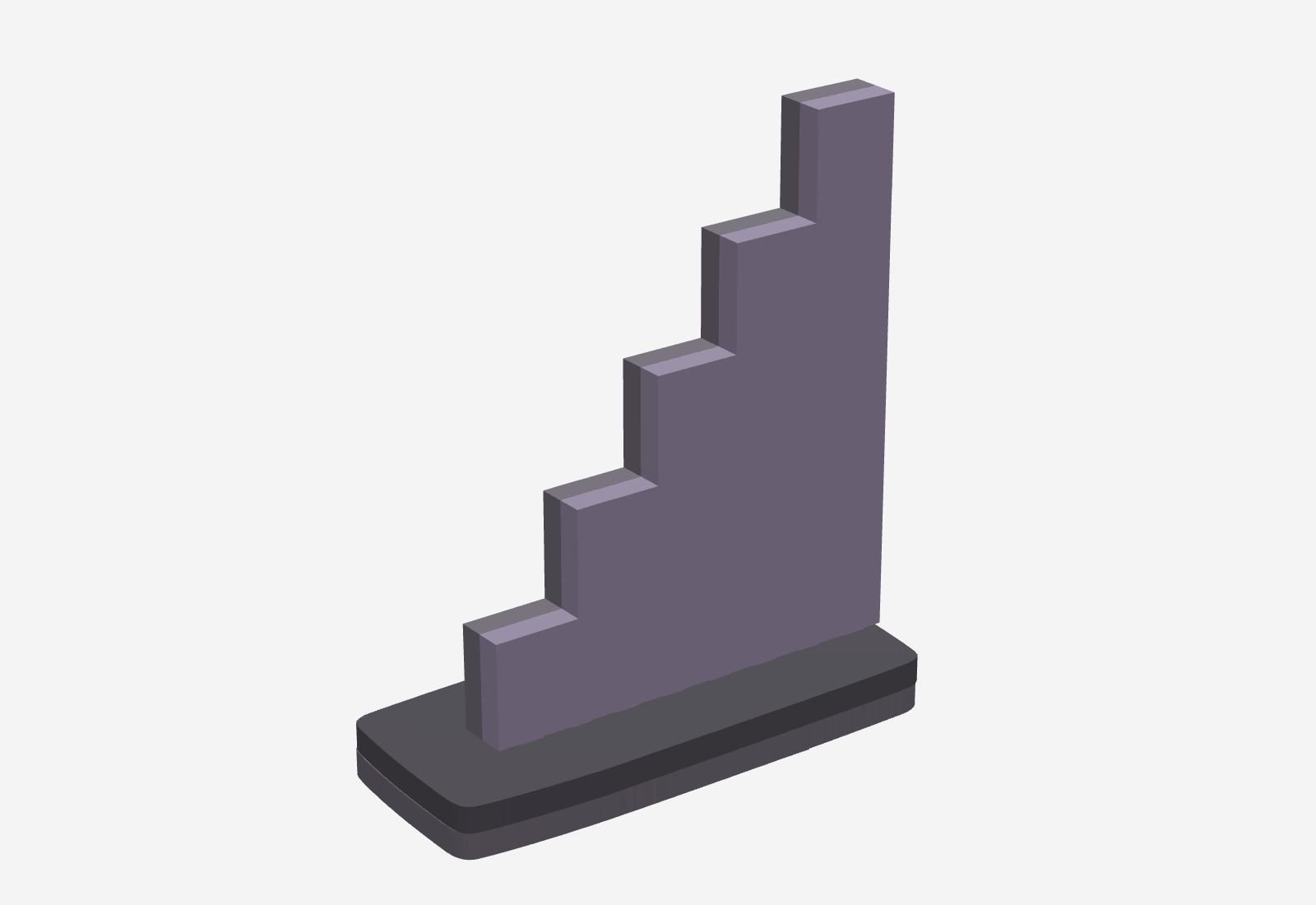
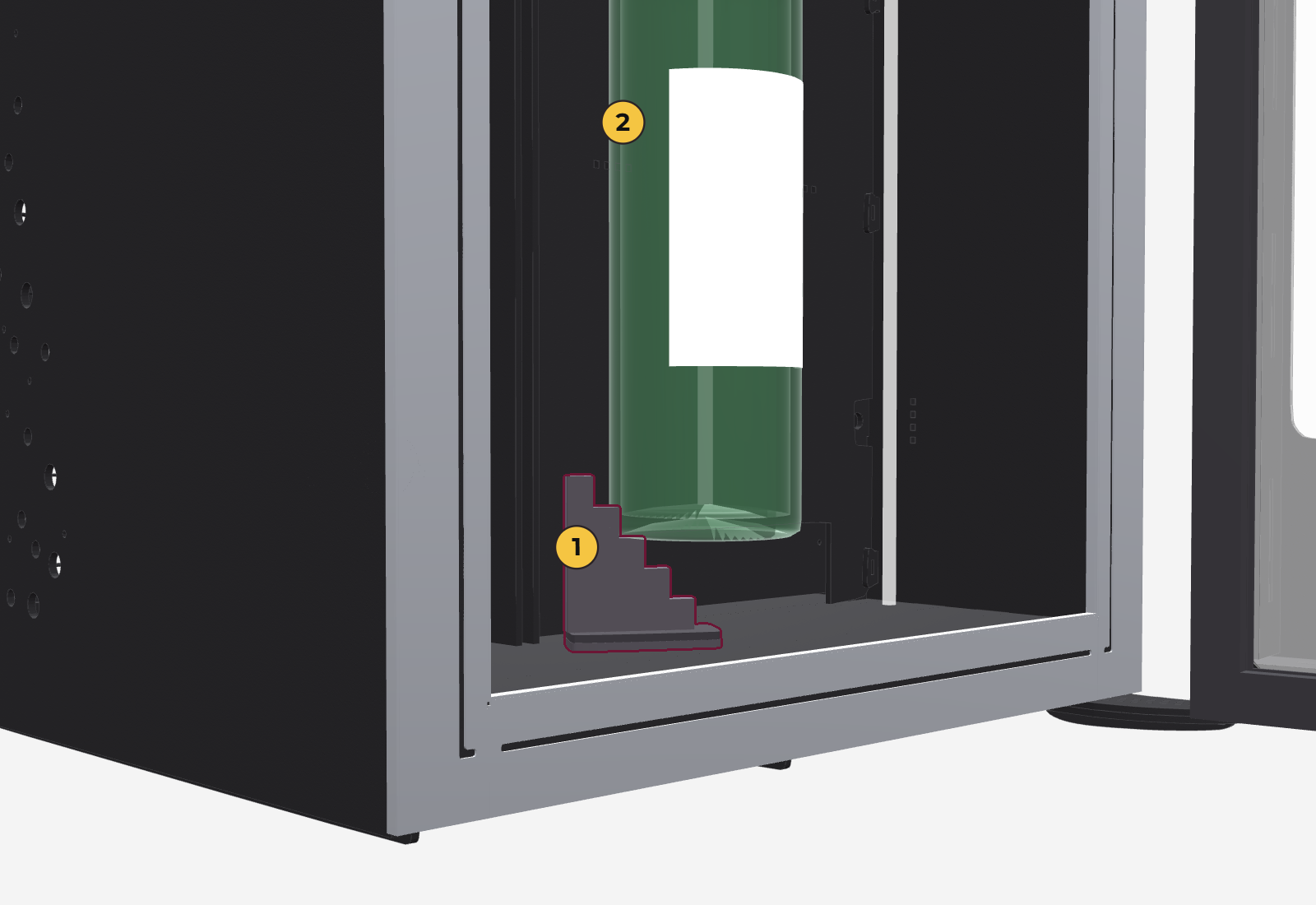
Some bottles have a slightly tapered neck and, even with the nut tightened, the gas pressure can push them down. That is what the step is for: it puts a step under the bottle so it cannot go down.
- Place it diagonally on the floor of the position, because that way it takes less room.
- It can go in from the front or the back, whichever suits you and depending on whether the divider is in place.
- Which step the bottle rests on depends on its length: the steps are 18, 30, 42, 54 and 66 mm above the floor.
- The unit comes with 2 steps; if you need more, ask Vitte.
Purging and the first glass
- First bottle in a new machine: at the factory the machine is tested with water, and a little remains in the line. Do a very small dispense to purge the circuit before serving the first glass: pour a Tasting, or use the Express cleaning from the Cleaning menu (section 15). Either works.
- Switching to a very different wine (without finishing the previous bottle): about 2 to 3 ml of the previous wine remain in the line. It's best to purge the same way.
- If the previous bottle ran out completely: no purge needed. When the wine runs out, the gas that comes out cleans the line.
Changing a bottle
Always load full bottles. If a bottle has already been open and a lot of oxygen got in, the wine may be spoiled or will spoil faster. Inside the dispenser, preservation always improves, even with an opened bottle, but it can't be guaranteed if too much oxygen has already gotten in.
If the machine tracks volume (see «Infinite bottle», below), tell it you loaded a new bottle so the level resets to full:
From the tablet
- On the main screen, tap the level indicator (top left) and then the circle of the bottle you changed.
- Type the configuration password.
- Tap I changed the bottle (refill) and confirm with Yes, refill.
- If the bottle isn't 750 ml or isn't full, type the actual ml in Volume (ml) and tap Save.
From the panel
In List of Machines, at the corresponding position: Change for Current Bottle if it's the same label, or choose another wine if you changed labels (section 6).
If the position has no wine assigned, the tablet won't let you mark the bottle change: first assign a wine from the panel.
Infinite bottle
Machines leave the factory in «infinite bottle» mode.
With volume tracking, the machine keeps count of what's left in each bottle and won't enable a pour size if there isn't enough wine. In practice, customers see this as a malfunction: they call the server, waste their time and order anyway, and the venue ends up changing the bottle too early, with waste.
With infinite bottle, the machine stops tracking volume and always enables the pour sizes. If the bottle runs out mid-pour, the full pour is charged, but the wine cuts off and foam comes out (gas only). The customer notices and tells the server, who changes the bottle and tops up what was missing. The customer is happy and nobody at the venue has to keep an eye on the system.
This feature came from the venues' daily operation, not from the technical design: in practice it proved more useful than strict volume tracking. Even so, volume tracking is still available for those who prefer it. You change it in the panel, under My Machines (Pro), or on the tablet, under Configuration → Operation (Agile); see section 9.
- With infinite bottle: the level indicator and the remaining ml don't appear, and you don't need to report bottle changes.
- With volume tracking: you see the level indicator (section 12) and the remaining ml of each wine, pour sizes that can't be filled are grayed out and, when you load a new bottle, you have to report it (above, «Changing a bottle»).
On machines with little supervision, infinite bottle is not a good idea: see «Machines with little supervision» at the end of section 10.
Pouring a glass
Everyday use: from the main screen to the poured glass.
Step by step
- On the main screen, tap the logo. If age verification is on, the code or date of birth is requested first (section 10).
- The wines of each module appear: one card per bottle with label, winery, variety, tasting notes, pour sizes and prices.
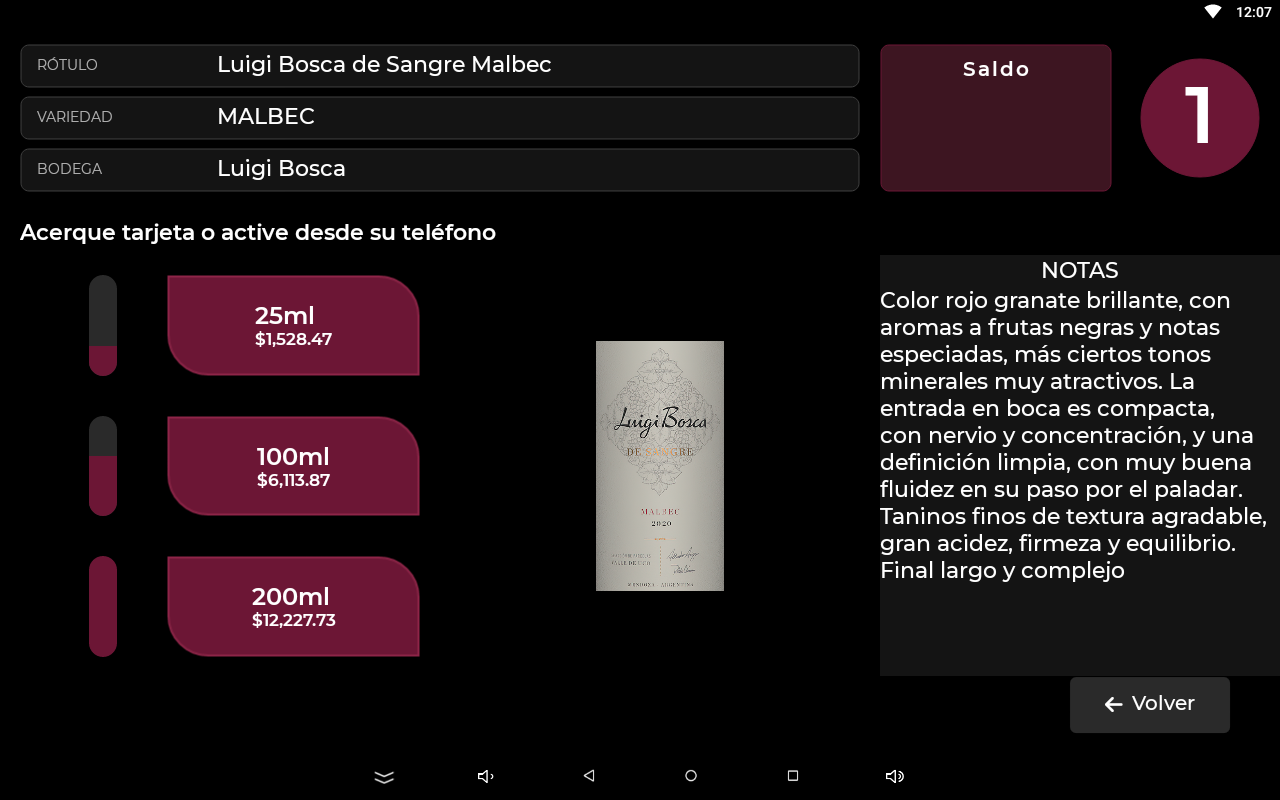
- Tap the wine you want. The pour size screen opens, with the machine number and, on the Pro, the customer's balance.
- On the Pro with charging, the customer identifies themselves or chooses to pay with a wallet (section 10). Pour sizes that can be served appear in wine color; the rest, in gray.
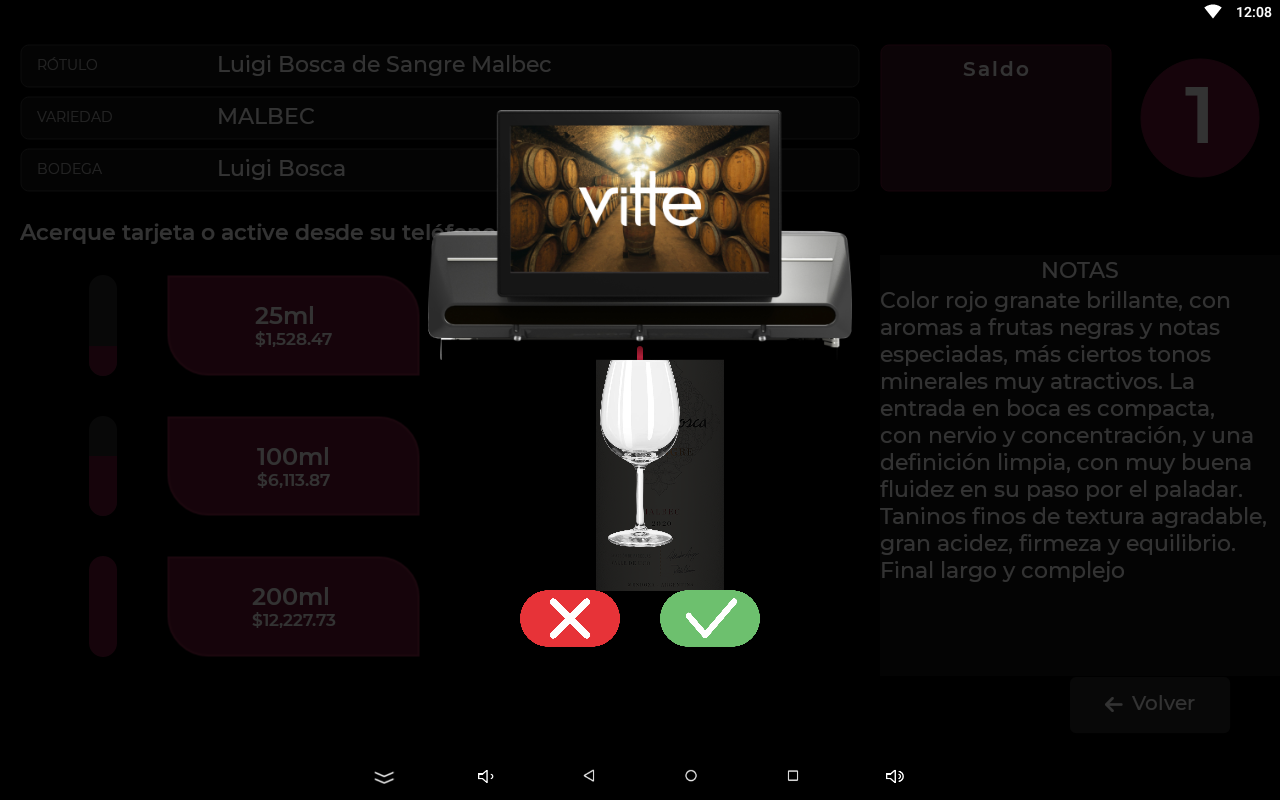
- Tap the pour size (Tasting, Half glass or Glass). The glass appears with two buttons: the X cancels and the check mark pours.
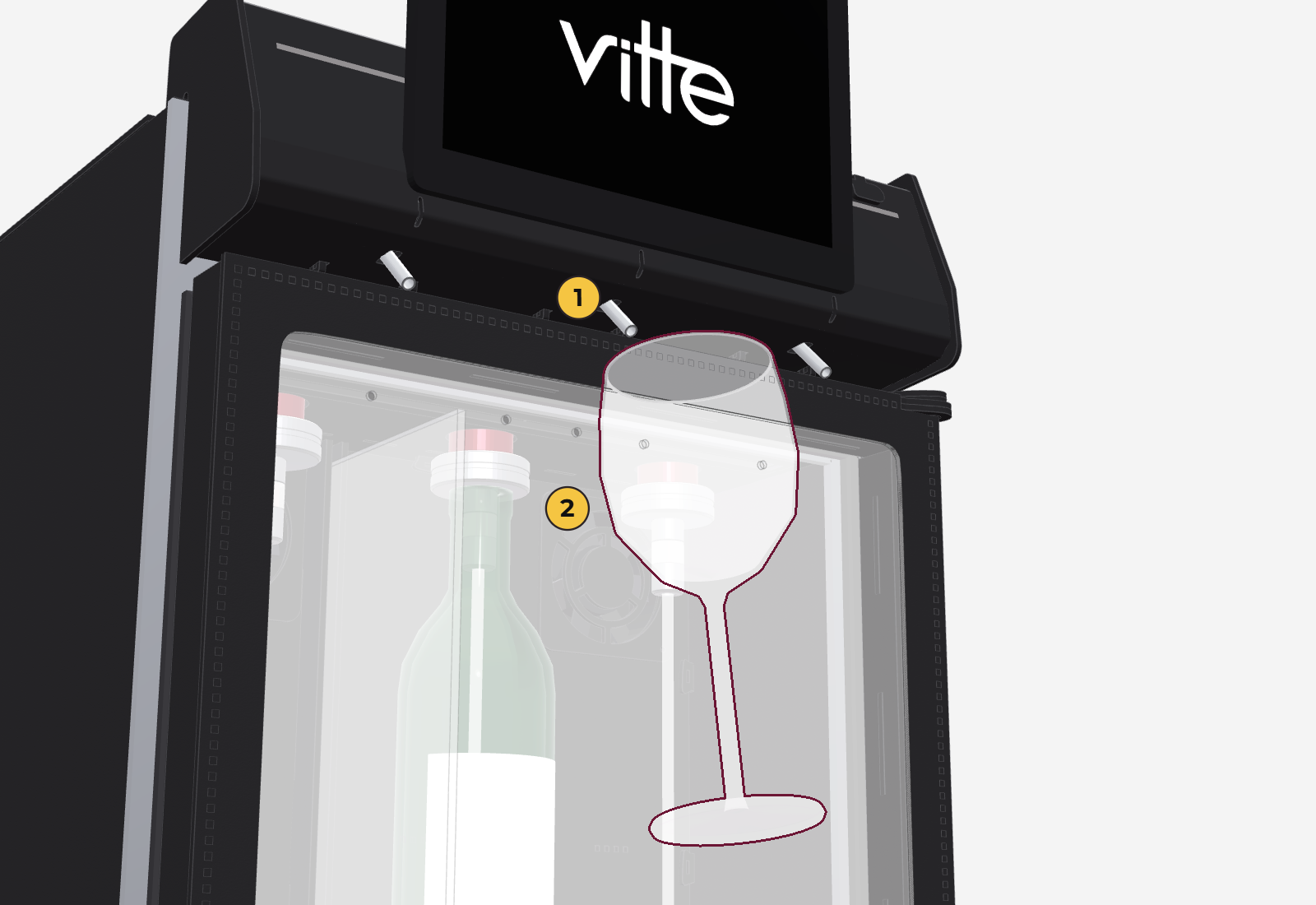
- Place the glass under the spout and tap the check mark. The machine pours, records the consumption and returns to the main screen.
What the cards show (per-glass prices, full-bottle price) is the default view and can be configured: see My Machines in section 9.
- If nobody touches the screen for 30 seconds, it returns to the main screen on its own.
- If the interior light is set to off, the lights turn off 25 seconds after returning to the main screen.
Stop button
The red Stop button on the main screen immediately stops pouring at all positions. Use it in case of a spill or if the glass isn't placed correctly.
Once you tap the check mark, the full pour is charged, even if Stop is tapped afterwards and less wine comes out.
Messages you may see
| Message | What it means |
|---|---|
| «Device not found» | The command didn't reach the module. Nothing is charged. Try again; if it persists, see section 16. |
| «Could not register the consumption. The glass was dispensed anyway.» | It was poured, but communication with the server failed. Check the connection. |
| «Module N unavailable» | A module isn't responding. You can keep using the others. «What to do?» shows the steps: check the cable, «Find modules», turn the machine off for 20 seconds and, if it persists, call technical service. |
| «The bottle doesn't have the requested amount» | Only with volume tracking: there isn't enough wine left for that pour size. Choose a smaller one or change the bottle. |
Operating modes
How the machine works: whether it pours freely or charges, how it charges and what is shown.
Where each model is configured
| Model | How it works | Where to change the options |
|---|---|---|
| Pro | Linked mode: it takes its configuration from the panel. | In the panel, My Machines (below). The tablet shows the options but doesn't let you change them. |
| Agile | Uses its own configuration, stored on the tablet. | On the tablet, Configuration → Operation (section 14). The Agile doesn't have My Machines in the panel. |
The modes
| Mode | How it works | Model |
|---|---|---|
| Free | The machine pours without charging. If needed, the venue charges manually. If «Report consumption» is on, each consumption is recorded in the reports. | Agile and Pro |
| Internal balance | The customer identifies themselves and the amount is deducted from their balance, which is loaded at the register (section 10). | Pro |
| Digital wallet | The customer pays for each glass with Mercado Pago (Argentina) or PIX (Brazil) by scanning a QR on the tablet (section 10). | Pro |
In addition, each machine can be in Home or Commercial mode. A Home machine always pours freely, even if the venue has charging turned on.
My Machines Pro only
In the panel, under Machines → My Machines, choose your venue. On the Agile, the same options are on the tablet, under Configuration → Operation. The Venue configuration applies to all machines at that venue; when you tap Save, the tablets pick it up on their own.
| Option | What it does |
|---|---|
| Charge for consumption | If it's off, the machine pours freely (no balance or charging). Pro. |
| Report consumption | If it's off, consumption isn't recorded in the reports. With charging on, it is always reported. |
| Show per-glass prices | Shows the price of each pour size on the wine cards. |
| Show full-bottle price | Also shows the price of the whole bottle. |
| Payment mode | «Internal balance (top up beforehand)» or «Digital wallet (charge per glass)». Pro. |
| Infinite bottle | Stops tracking volume. See «Infinite bottle» in section 7. |
| Interior lights on | Interior light always on, or only while the screen is in use. |
| Verify minimum age | Prevents people under 18 from registering. Includes an Override PIN of 4 to 8 digits (section 10). Pro. |
| Minimum / Maximum top-up | Limits for the balance top-ups the customer makes from their phone. Empty = no limit. Pro. |
Below, under Machines at this venue, each machine is listed with:
- The Home / Commercial selector. Changing it asks for confirmation.
- Its status: ✓ Online and synced (it took the current configuration); STANDALONE (the tablet uses its own configuration, see section 14); or ✗ Not responding or config out of sync: tap it to resend the configuration.
- The ↻ Refresh status button checks all machines again without changing anything.
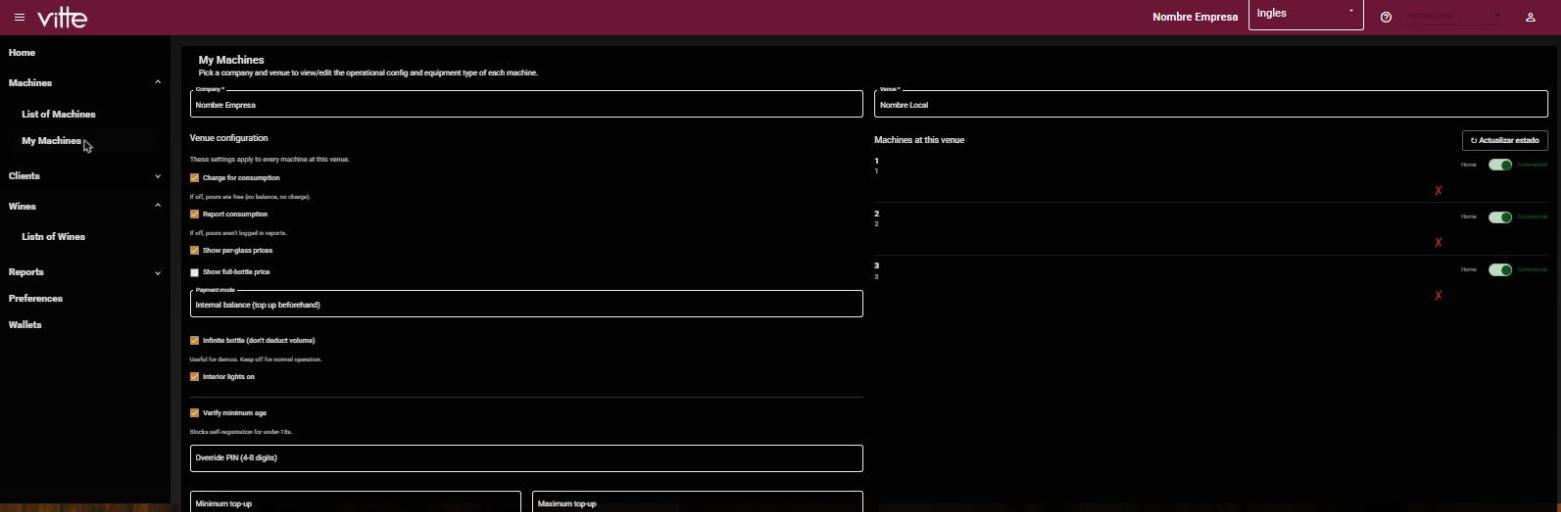
On the Pro, the tablet also shows these options under Configuration → Operation, but since it is in Linked mode they can't be changed there. Don't switch it to Standalone unless support tells you to: it would stop taking changes from the panel.
If the internet goes down
There is no automatic offline mode. Without internet, the machine can't identify customers, can't charge by balance or wallet, and doesn't receive orders from phones. Until the connection comes back, operate in manual mode: you pour from the screen and charge by hand.
Without internet, the tablet keeps pouring in free mode, but consumption during that period is not recorded and can't be recovered later: it doesn't appear in the reports.
Emergency fix: phone internet
If the venue's internet provider goes down, you can share a phone's mobile data and keep operating:
- On the phone, turn on Mobile hotspot or Wi‑Fi hotspot (tethering).
- On the tablet, connect to the phone's network following the «Internet connection» steps in section 4.
- The phone must be close to the machines: it doesn't have the range of a router.
- It should have a good data signal.
When your usual connection comes back, reconnect the tablet to that network.
Clients, balance and payments Pro only
How each client identifies themselves, how balance is loaded and how payments are taken with a digital wallet. This whole section applies to the Vitte Pro.
Ways to identify
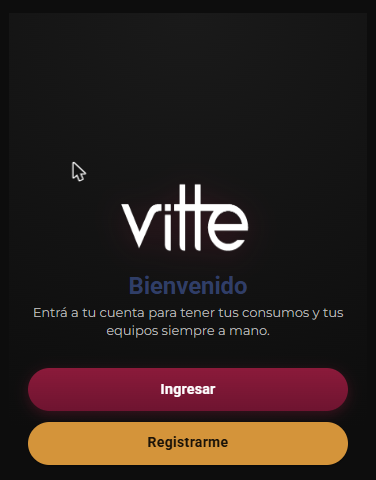
- With a phone (factory default): the client scans the QR on the main screen («Scan to sign in or register»). The Vitte web app opens on their phone, where they sign in to their account or register with name, phone, email and date of birth. The date is used to confirm they are of legal drinking age. The QR changes every 45 seconds, so always scan the one on the screen.
- With a card or barcode (optional): the system accepts a card reader or a barcode reader, sold separately as accessories. With the barcode reader, the venue can print its own codes for clients: it is a low-cost option. The client holds the card or code up to the reader while on the serving sizes screen. If it doesn't exist: «Card not found, try another card or contact the manager».
If you don't want the QR to show on the main screen (for example, if you only work with cards), hide it from the panel: Preferences → «Show client QR on the screen».
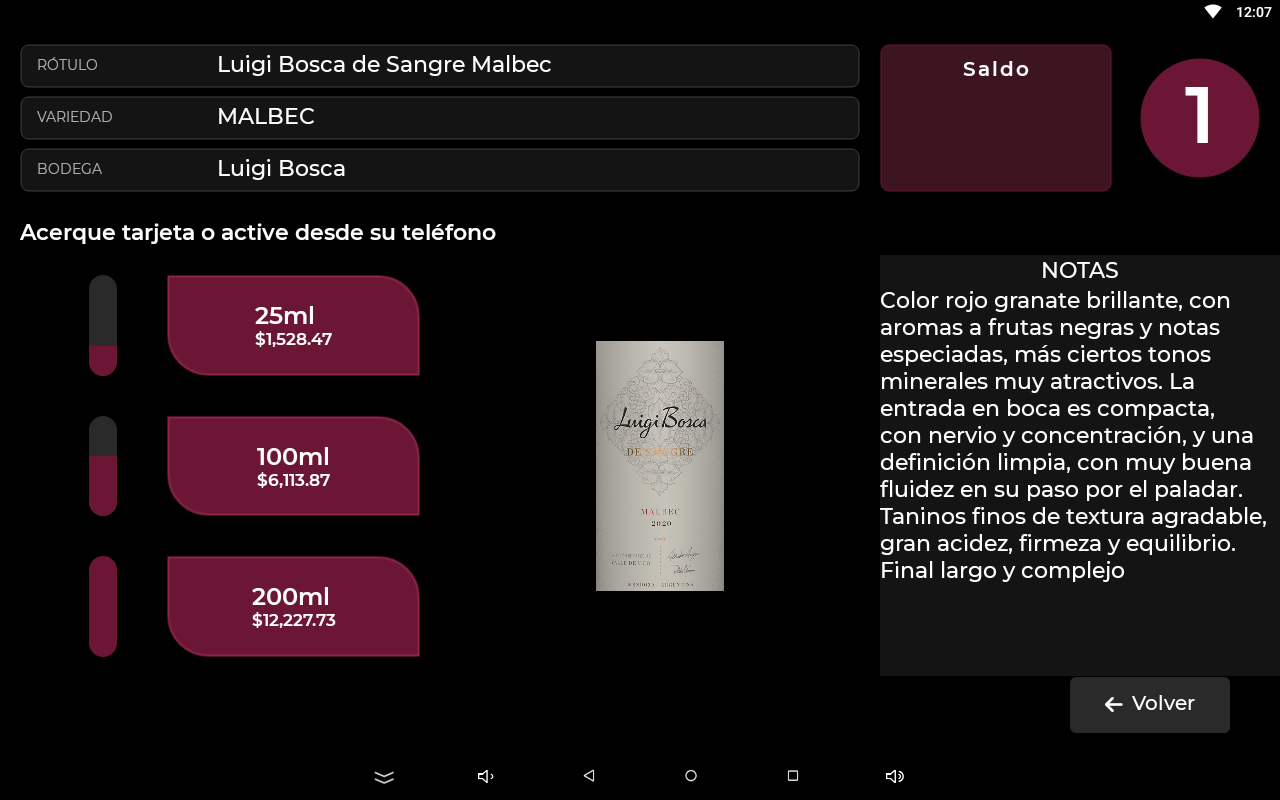
The machine code
The large number on the serving sizes screen is the machine code. It lets the client pick the right machine from their phone when the venue has several.
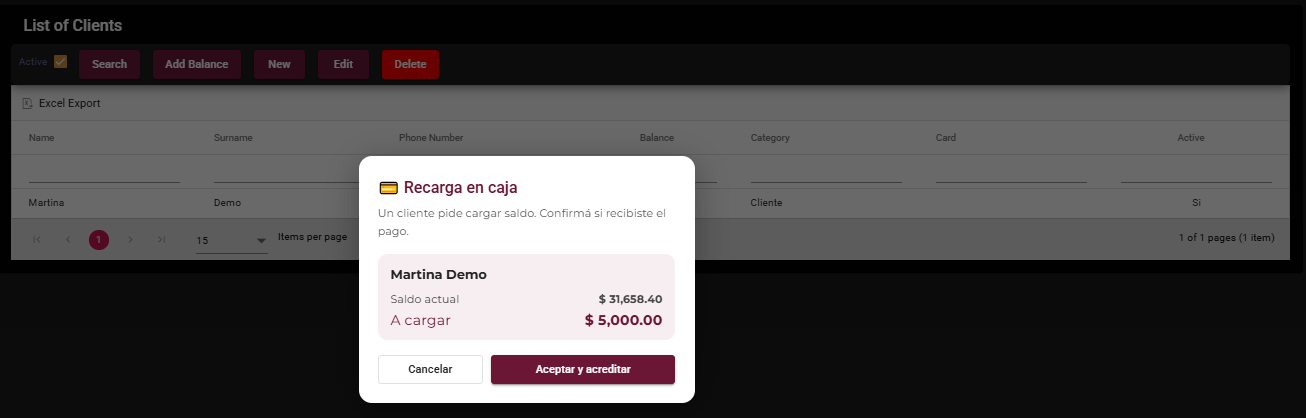
Client record
In the panel, Clients → List of Clients shows each client's name, phone, balance, category and card, with the Add Balance, New, Edit and Delete buttons. In each client's record:
- Card: their card code. With Associate, the system waits for the next card swiped on the venue's reader and assigns it to the client.
- Category: lets the venue group clients however it likes (see below).
- Total Amount: how much that client has spent at the venue.
- Extra Data: a free field for notes.
Client categories
Categories let you tell apart or group your clients however you like. The system does not apply automatic discounts or bonuses: they are just a reference for the venue.
Example. Based on each client's consumption history, you move the biggest spenders to the «Premium» or «VIP» category. When they top up their balance at the register, you add an extra by hand: for example, 10 % for Premium and 20 % for VIP.
It's just an example: you can use categories for anything you want (weekday clients, groups, companies). Nothing is applied automatically.
Loading balance at the register (internal balance mode)
- Requested from the phone: the client requests the top-up from their phone, and the panel (with the Clients screen open) shows the notice «Cash top-up: a client is asking to add balance». You take the payment and tap Accept and credit.
- From the panel: in Clients → Add Balance, look up the client by card or phone, enter the amount and tap Save.
Every top-up is recorded in the Cash Register Report (section 13).
Paying with Mercado Pago or PIX (digital wallet mode)
With the digital wallet, the client pays for each glass with their phone. No balance or registered account needed: it works for occasional clients and for machines with little staff attention.
- On the serving sizes screen, the sizes appear grayed out («Enabled after validating payment»). Below is the Pay with Mercado Pago button (in Brazil, PIX).
- The client taps that button and the sizes are enabled.
- They choose the size. Only then does the tablet generate the QR with the amount to pay. If the venue has more than one wallet, they first choose which one.
- «Scan the QR to pay» appears. The client scans and pays from their wallet app.
- When the payment is approved, the glass appears: the client places it under the spout and taps the check mark (or the X to cancel).
- The client has 5 minutes to pay. Cancel voids the transaction.
- If the payment confirmation is slow, the tablet keeps checking on its own every few seconds. There is no need to pay again.
- To take wallet payments, you first need to enter the credentials in the panel: Wallets. The «How do I get the Mercado Pago credentials?» button explains it step by step.
There are two options and the client chooses. If a client with internal balance identifies on a machine in wallet mode, by default the tablet deducts from their balance as long as it covers the cost. If they tap Pay with Mercado Pago instead, they make a separate payment that does not touch their balance.
Age check
It keeps people under 18 from using the unit. Turn it on in the panel, in My Machines → Verify minimum age (on the Agile, on the tablet: Configuration → Security → Minors mode). With the check on, people under 18 cannot register and, when tapping the logo to see the wines, the tablet asks for one of these two things:
- the date of birth (DD/MM/YYYY): if the client is under 18, they cannot use the unit. Validating it requires internet. It is chosen on the tablet, in Configuration → Security → Birth date; or
- the minors code: a 4- to 8-digit number that the venue gives only to adults, who enter it to serve themselves.
Where the minors code is set
- Pro: in the panel, My Machines → Override PIN. There is one for the whole venue: when you tap Save, it reaches all the venue's tablets automatically.
- Agile (and any tablet in Standalone mode): on the tablet, Configuration → Security → Minors code.
Only the venue sets and changes the code: clients cannot modify it. If you think someone who shouldn't knows it, change it.
Units with little staff attention
No unit can be left completely unattended for long: bottles are changed by hand. If the unit will have little supervision, the infinite bottle is not a good fit: if a bottle runs out, the client pays, foam comes out and, with no one to tell, they are left unhappy. In that case, volume control is the better choice (section 7).
Ordering from the phone Pro only
The client orders their glass from the phone and the unit serves it.
- The client scans the QR, signs in to their account and, from their phone, chooses the wine and size.
- The order reaches the tablet, which shows the glass with the X and the check mark.
- Place the glass under the spout and tap the check mark on the tablet. The unit serves and deducts the consumption.
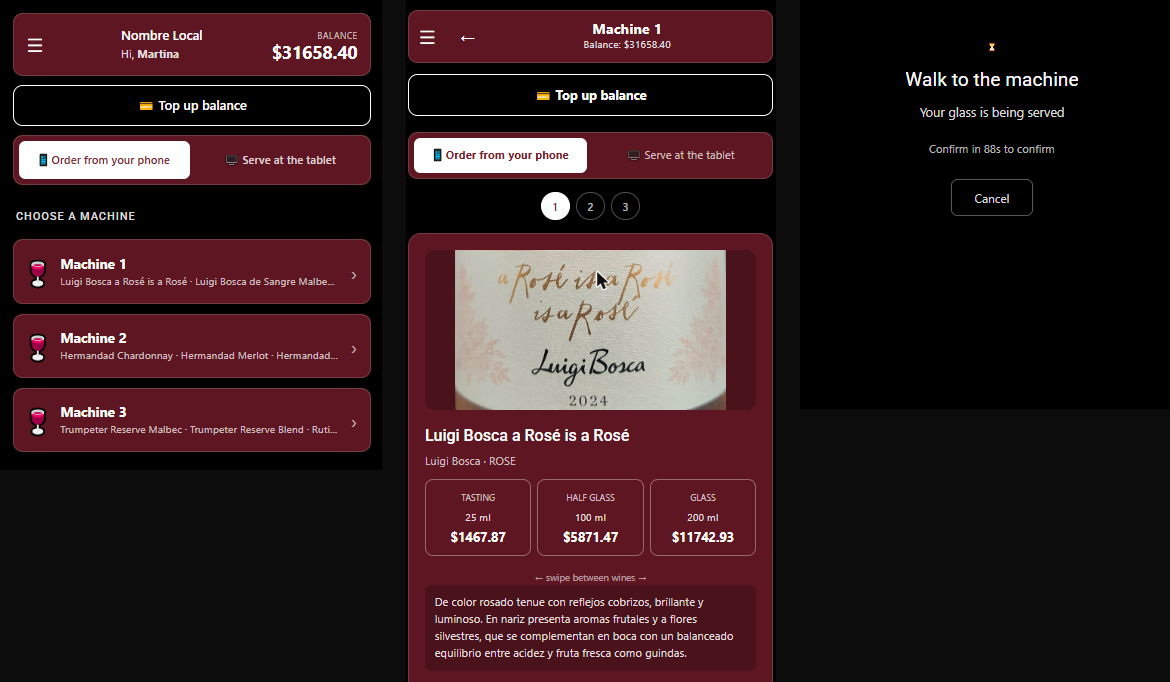
After ordering, there are 90 seconds to confirm at the unit. After that, the order is canceled automatically.
Who serves
It depends on how the venue works: the client walks up to the machine and serves themselves, or a waiter or sommelier confirms the order at the unit and brings the glass to the table it was ordered from.
Special situations
- The tablet handles one order at a time. If another one arrives while one is in progress, the second is rejected and the client has to order again.
- If the client cancels from their phone, the tablet closes the order on its own.
- If the position doesn't have enough wine (with volume control) or the module doesn't respond, the order is not shown and the client gets a notice.
- Without internet, orders don't reach the tablet.
Screen indicators
What each indicator on the main screen tells you. See the diagram in section 3.
Liquid level
It appears only if the unit controls volume. With infinite bottle, the factory default, it is not shown (section 7).
- It is a circle at the top left: green if all bottles have enough wine, red if any is empty or has less than one glass left.
- Tap it to see the ml left in each bottle, grouped by module. You can also log a bottle change from there (section 7).
- It also doesn't appear if the unit doesn't report consumption.
- The level is accurate as long as the unit stayed online. If it served while offline, correct it by hand.
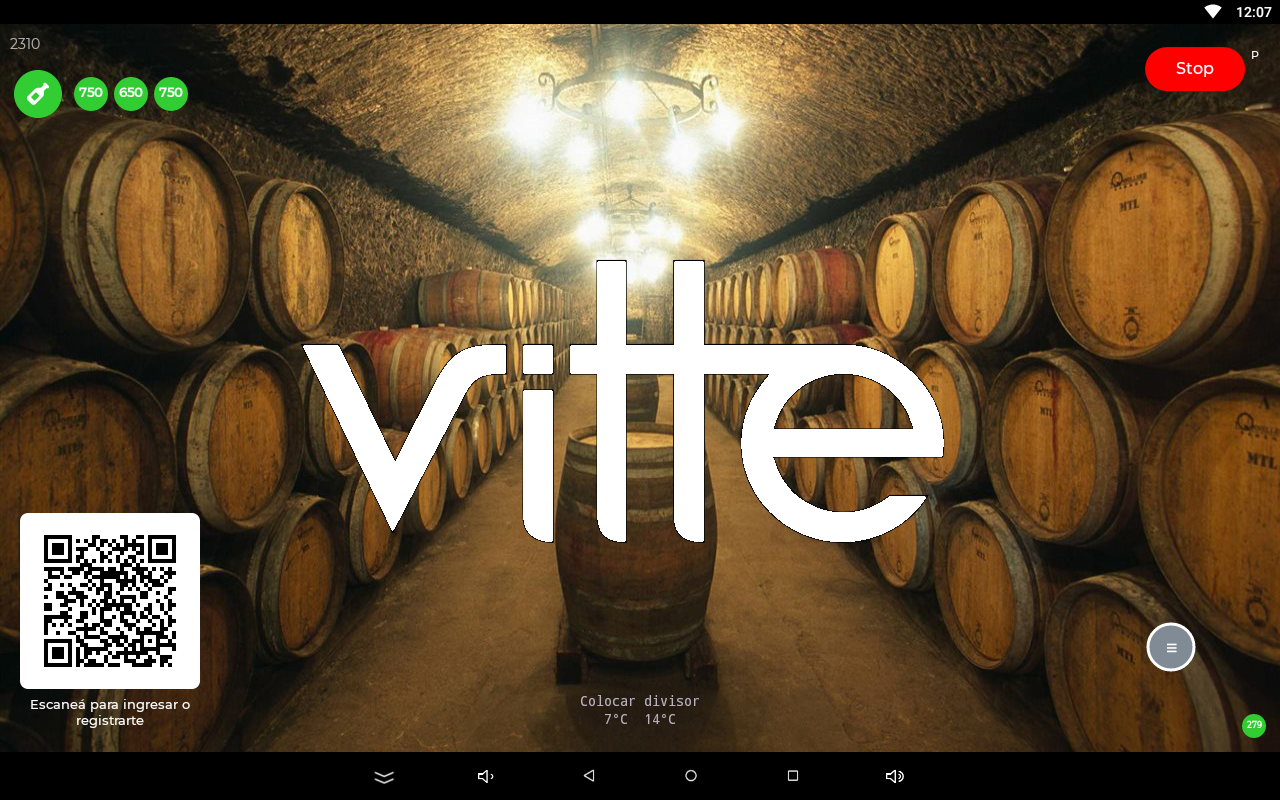
Connection status
- It is the small circle at the bottom right. Every 20 seconds the tablet measures how long the server takes to respond. The number is the latest measurement, in milliseconds.
- The color is based on the latest measurements: green if almost all were fast, orange if there were some delays and red if many took longer than 1.4 seconds.
- Tap it to see the latest measurements and the percentage of slow responses.
- If it stays red, check the Wi‑Fi signal where the unit is located or try another network.
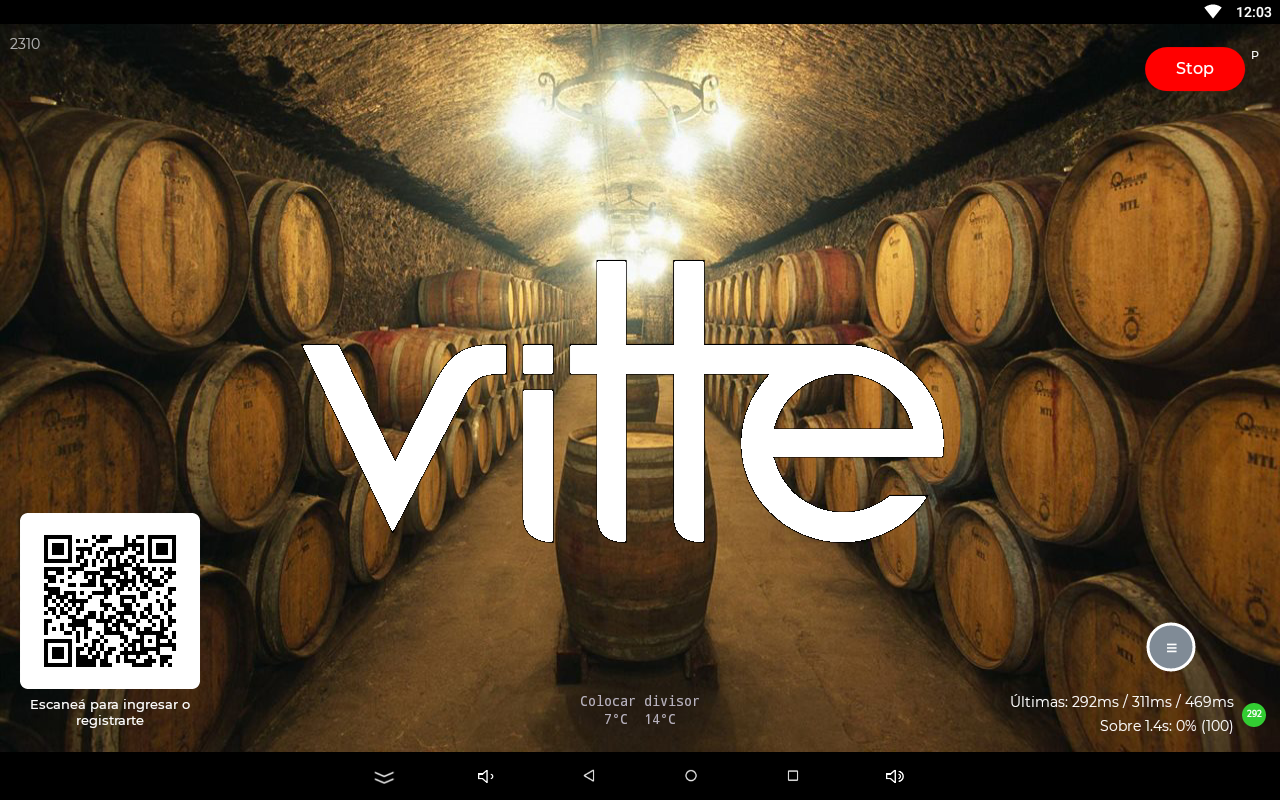
Temperatures and divider
At the bottom center you'll see the set temperature for each zone, in °C or °F, with one line per module. On 2-temperature modules, the «Place divider» notice means the zones have different temperatures and you need to put the divider in (section 14); «Remove divider» means they are the same and it's best to take it out.
Notice screens
- «No connection»: the tablet could not reach the server. Check the Wi‑Fi and tap Retry.
- «No service»: the service has been suspended. Contact support.
- «Device not detected»: no module is responding. Tap Find modules or Retry; if it persists, see section 16.
Web management panel
From your computer or phone you manage wines, machines and prices; on the Pro, also clients, balances, payments and reports. This section is the panel's index: each feature is explained in its own section.
How to sign in
- Go to panel.vittewine.com.
- Choose the language and fill in Server (your company's name in Vitte), User and Password.
- Tap Log-In.
To change your password: user menu (top right) → My Data.
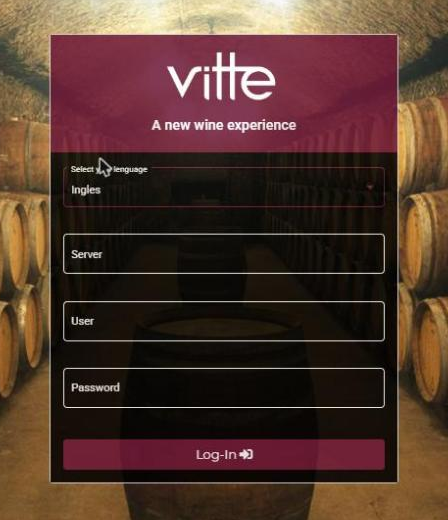
Users and permissions
Users are created by Vitte at your request: they can be administrators (they see the whole company) or restricted users (for example, an operator who only sees their own venue and certain menus). Ask support for them. The menu you see depends on your user's permissions.
What each menu contains
| Menu | What it's for | Where it's explained |
|---|---|---|
| Machines → List of Machines | Wine in each position, volume, days and bottle change. | Section 6 |
| Machines → My Machines | Venue configuration and status of each machine. | Section 9 |
| Wines | Adding and editing wines, with AI from the label. | Section 6 |
| Preferences | Serving sizes, margins, rounding and QR. | Section 6 |
| Reports (Pro) | Consumption and cash register. | Below |
| Clients (Pro) | Records, balances and top-ups. | Section 10 |
| Wallets (Pro) | Mercado Pago or PIX credentials. | Section 10 |
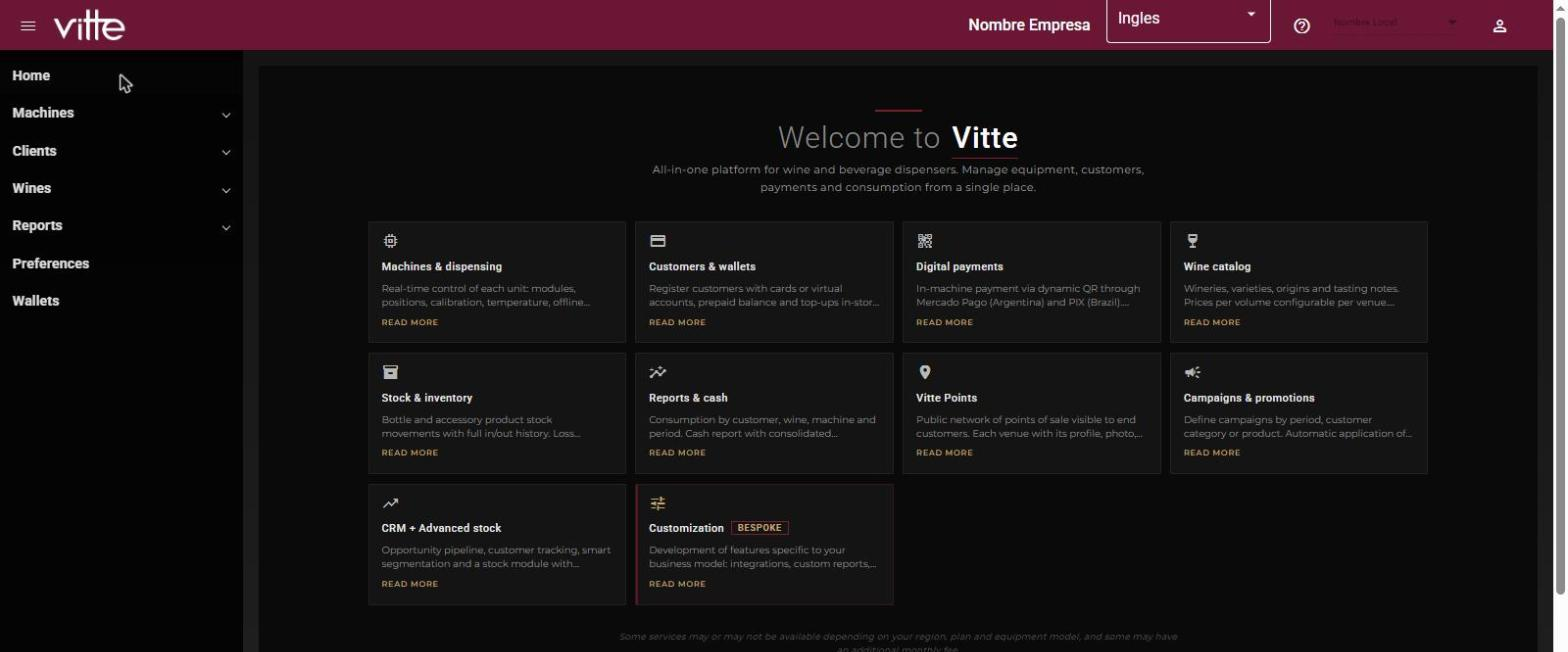
The Agile has: Home, Machines (List and Add), Wines and Preferences. The Pro adds Reports, Clients, Wallets and My Machines.
Reports Pro only
List of Consumptions
- Choose a date range (up to 35 days per query; by default, the last 30) and tap Search.
- It shows every glass served: client, machine, wine, winery, variety, size, volume, price and date, across all of the company's venues.
- You can filter by column and export to Excel.
- Use it to see which wines, sizes and machines perform best.
- If «Report consumption» is off (section 9), consumption doesn't appear.
Cash Register Report
- Choose the start and end dates.
- It shows every balance top-up: client, card, source and date. The source shows where the money came from: Cash (top-up made from the panel) or PIX (online top-up through Mercado Pago or PIX, with its reference number).
- The footer adds up Total Cash and Total PIX. Use it for the daily cash count: what was collected at the counter versus what was collected online.
- It can be exported to Excel.
Balance corrections also appear in the Cash Register Report. If you correct a client's balance by editing their record, the difference shows up as a «Cash» entry, positive or negative. For example: from 100 to 150 shows +50; from 100 to 80 shows −20. Keep this in mind during the cash count, so you know where each difference comes from.
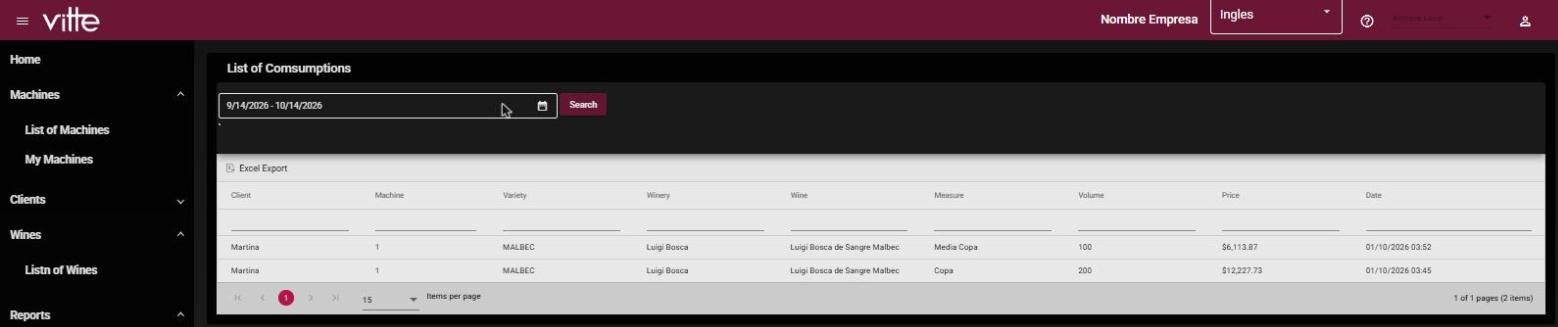

Export to Excel (backup)
The lists of clients with balances, wines, users and the consumption and cash register reports have the Excel Export button in the table toolbar. Exporting is done from a computer.
Download the list of clients with balances every day: it is the only thing you absolutely must back up (section 1).
Machine configuration
The details of each configuration screen on the tablet. All of them ask for the password.
Configuration menu (gear)
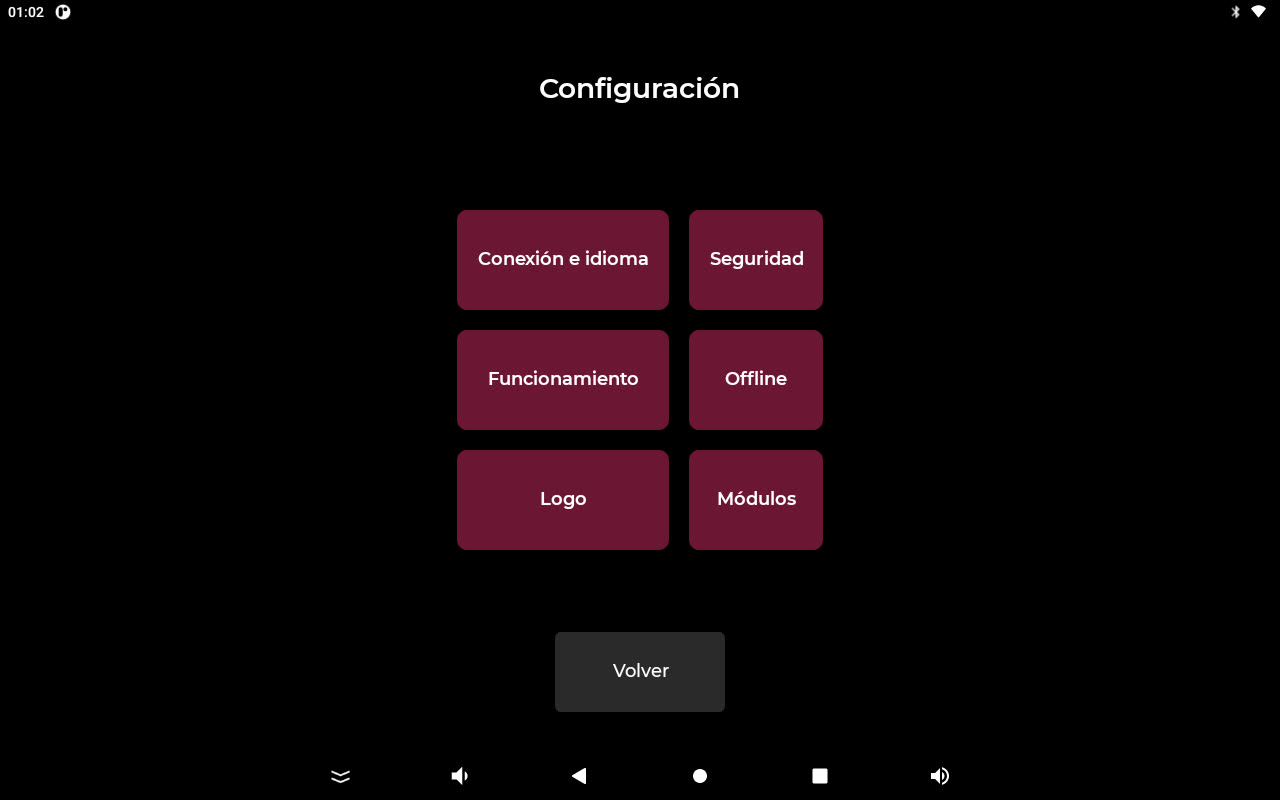
| Option | What it has |
|---|---|
| Connection and language | The pairing data (server, company, venue, machine), which you don't edit by hand; the Reload configuration (Vitte) button to pair with a code (section 5); and the screen language (Spanish, Portuguese, English). Changes apply when you tap Save. |
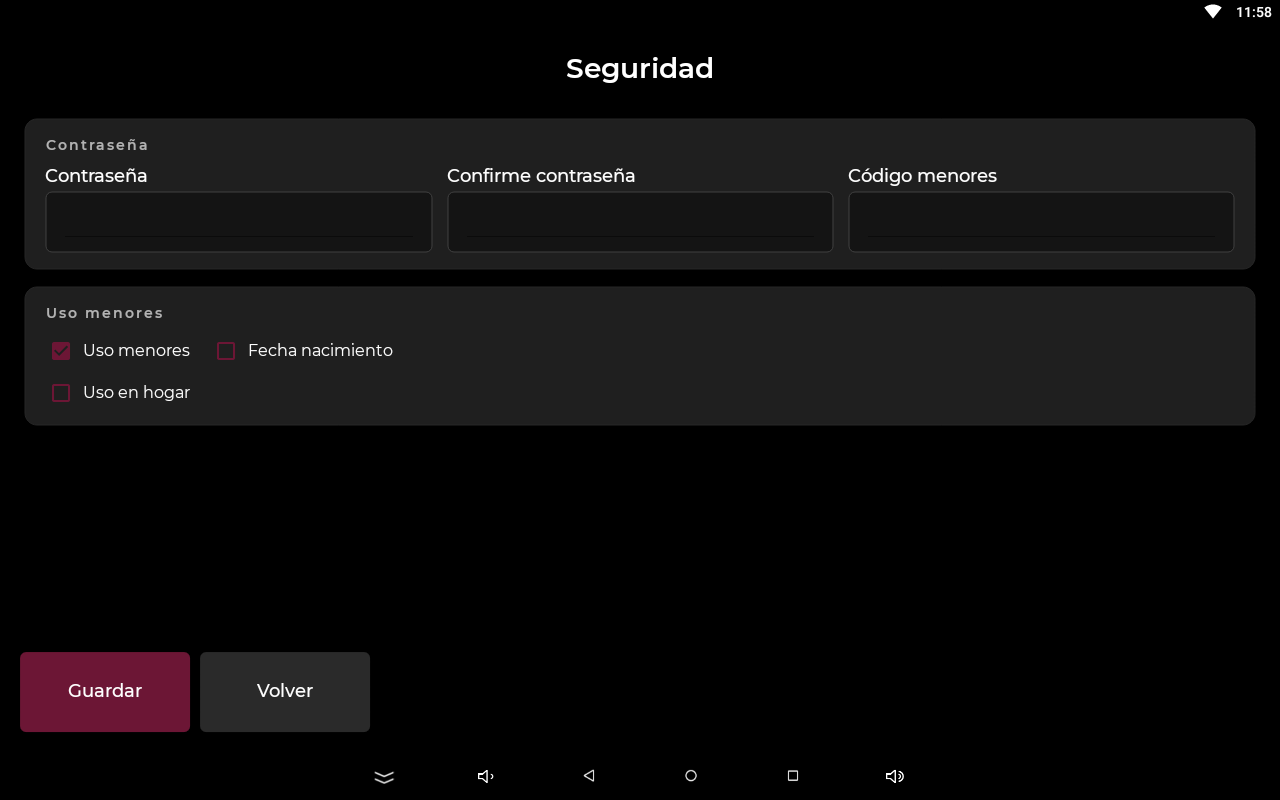
| Security | Password and Confirm password to change the password; Minors mode (age check, section 10) by Birth date or by Minors code; and Home use: Cleaning, Calibration and Temperature stop asking for the password (Configuration still asks for it). |
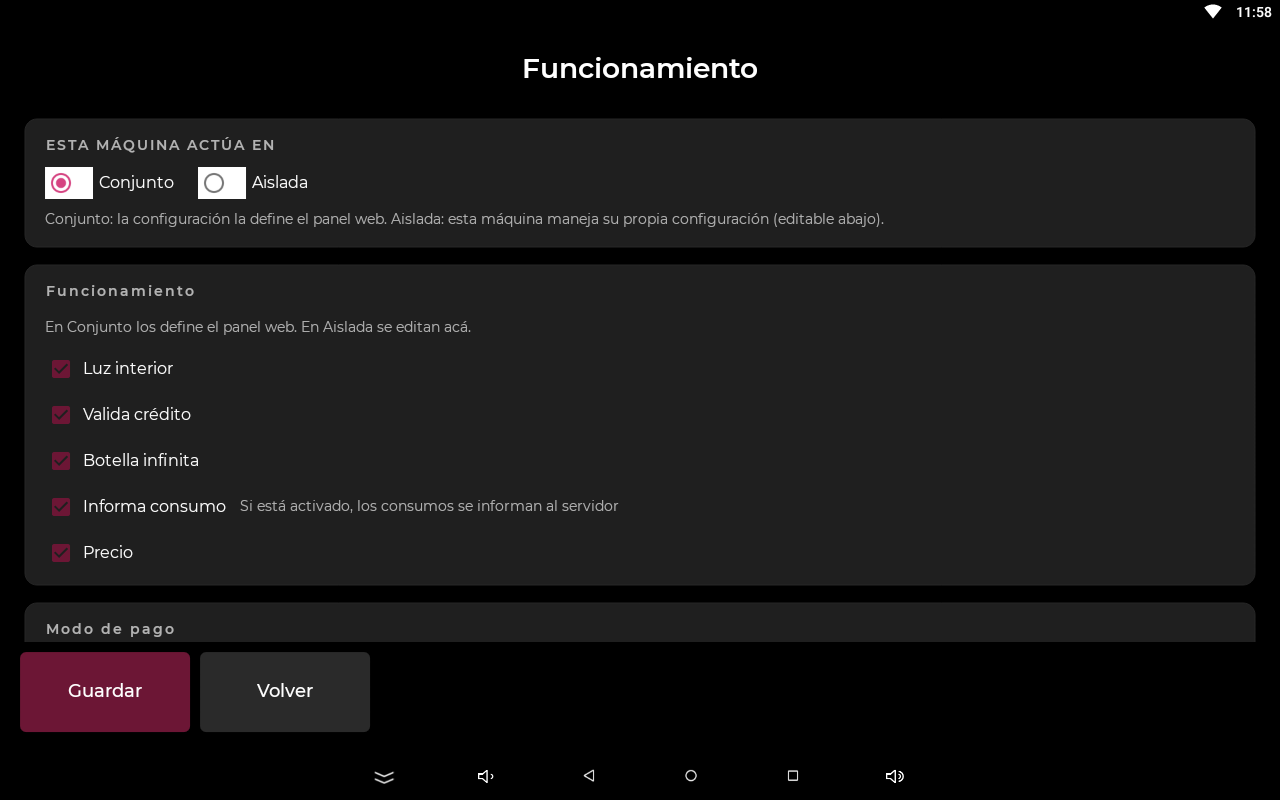
| Operation | Whether the machine works Linked (it takes its configuration from the panel, usual for the Pro) or Standalone (it uses the tablet's, usual for the Agile). Technical service sets this up during the installation video call. The operating options are the same as in My Machines (section 9): in Standalone you change them here; in Linked you can see them but not change them. |
| Offline | Measures and bottle details entered by hand. See below. |
| Logo | Update logo brings to the tablet the venue logo that Vitte uploaded (section 3). |
| Modules | The connected modules and their order. See below and section 3. |
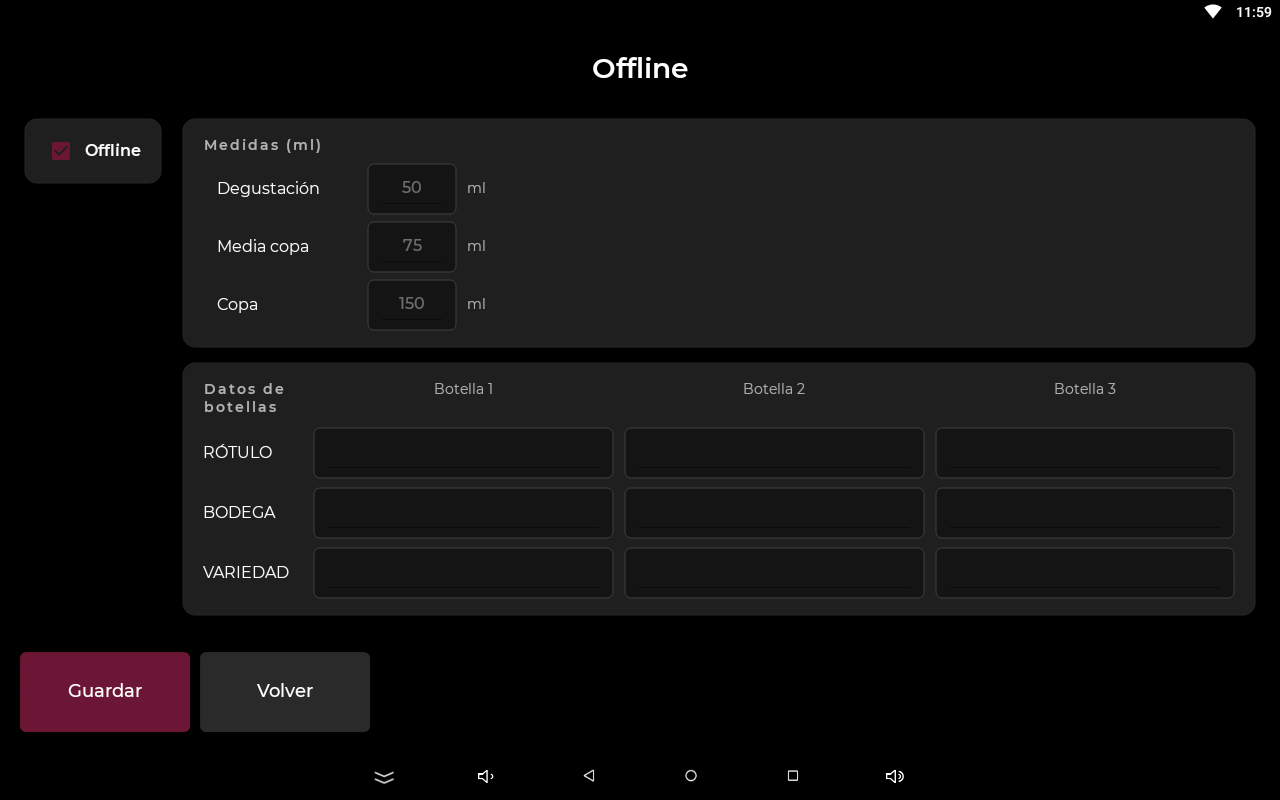
Offline
Use it when you can't or don't want to configure from the panel: for example, if the machine has no internet or if you'd rather never log in to the panel. It lets you enter by hand, on the tablet, the wine names, the winery, the variety and the ml for each measure. Whatever you enter here takes priority over what comes from the panel.
- Menu → gear → password → Offline.
- Before turning it on, leave the positions with no active wines: in the panel, List of Machines → Empty Position on each position (section 6). This way the data you enter doesn't mix with the previous wine's data, such as the tasting notes.
- Check Offline. Until you check it, the fields are grayed out.
- Fill in what you want to change: the ml for Tasting, Half glass and Glass, and the label, winery and variety for bottles 1, 2 and 3. Anything you leave empty keeps taking the value from the panel.
- Tap Save and then Back. You'll see the changes when you go back to the wine screen.
- The measures you enter apply to all positions.
- The «Bottle 1» details apply to position 1 of each module, and the same goes for 2 and 3.
- Prices don't change: they're still calculated in the panel.
- To go back to the panel data, uncheck Offline and save.
Tasting notes cannot be entered in Offline mode.
Modules
- When you open the screen, the tablet looks for the connected modules. Each row shows «Dispenser found» and the position it takes (1, 2 or 3).
- Test makes that module's light blink, so you can tell which is which.
- If you changed the order of the modules, choose the correct position for each one and tap Save (that's also how you leave this screen). Two modules can't have the same position.
- Don't tap «Update»: it's a technical service tool.
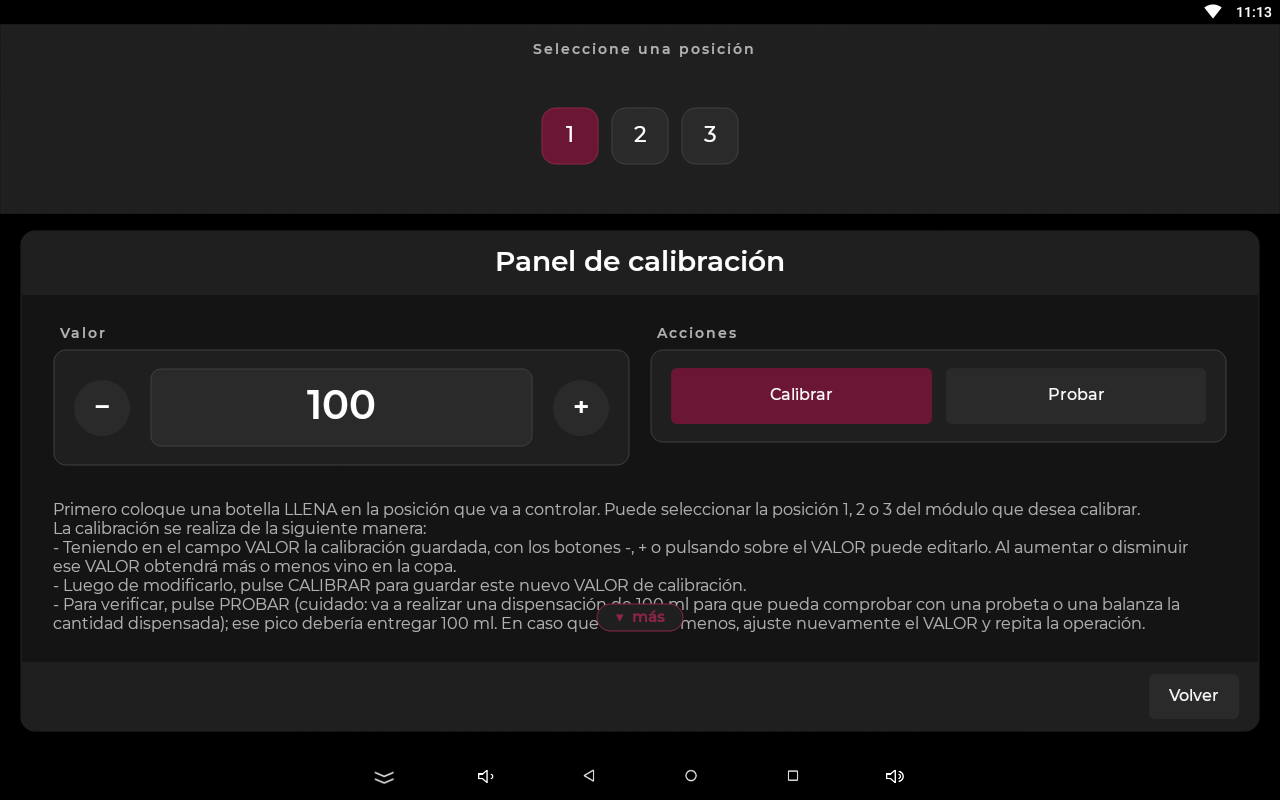
Calibration
It adjusts how much wine comes out at each position so the measures are exact. Do it if you notice that glasses come out with more or less wine than configured.
- Menu → Calibration (wrench). Choose the module and the position.
- For the test, hang a bottle filled with water. Put a measuring cylinder under the spout, or a glass on a scale set to zero (tare), and tap Test: the machine tries to pour 100 ml.
- Measure what came out. With water, 100 ml equals 100 g on the scale.
- Adjust the value with − or +, by the same percentage as the difference. For example, if 120 ml came out (20 % too much), lower the value by about 20 %.
- It's best to get there in two steps: first lower it to 90, for example, test again and, if it still pours too much, lower it a bit more.
- Tap Calibrate to save and repeat the test until 100 ml comes out.
The machine leaves the factory calibrated and doesn't need periodic calibration. Recalibrate only if you notice that the measures aren't right.
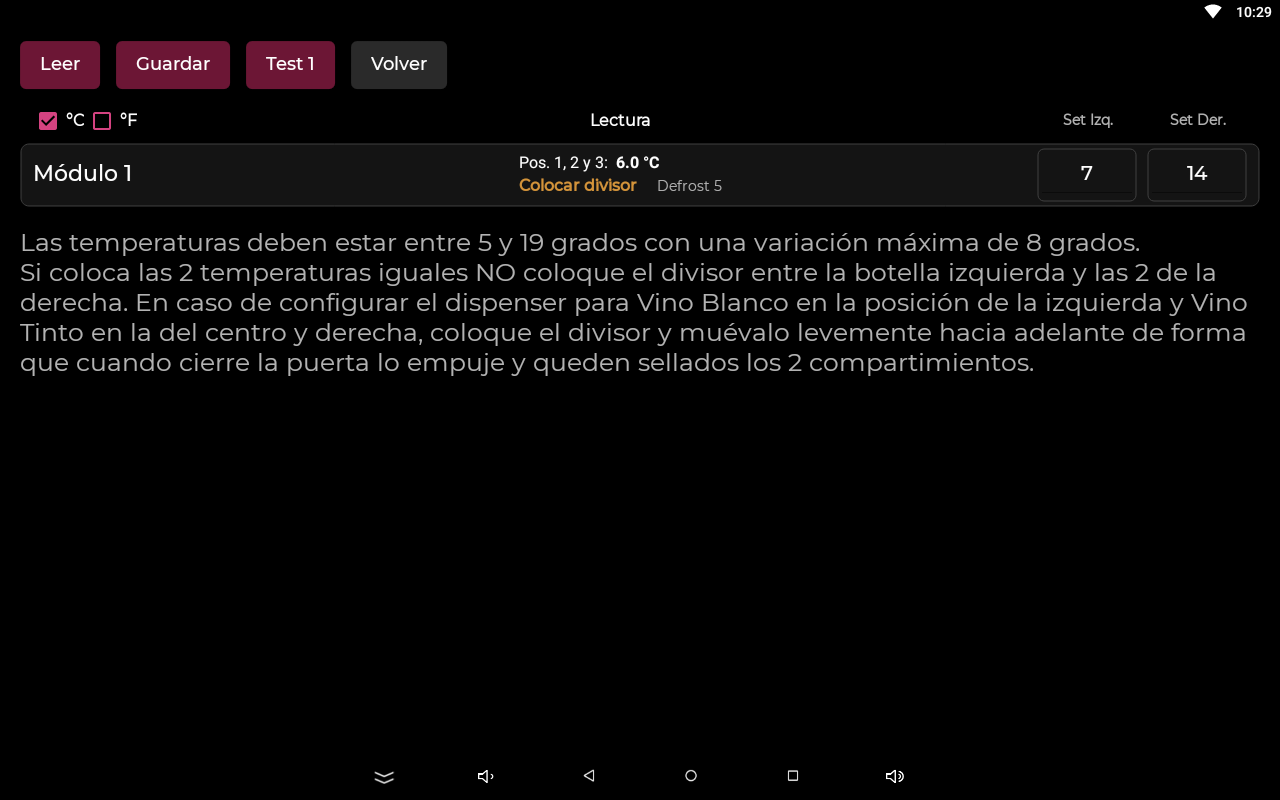
Temperature
- Menu → Temperature (thermometer). There's one row per module. Read shows the current temperature of each zone; in Set Left (position 1) and Set Right (positions 2 and 3) you choose the temperatures and tap Save. You can choose °C or °F.
- Allowed range: 5 to 19 °C. Position 1 has to be the same as or colder than positions 2 and 3, with a maximum difference of 8 °C; otherwise, the machine corrects it on its own.
- Recommended values: 7 °C for whites and 14 °C for reds.
- If you set different temperatures in a module, put in the divider (the main screen tells you).
Cooling combinations
See how each unit can be set up depending on each module's temperature. Tap a combination or build it module by module.
With the divider, the left bottle sits in a cold zone for a white and the other two stay warmer for reds. Without it, all 3 the same.
All possible combinations
Guide temperatures: whites 6 to 8 °C (43–46 °F), reds 14 to 16 °C (57–61 °F). Each zone: 5 to 19 °C. The left zone must be the same as or colder than the right one, with a maximum difference of 8 °C.
Each module can keep its 3 bottles at the same temperature or, with the divider, set the left bottle apart in a cold zone. Tap each module to see the result.
All possible combinations
Build your own
Choose what goes in each module.
Guide temperatures: whites 6 to 8 °C (43–46 °F), reds 14 to 16 °C (57–61 °F). Each zone: 5 to 19 °C. The left zone must be the same as or colder than the right one, with a maximum difference of 8 °C.
Each module can keep its 3 bottles at the same temperature or, with the divider, set the left bottle apart in a cold zone. Tap each module to see the result.
All possible combinations
Build your own
Choose what goes in each module.
Guide temperatures: whites 6 to 8 °C (43–46 °F), reds 14 to 16 °C (57–61 °F). Each zone: 5 to 19 °C. The left zone must be the same as or colder than the right one, with a maximum difference of 8 °C.
The divider
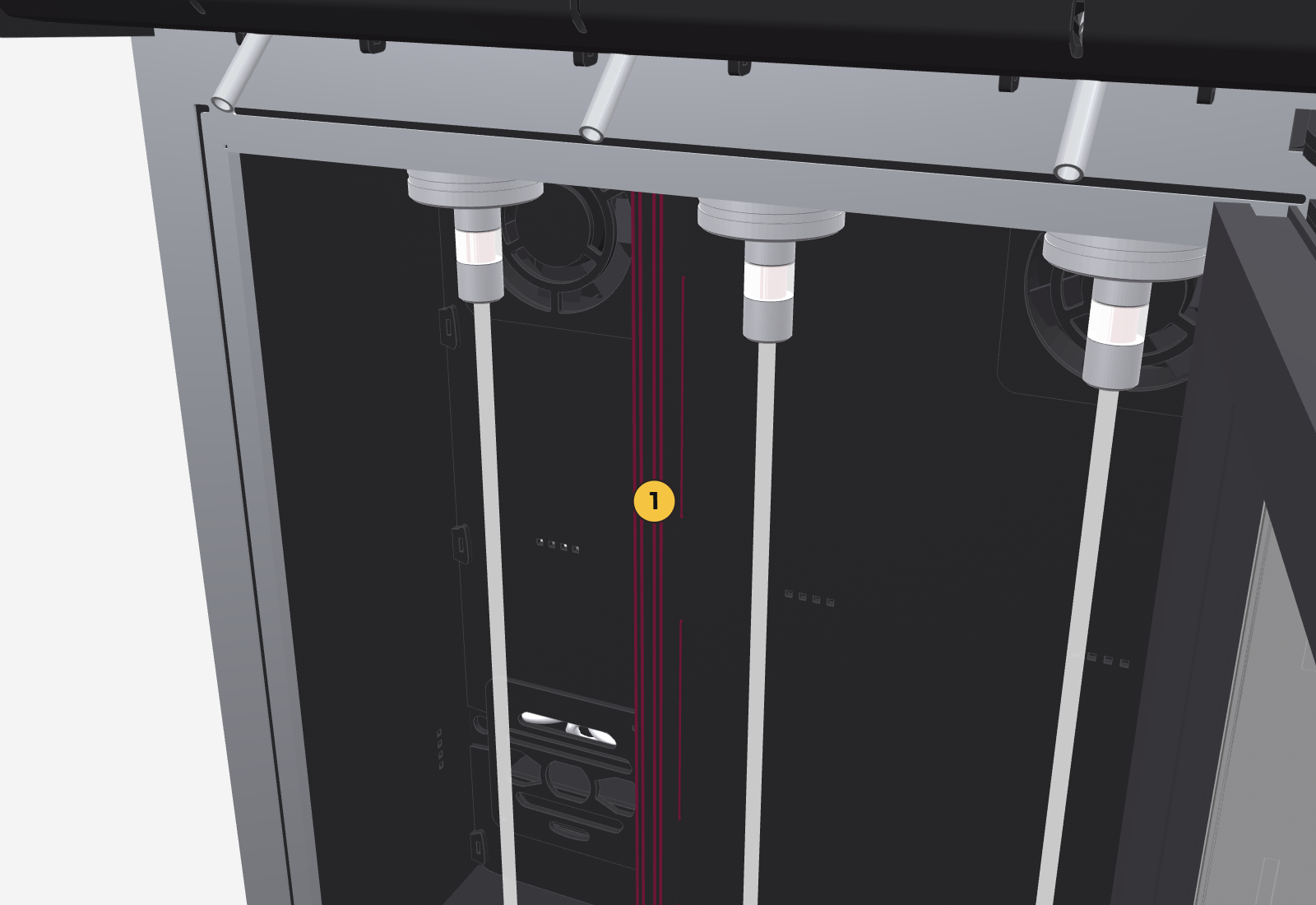
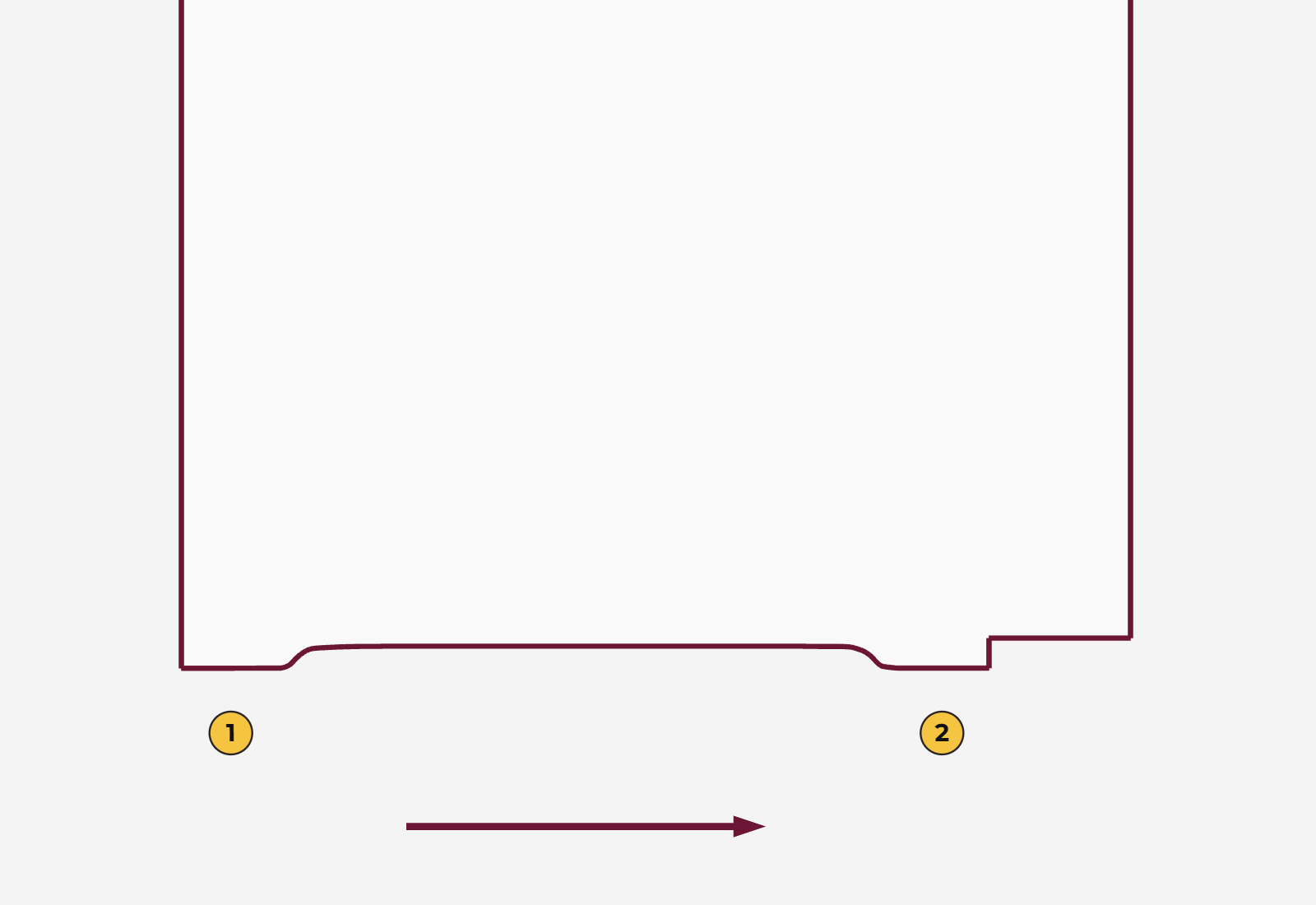
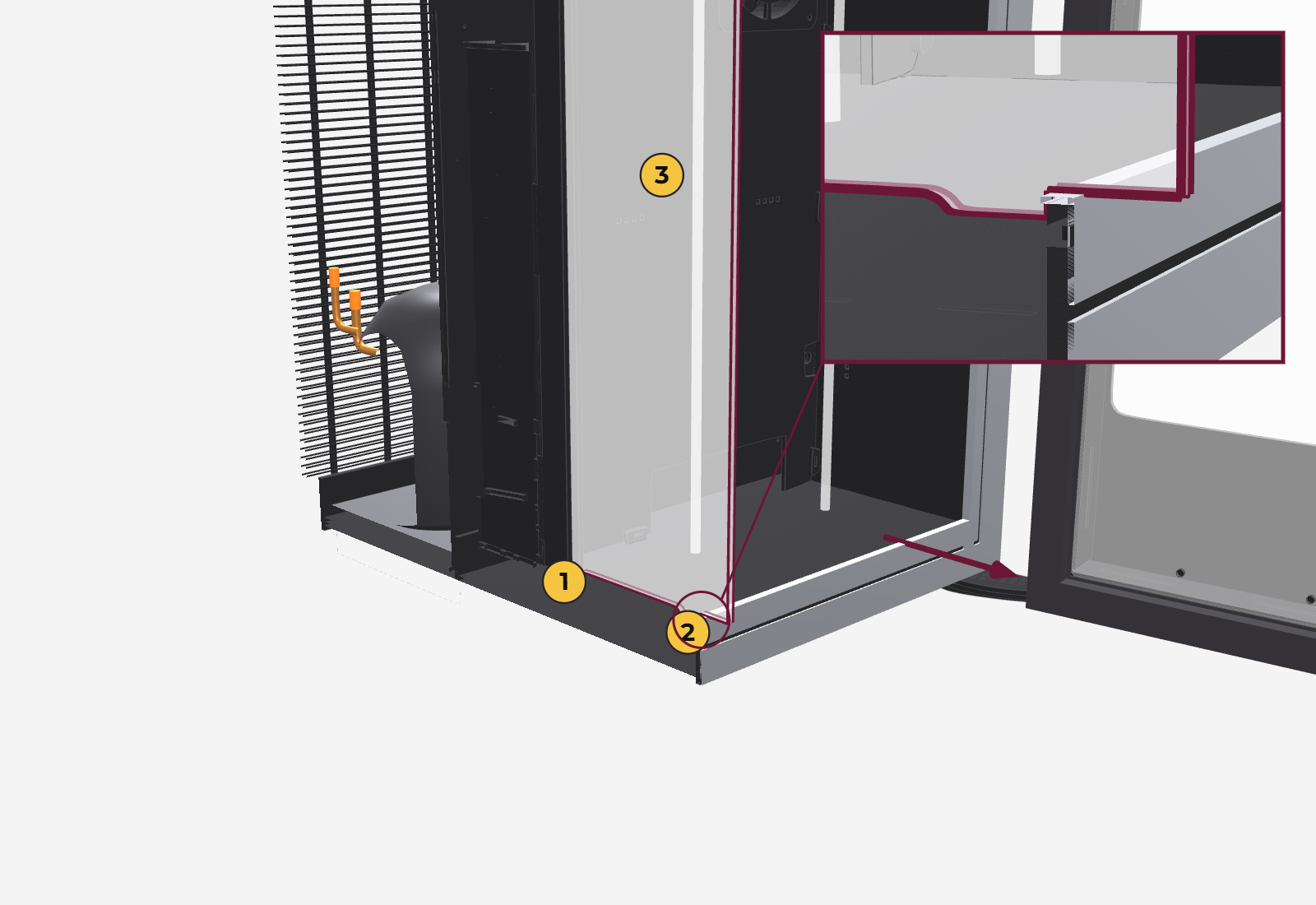
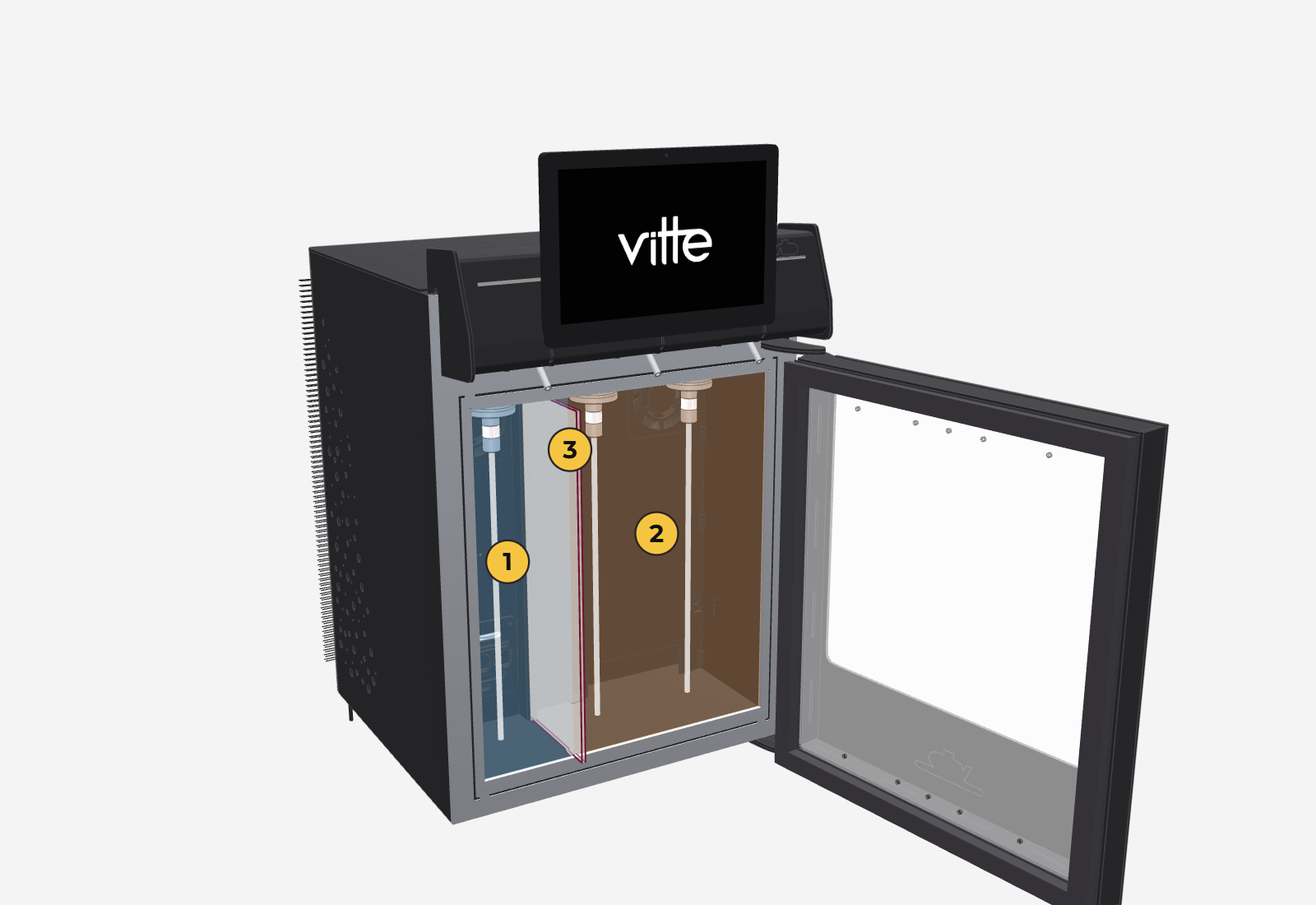
It's a 4 mm acrylic panel that comes with the machine. In each 2-temperature module, it separates bottle 1 (left) from bottles 2 and 3 (right) so each zone keeps its temperature.
- With the door open, find the slot at the back of the bottle compartment, in the fan area, between positions 1 and 2.
- Look at the divider edge-on: on the bottom side it has two protruding tabs. The rear one is flush with the back and is the one that goes into the slot. The front one is about 15 to 20 mm from the front.
- Fit the rear tab into the slot at the back.
- Slide the divider forward until the front tab stops against the small step on the floor, on the plastic part at the front. The divider stays hooked in the slot (it doesn't come out), but sits forward: it can move inside the slot.
- Close the door: the door touches the divider and pushes it in until the door is closed. The acrylic on the inside of the door rests against the divider's acrylic, and the left zone (1 bottle) is fully insulated from the right zone (2 bottles).
Cleaning
Cleaning the lines is key to the machine working well, and it's a condition of the warranty.
How often
Every 15 to 20 days at most; ideally every 15, and the more often, the better. And contrary to what people usually think: the less the machine is used, the more often it needs cleaning, because wine sitting still in the lines creates sediment.
If the machine is going to sit unused, leave it clean and without wine.
- Take advantage of bottle changes: if a wine runs out or you remove it before 15 days, clean that position right then.
- If the bottle is still in service, you can stretch the cleaning to 20 days. Don't remove an open bottle just to clean: when it's depressurized, the wine loses the protection of the gas.
- Each position is cleaned separately. Cleaning position 1 doesn't clean 2 or 3, and you don't need to do all three together: clean each one according to its use.
- In the panel, List of Machines shows the days until cleaning for each position (section 6); the count resets when the tablet logs a full cleaning.
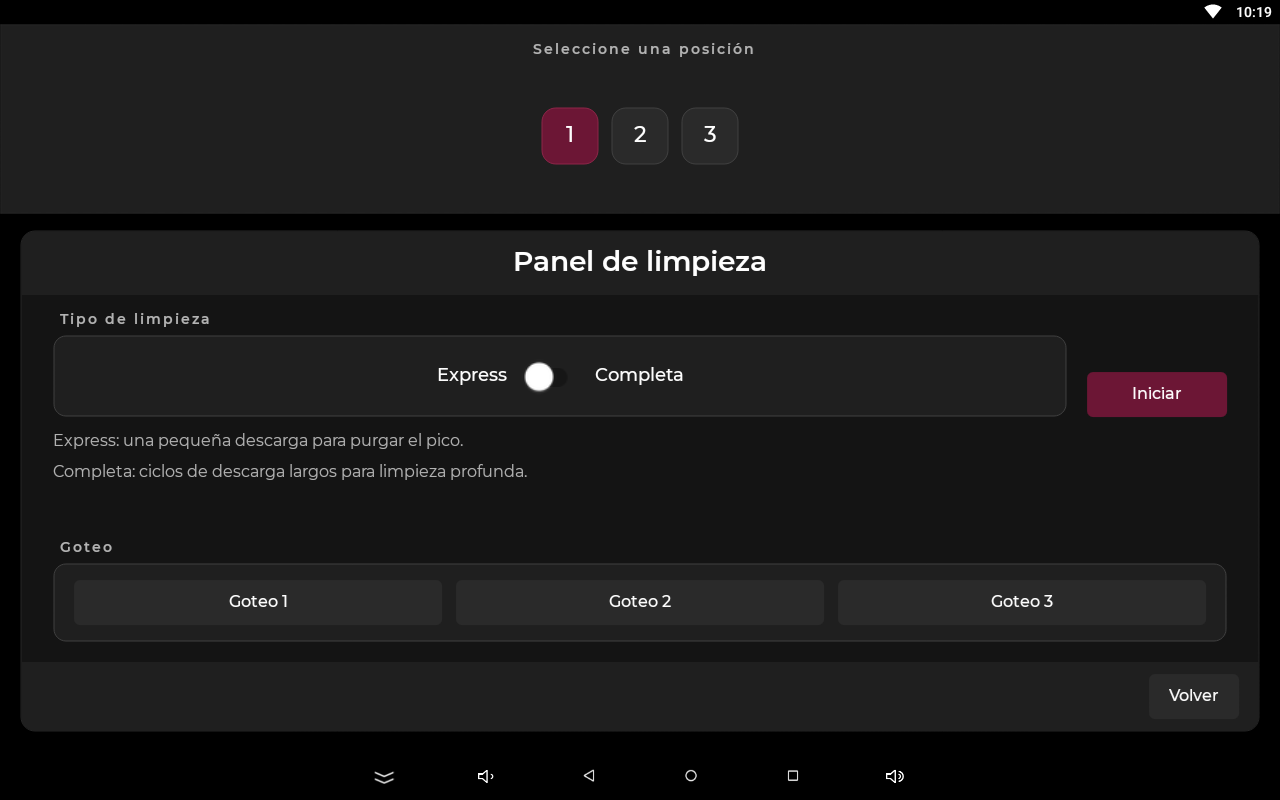
Cleaning types on the tablet
| Type | What it does | When to use it |
|---|---|---|
| Full | Long discharge cycles with pauses: about 260 ml in total, around one minute per position. At the end it shows «Cleaning completed successfully.» | The cleaning every 15 to 20 days. |
| Express | A very small discharge (10 ml) to purge the spout. | When switching from one wine to another, or on a new machine, which comes tested with water from the factory (section 7). |
| Drip (buttons 1, 2 and 3) | Opens and closes the position's valve with short, rapid discharges to loosen sediment. | If sediment is left: repeat it 2 or 3 times and finish with a Full cleaning. |
Full cleaning, step by step
Hold the bottle with a dry cloth (never damp, because it transfers the heat) or with oven mitts. Hold it firmly so it doesn't fall, and take every precaution for handling boiling water.
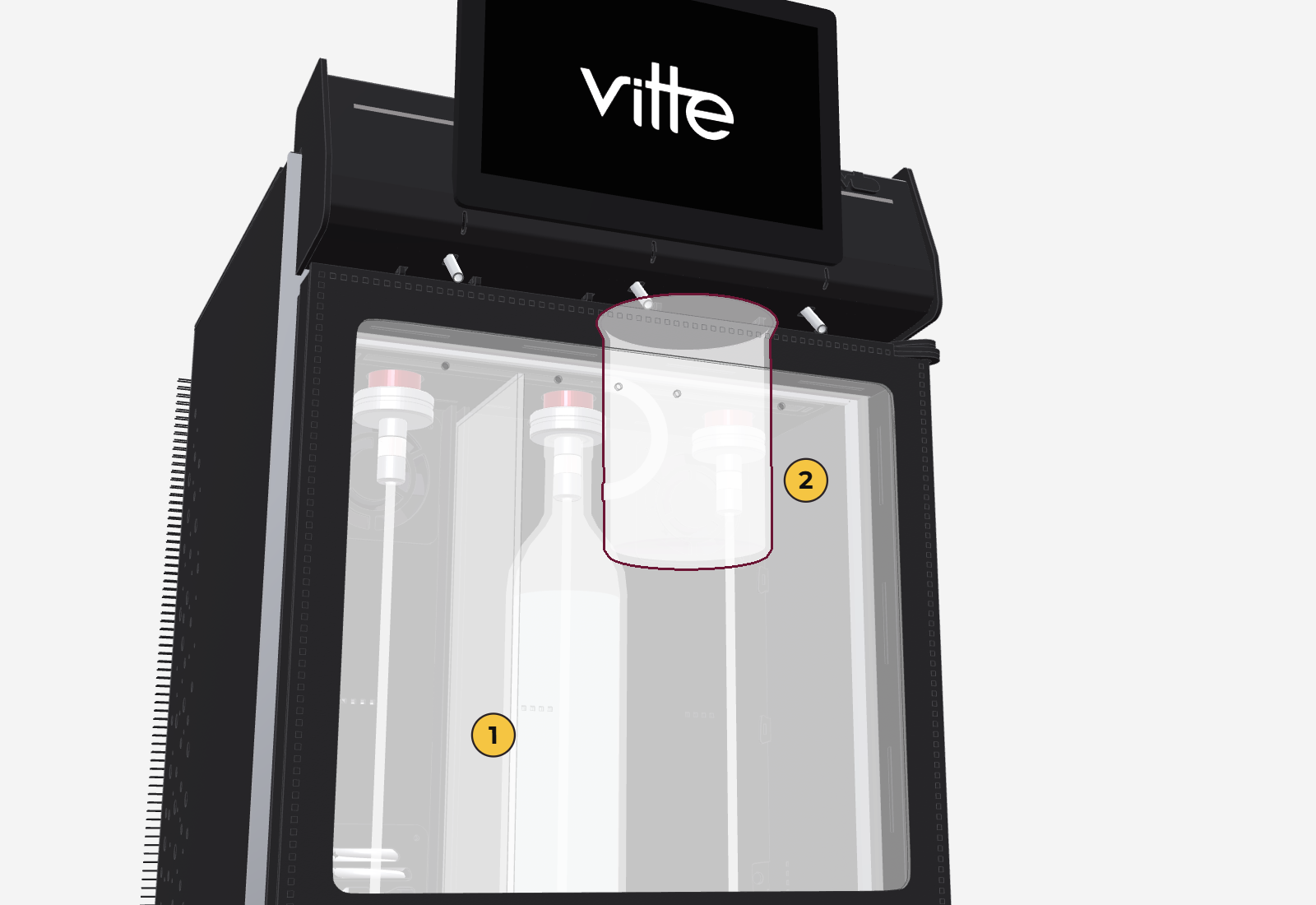
- Use an empty wine bottle, no exceptions: a soda bottle or any other drink bottle won't work, because the neck is different and the machine needs to seal and pressurize the bottle. Putting the hose into a container or a kettle won't do either. Fill it with boiling water (not warm, not hot: boiling) like a normal wine bottle, without filling it to the brim, so it doesn't overflow when you put it in and burn you. Don't leave it with too little water: cleaning uses a lot of gas.
- Hang it in the position you're going to clean, exactly like a wine bottle (section 7).
- Put a container under the spout. On the tablet: menu → Cleaning (broom). Choose the module and the position, choose Full and tap Start.
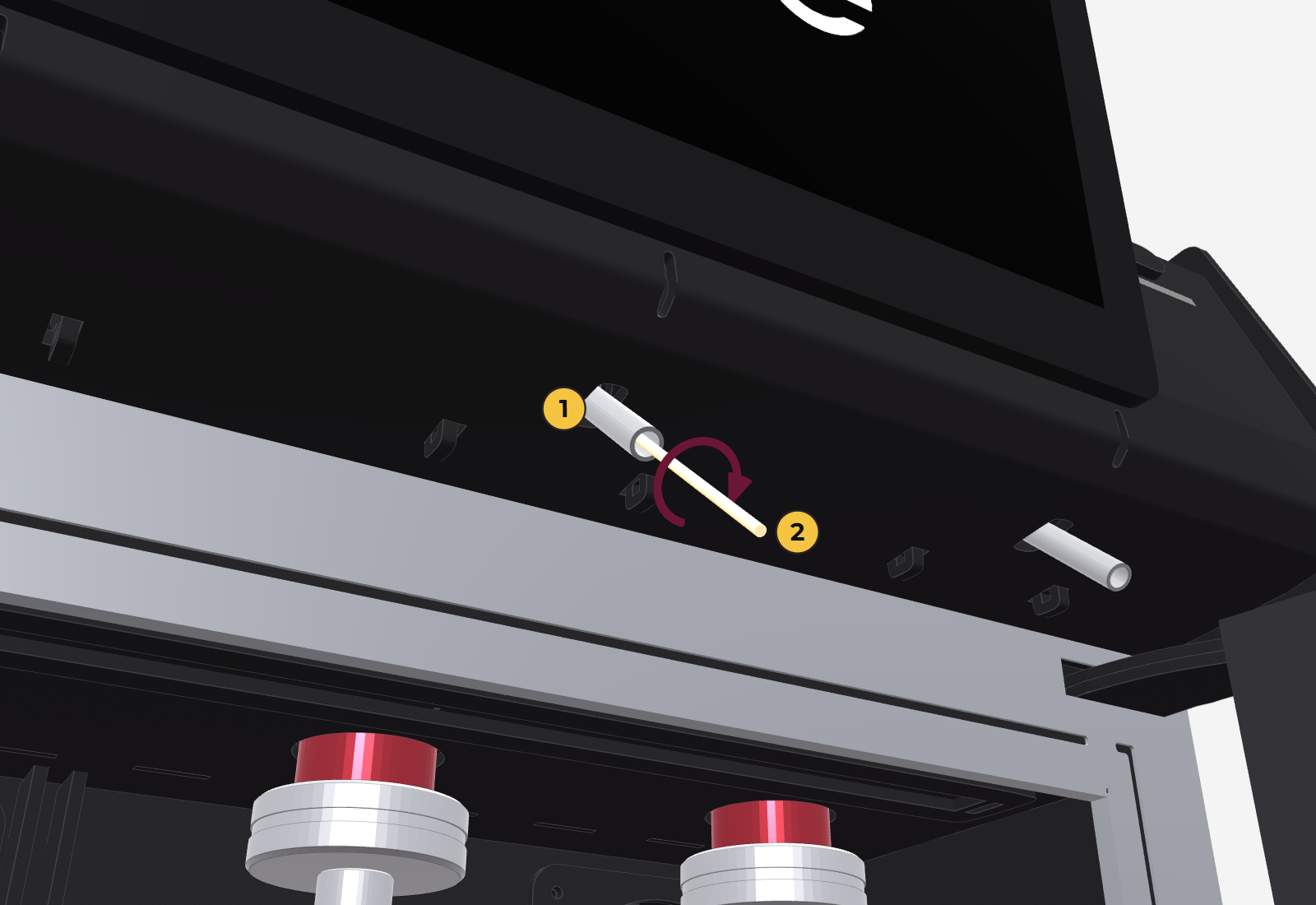
- When it's done, remove the sugar residue from the spout with a regular toothpick: insert it about 2 cm and move it in circles.
- Do one last discharge of water to rinse. If the spout keeps dripping or the water doesn't come out clear, repeat the cleaning.
Don't use cotton swabs to clean the spout: the cotton comes off and stays inside.
Exterior and tablet
- Cabinet and door: with a damp cloth. Don't use abrasive products or sponges.
- Tablet screen: with a soft, damp cloth. Don't use abrasive or alcohol-based products: they damage the screen. If you like, you can use a screen-specific cleaner.
Frequently asked questions
The most common questions. If your problem isn't here, see section 17.
No wine comes out
- Look at the gauge (dial) on the gas cylinder. If the needle is at 0 or very low, you're out of gas: the cylinder needs refilling. On the external cylinder, the valve has to be open for the gauge to show a reading (section 4).
- Check that the cylinder is open (section 4).
- Make sure the bottle isn't empty and that the hose reaches the bottom.
- If the tablet says «Device not found» or «Module unavailable», turn the machine off and on.
If nothing changes, take a photo of the cylinder gauge and contact support.
The spout drips
- With sparkling wines it's normal for it to drip a little because of the gas in the wine.
- With still wine, it's usually a lack of cleaning: do a full cleaning (section 15).
- Check that the bottle is properly sealed in the hanger (section 7).
Glasses come out with more or less wine
Calibrate the position (section 14). If the problem shows up in all three positions at once and the wine comes out very weakly, the gas may be running out: check the cylinder gauge. If that's not it, contact technical service.
Foam comes out instead of wine
The bottle ran out. With infinite bottle, the machine doesn't warn you beforehand: change the bottle and make up what was missing (section 7).
It doesn't cool or doesn't reach the temperature
- Remember that position 1 of each module is the coldest zone and that the range is 5 to 19 °C.
- Check that the machine has room to ventilate (10 cm behind, 5 cm on the sides, 15 cm above), that it's out of the sun and that the room doesn't go above 30 °C.
- With different temperatures in the zones, the divider has to be in place (section 14).
The tablet has no connection
- Look at the connection circle at the bottom right (section 12). If it's red, check the Wi‑Fi (section 4) and the signal where the machine is.
- If «Could not reach the server» appears, check the connection and tap Retry.
- If the venue's internet is down, you can use a cell phone's data as an emergency solution (section 9).
The machine got unpaired or shows as offline in the panel
Before asking for a new code, go to Configuration → Connection and language and check three things: the company name, the venue name and that the machine is there.
- If all three match, it's not a pairing problem. If it still shows as offline, contact support directly.
- If they don't match, ask support for a new pairing code and repeat the steps in section 5.
In the panel, My Machines shows the status of each machine and lets you retry syncing (section 9).
The customer paid with Mercado Pago but the glass wasn't enabled (Pro)
The tablet waits for the confirmation and checks on its own every few seconds, so wait a moment without canceling. If it isn't enabled, check in the panel's Cash Register Report whether the payment went through.
- If the payment shows up, the server, sommelier or manager enables the glass manually with their card or with the method they usually use.
- If the payment doesn't show up, only then charge again.
If the problem persists, contact support, although it's usually a connection problem rather than something support can fix.
How long does the gas last and how is it refilled?
It depends on the cylinder size: the small internal one (800 cm³) lasts about 30 to 35 bottles; a ½ m³ external cylinder, about 175; a 1 m³ one, about 350. Refills are done with your local gas supplier (usually by exchanging the empty cylinder for a full one) or as agreed with Vitte in your terms of sale. How to open and close each cylinder is in section 4.
Can I load a bottle and pour it right away?
It is not recommended if the bottle is at room temperature: the unit takes about 2 hours to bring it to serving temperature. Reds are ready sooner; whites are the most critical. To pour right away, load the bottle already chilled.
Can I use sparkling wine?
Yes, it doesn't damage the machine, but the machine doesn't guarantee the bubbles will hold and the spout may drip a little.
Support and warranty
How to get help and what the warranty covers. This is a summary of the warranty certificate; the full certificate is what counts.
Technical support
- Argentina — Technical service WhatsApp: +54 9 11 4087-4685, Monday to Friday, 8 a.m. to 6 p.m.
- You can also submit the case from the After-Sales section of the website, with photos or a video.
- Send: your name, the business name, the machine's address, a description or video of the problem, and the days and times you're available.
- Service always starts remotely, with a mandatory video call. Vitte decides whether a technician needs to visit or the machine needs to go back to the factory.
Warranty
- 12 months from delivery, for manufacturing defects under normal use. During that period, Vitte guarantees technical service and spare parts.
- Replacing parts or the machine doesn't extend the 12-month period.
- Electronic components (power supply, screen, processor) are covered only if the fault is reported within 15 calendar days of delivery.
- Normal use includes cleaning the lines every 20 days at most with the machine's cleaning program (section 15) and, if the machine sits unused, leaving it clean and without wine.
- To use it, you need to show the invoice or proof of delivery.
- Disassembly or repairs done by third parties, and non-original parts.
- Misuse, impacts, drops, stains, rust, humidity, water or excessive heat.
- Damage from lightning, storms, power surges, voltage other than specified, lack of grounding or poor ventilation.
- Outdoor use, use above 30 °C or in direct sunlight.
- Replacing the gas cylinders, which is the customer's responsibility.
Vitte is not responsible for damage to people or property caused by improper installation, lack of maintenance or failure to follow the instructions in this manual.
Rental units
On the main screen, next to the Stop button, «Rental» shows if the unit is rented or «P» if you own it (see the overview in section 3). If you own it, you can skip this item.
To protect the equipment, a rental unit needs to connect to the internet and validate with Vitte periodically. If it stays offline for an extended period, or if Vitte removes it from the service, the unit locks and stops serving. To unlock it, connect it to the internet and contact support.
Shipping to the factory
- The customer packs the machine. Damage from poor packing is the customer's responsibility.
- If the warranty applies, Vitte covers the repair and round-trip shipping. If it doesn't apply, the repair is quoted and shipping is at the customer's expense.
- If Vitte gives you a replacement machine, you can ask for yours back within 20 days, with shipping at your expense. After that period, the replacement machine becomes yours.
After the warranty expires, service continues to be provided by Vitte's Official Technical Service.